
Multiple-device IPTV use is controlled by simultaneous connections, not simply by how many devices have the player installed. A household can have several televisions, phones and tablets, but each stream playing at the same time may use one connection under the provider?s terms.
1. How Many Devices Can Stream at the Same Time?
Count the busiest viewing period and check the written allowance before adding another device. Profiles organise people or favourites inside an app; they do not automatically create extra connections, and installing a player on more screens does not increase the authorised limit.
| Typical household use | Connections to plan for |
|---|---|
| One person watching on one TV | 1 |
| A TV plus a phone or tablet | 2 |
| Two TVs and a mobile device | 3 |
| Several rooms playing at once | Ask the provider about 4 or more |
Count the busiest viewing period, not every device owned by the household. Installing a player on ten devices does not create ten connections. If the service repeatedly refuses a new stream, confirm the allowed number, close unused sessions and ask whether an additional connection can be added.
2. What Devices Are Compatible?
The player and the service must both support the device. Availability can change by operating-system version, model and app-store region, so treat the following as a checklist rather than a guarantee:
- Smart TVs from Samsung and LG, plus televisions running Android TV or Google TV.
- Fire TV devices, Android TV boxes, NVIDIA Shield and Apple TV where a suitable player is available.
- Android phones and tablets, iPhone and iPad.
- Windows and Mac computers using a compatible desktop or web player.
- PlayStation and Xbox through a supported app or browser, if the service provides one.
- Portal-based boxes such as MAG and Formuler, when the provider supplies the required portal details.
Use an app that matches your device and playlist format. Our guides to IPTV Smarters Pro, TiviMate and the best free IPTV apps explain the relevant menus. A subscription login is separate from the player software; installing an app does not provide channels by itself.
3. Set Up IPTV on Each Device
Install the player from the device’s official store whenever possible, then use the playlist or account details supplied for that device. Do not assume that an app’s layout, supported formats or login method is identical on every platform.
Smart TV or Android TV box
- Connect the television or box to a reliable network. Ethernet is useful for a fixed main TV, while a strong 5 GHz Wi-Fi signal can also work.
- Open the Samsung, LG or Google Play store that belongs to the device.
- Search for a supported player, such as Smarters Pro where it is listed, and check the publisher before installing.
- Open the player and enter the username, password, portal or playlist URL exactly as supplied by the service.
- Wait for the playlist and guide data to finish loading, then test a channel before adding another device.
For device-specific menus, see the local guides for Samsung TV, LG webOS and Android TV and Google TV.
Fire Stick
- Plug the Fire TV Stick into the television, connect its power supply and join the correct Wi-Fi network.
- Install a player from the Amazon Appstore when it is available. If sideloading is permitted and necessary, use only a trusted developer source and scan downloads before opening them.
- Launch the player, add the provider details, and allow the channel list and guide to complete their first refresh.
The Fire Stick setup guide covers the platform-specific steps. App names and store availability can change, so do not install an unrelated package simply because its name looks similar.
Phone, tablet or computer
- Choose a player from the official Google Play or App Store listing. On a computer, use a reputable desktop player or the provider’s supported web option.
- Enter the same account or playlist details used on the television, taking care not to share credentials in screenshots or public messages.
- Play a channel for a minute, then close the stream when finished so the provider can release the connection.
For Apple devices, use the iPhone and iPad guide. Windows users can follow the Windows PC player guide.
4. Can You Share One IPTV Subscription Across Your Household?
If you want to watch IPTV on multiple devices, a household can normally use one subscription on several personal devices when the plan permits it. The important limits are the provider’s connection allowance, its account terms and the capacity of your home network. Read the plan description carefully: some services sell extra connections, while others restrict simultaneous streams to one device.
Keep use inside the permission granted by the provider. Passing one login around outside the household, cloning a playlist or trying to bypass a connection counter can lead to disconnection or suspension. A simple routine avoids most problems:
- Confirm the permitted connections before installing the player on another screen.
- Use device management in the provider account if it is offered.
- Ask whether separate household profiles or sub-accounts are available.
- Keep usernames, passwords and playlist URLs private.
- Upgrade through the normal account route if more simultaneous streams are genuinely needed.
5. Give Each Family Member Their Own Profile
A profile is an app-level arrangement of favourites, categories, guide preferences and, in some players, parental controls. It is not the same as a provider connection. Profiles can keep viewing preferences separate, but they do not increase the number of streams included with a subscription.
Pick an app to watch IPTV on multiple devices
TiviMate offers profile and playlist features on supported Android TV and Fire TV installations. Smarters Pro can hold multiple playlists or logins, although the exact controls depend on the app version. GSE Smart IPTV can also store more than one playlist on compatible Apple devices. Check the current app description before promising a particular profile function.
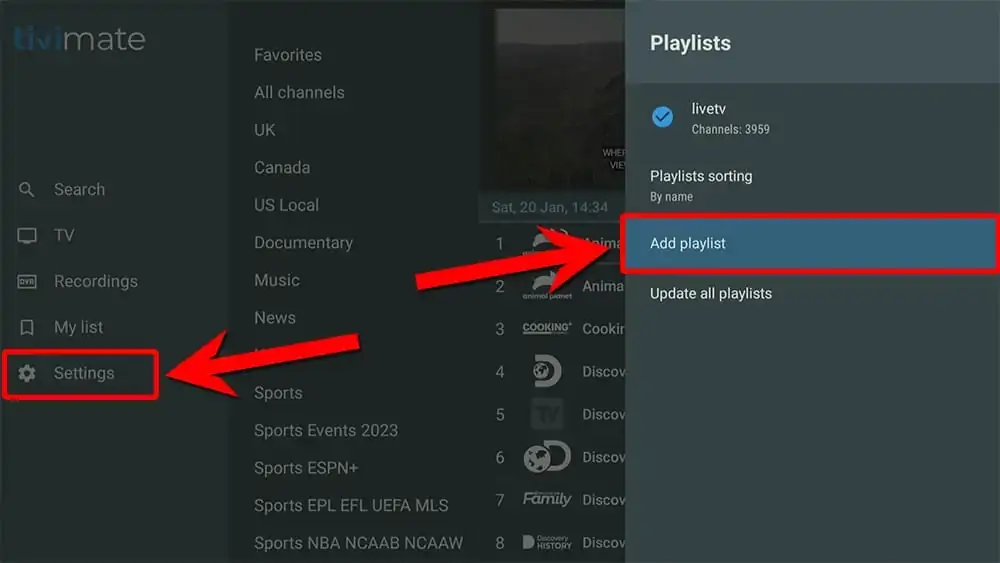
If a profile feature is not offered, keep separate playlists or use the player’s account switcher instead. The image above shows an app menu for adding a playlist; it is not a promise that every version uses identical labels.
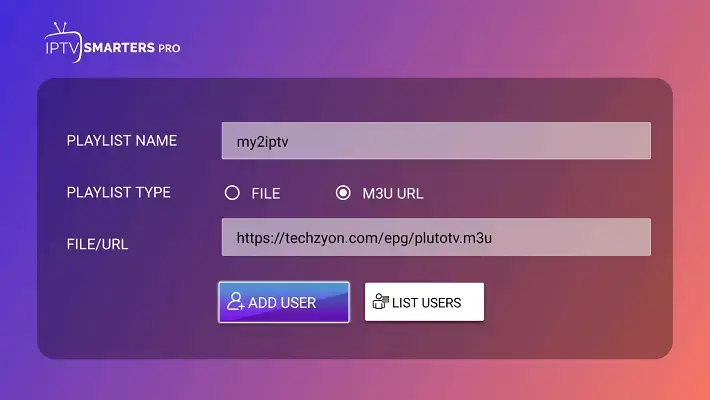
The Smarters Pro form can be used for a playlist or account supplied by the service. Never publish a real M3U address, username or password; URLs can contain embedded credentials and should be treated like account information.
On iPhone or iPad, the player may label this as a playlist rather than a profile. The distinction is useful: separate favourites improve organisation, whereas only a second authorised connection allows two live streams.
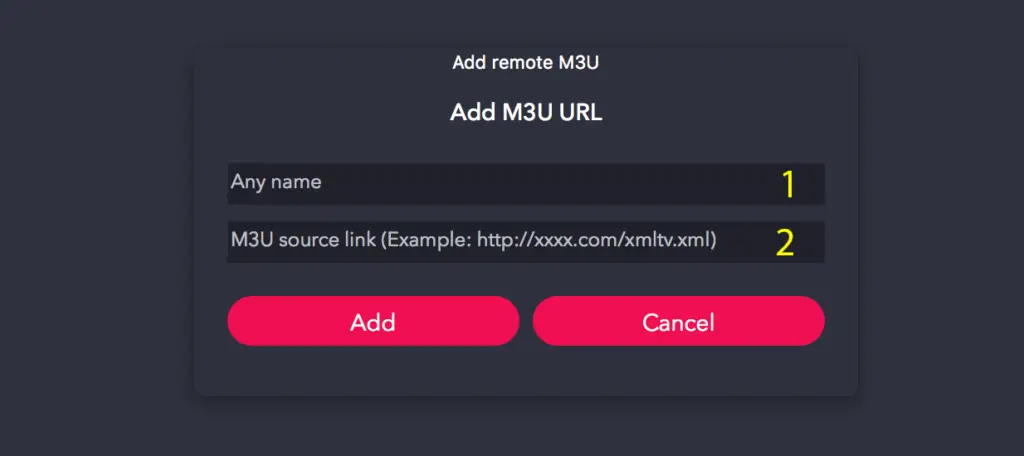
For a wider comparison, see the IPTV player applications guide and choose an app that is available for the devices in your home.
Set up a profile for each person
- Open the profile, account or playlist area in the player’s settings.
- Create one named profile or playlist for each person who needs different favourites.
- Attach the correct authorised login or playlist to that profile.
- Choose language, categories and guide preferences for the person using it.
- Use a parental PIN where the app supports it, and keep the settings PIN separate from the service password.
Tidy and test each profile
Switch into each profile, save the right favourites and hide categories that are not needed. Then test one channel from every profile. If a child must not alter the setup, enable the app’s own PIN or parental control feature rather than sharing the service password.
6. Can You Connect One IPTV Box to Two TVs?
One box can feed two televisions, but it produces one video output. A splitter or extender therefore mirrors the same channel on both screens. To watch different channels, the second television needs its own app, stick or box and the subscription must allow another simultaneous connection.
Choose the method according to the result you need:
| Goal | Suitable method | Connections used | Points to check |
|---|---|---|---|
| Same channel on two nearby TVs | Powered HDMI splitter | 1 | Both screens mirror the source and must accept the output signal |
| Same channel in another room | Wireless HDMI, long cable or extender | 1 | Range, latency, cable quality and receiver placement |
| Same source for an older coaxial TV | HDMI-to-RF modulator | 1 | Picture quality and the television’s tuner requirements |
| Different channels on each TV | A second authorised streaming device | 2 | The plan must include a second live connection |
Option 1: HDMI splitter (same picture)
- Choose a powered splitter with the HDCP and resolution support required by both televisions, including 4K/60 Hz if that is genuinely needed.
- Connect the box HDMI output to the splitter input.
- Run one suitable HDMI cable from each output to the corresponding TV.
- Turn on the TVs, then the splitter, then the box so the devices can negotiate the display signal.
A 4K television and a 1080p television may negotiate the lower common resolution. Some splitters offer scaling or EDID controls, but results depend on the displays, cables and copy-protection handshake. If a screen stays blank, test each TV directly with the box before changing hardware.
Option 2: Wireless HDMI or a long cable (same picture, another room)
- Wireless HDMI sends the box output to a receiver. Walls, floors and competing radio signals affect range, delay and reliability, so follow the kit’s own limits.
- For a longer run, use a suitable active or fibre HDMI cable, or an Ethernet-based extender rated for the resolution you need.
- If the box remote cannot reach the second room, use a compatible IR extender or control the box from its supported app.
Option 3: A second device (different channels)
Install a compatible player on the second smart TV, or use a Fire TV or Android TV stick, and enter a separately authorised session. Each television can then choose its own channel. A second device is normally the better option when the rooms need independent remotes and different programmes. Use the IPTV setup guide if you need to compare device routes.
Fix the common two-TV problems
- A blank or no-signal screen can indicate an HDCP or HDMI handshake problem. Reseat the cables, test a direct connection and power the equipment back up in sequence.
- If one TV has no sound, select a compatible PCM or stereo output on the box rather than an audio mode the display cannot decode.
- If the picture drops in resolution, the two displays may be negotiating their lowest shared mode. Try a suitable scaler or use separate devices.
7. Does Multi-Device Streaming Reduce Quality?
Starting another stream does not automatically lower the picture quality, but every stream shares the capacity of the internet connection and home network. Required bandwidth varies with resolution, codec, frame rate, provider delivery and network overhead, so there is no universal Mbps figure that fits every service.
If a second screen begins buffering, work through these checks:
- Run a speed and stability test on the device that buffers, not only on a nearby phone.
- Use Ethernet for a fixed main television when practical, or improve Wi-Fi signal and channel selection.
- Lower the resolution of a secondary stream if that player offers the option.
- Pause large downloads, cloud backups and game updates while testing.
- Check the router firmware, placement and capacity if several streams share it.
An HDMI splitter or wireless HDMI kit mirrors one local video output, so it does not consume a second internet stream. It can still introduce display, cable or copy-protection issues.
8. Can You Use the Same Account From Different Locations?
Some providers allow an account to be used while a family member travels, while others restrict the number of networks or locations that can connect. The answer is in the provider’s terms and account controls. Do not assume that a plan allowing two streams also allows two unrelated households.
9. What Happens If You Exceed the Device Limit?
The new stream may be refused with a connection-limit message, or an existing session may be interrupted. This is usually an account rule rather than proof that the player or internet connection is broken. Try the following in order:
- Close the player fully on devices that are no longer being watched.
- Sign out old phones, boxes or tablets that are still listed in the account.
- Restart the selected player so its session can be registered again.
- Ask the provider to clear a stale session or add an authorised connection.
- Agree which screens should be used during busy viewing times.
If a stream fails even when you are below the limit, compare the result with the IPTV outage and troubleshooting guide and check the provider’s service notice.
10. Sharing IPTV Legally and Safely in the UK
Using a player on several devices is not the same as having permission to receive every channel or programme. Choose a provider that is authorised to supply the content in the UK, follow its connection terms and keep the account for the people covered by the plan. A multi-device feature does not make an unlicensed service legitimate.
- Read the provider’s licence and acceptable-use information before paying.
- Do not resell, redistribute or publish your login, playlist URL or access token.
- Protect account details with a password manager and remove old devices from the account.
- Use a trial or support contact to test two screens before choosing a longer plan. The local IPTV free-trial guide explains what to check.
Frequently Asked Questions
Can I watch IPTV on my phone and TV at the same time?
Yes, if your plan includes two authorised connections and your network can carry both streams. Check the provider’s terms if one device is outside the usual home network.
Do I need a separate subscription for each device?
Usually not. One subscription can be installed on several devices, but the plan may limit how many are allowed to play at once.
How many devices can use one IPTV subscription?
There is no universal number. Some plans permit one stream and others sell extra connections. Ask the provider for both the installation allowance and the simultaneous-stream allowance.
Can I share my IPTV account with someone in another household?
Only if the provider’s terms expressly allow it. Many plans restrict sharing outside the account holder’s household, so ask about an additional authorised connection instead.
What is the difference between a profile and a connection?
A connection is one live stream permitted by the plan. A profile is an app setting for favourites, categories or restrictions. Profiles organise viewing but do not add another stream.
Can I create profiles without buying a second subscription?
Yes, where the app supports profiles or separate playlists. A second subscription is only relevant if the provider requires one or if you need more simultaneous connections.
Can I connect one IPTV box to two TVs?
Yes, with a suitable splitter, wireless HDMI kit or cable, but both screens receive the same source picture. A second device is needed for a different channel.
Do I need two IPTV subscriptions for two TVs?
Not necessarily. One plan with two authorised connections can cover two independent devices. Mirroring the same box output uses one stream, while different channels need two.
Can two TVs watch different channels from one IPTV box?
No. A single box normally sends one channel to its output. Put a supported player on the second television and use another permitted connection.
Why does my second TV show no signal with an HDMI splitter?
Check the power supply, HDMI seating and display input first. A copy-protection or resolution handshake can also fail, so test each TV directly and confirm the splitter is compatible with both.
Does an HDMI splitter work with 4K?
It can, if the splitter, cables and both displays support the required 4K mode and copy-protection standard. Mixed displays may negotiate a lower common resolution.
Will watching on multiple devices cause buffering?
It can expose a capacity problem, but buffering also has other causes. Test each device, reduce competing traffic and compare the result with the provider’s service status before blaming the number of screens.
How do I stop my kids switching to another profile?
Use the app’s parental PIN or settings lock if available, keep the service credentials private and test that the restriction remains after the player restarts.
Conclusion
One subscription may cover every screen in a home, provided its terms include enough simultaneous connections and the network can carry the streams. Install a suitable player on each device, keep profiles separate from connection entitlements, and close sessions that are no longer in use.
For two TVs showing the same channel, mirroring one box can be adequate. For different channels, use a second authorised device. Test the arrangement with the provider’s support or trial route, and keep playlist URLs and passwords private. For costs, see IPTV pricing; for network planning, see the internet speed guide.