
TiviMate is a player for compatible Android TV, Google TV and Fire TV devices; it does not supply channels or a subscription. To set it up, install the player through the available official route, choose Add Playlist and enter the M3U, Xtream Codes or portal details provided for your account.
Before opening the app, check the device platform, keep the server address and credentials nearby and decide whether the provider supplied a separate XMLTV or EPG address. Treat every playlist URL as private information and test the basic channel list before changing advanced playback settings.
If you need to check which player suits your television first, use the Nesta IPTV device guide and the step-by-step setup guide.
1. What TiviMate Does
TiviMate organises a playlist into a television-style interface. It can display live channels, on-demand categories and an electronic programme guide (EPG), but the app starts empty until you add a source from a provider.
- Supported playlist choices include Xtream Codes, an M3U link and, where supplied, a Stalker portal.
- The layout is designed for a TV remote, with search, favourites and group controls.
- Premium is an optional paid upgrade for extra app features; it is separate from any IPTV subscription you use.
Check the current Nesta IPTV pricing page separately from the player. The app, the playlist and the rights to the programmes are three different things.
2. Check Compatibility and Prepare Your Details
These checks form the first part of how to set up IPTV on TiviMate safely. TiviMate is intended for large-screen Android devices. Android TV, Google TV and NVIDIA Shield devices normally install it from Google Play. Android TV boxes can also work when they run a compatible version of Android TV. Fire TV support depends on the model and Fire OS version, so treat sideloading as device-specific rather than guaranteed.
- Prepare: a stable internet connection, your provider email and a remote that can enter text.
- Have ready: an Xtream server URL with username and password, or the complete M3U link and (if supplied separately) an XMLTV/EPG link.
- Check first: Apple TV, iPhone, iPad, Samsung and LG televisions, Roku and ordinary phones use different players. Do not assume the Android TV app will run on them.
Keep credentials private while you work. If a playlist URL contains a username or password, avoid sending it through public forms, support chats or shared screenshots.
3. Install TiviMate on a Compatible Device
Android TV, Google TV and NVIDIA Shield
Open Google Play on the television, search for TiviMate IPTV Player and select Install. You can also use the official TiviMate Google Play listing from a signed-in browser and choose a compatible TV. The exact menu names can differ slightly between Android TV and Google TV versions.

Compatible Fire TV Stick and Fire TV Cube models
On a compatible Fire OS device, check Settings > My Fire TV > About first. Select the device name and press the centre button seven times to reveal Developer Options. Fire TV model and operating-system availability varies, and newer Vega OS models may not support this Android APK route.

Install Downloader from the Amazon Appstore if it is available for your model. In Developer Options > Install Unknown Apps, allow Downloader, then open it. The official TiviMate site confirms the address tivimate.com/apk and Downloader code 272483. Only continue when your device permits the installation and you trust the source.

4. Open TiviMate and Select Add Playlist
Launch TiviMate from the apps row and open it.
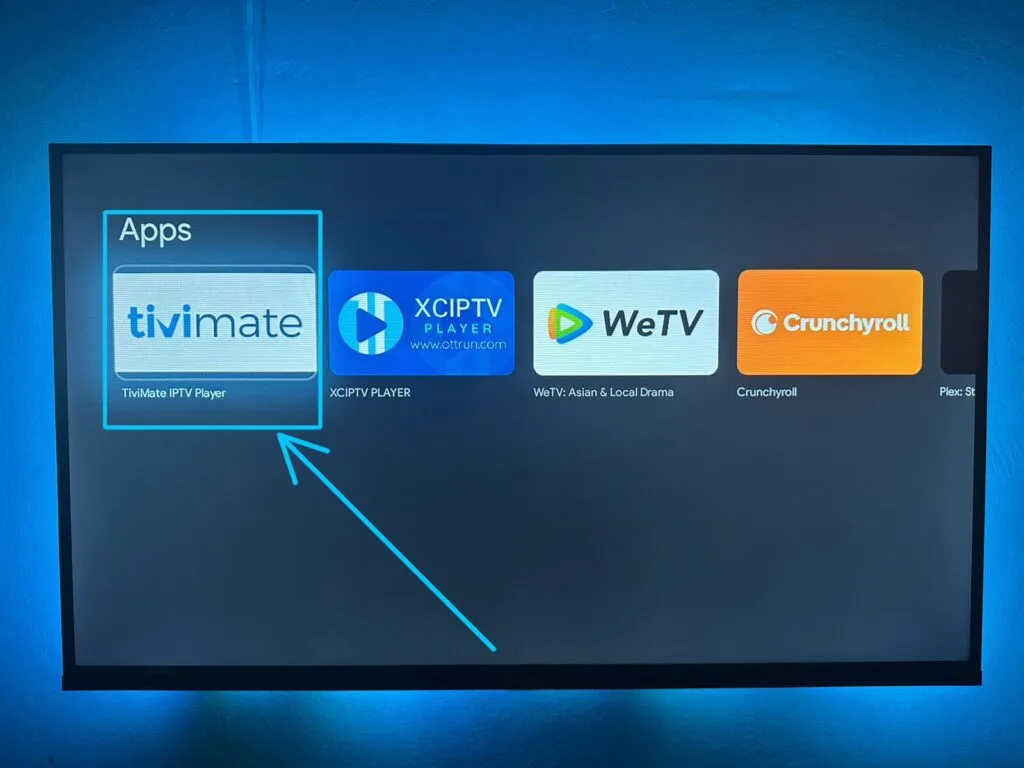
A fresh installation shows an empty start screen with an Add Playlist button. Select it. If you have already added a source, open Settings > Playlists to add another one without deleting the existing playlist.

If you are still waiting for account details, stop at this screen rather than trying random URLs. Use the Nesta IPTV free-trial route only according to its current local terms, and keep any login it supplies private.
5. Choose M3U, Xtream Codes or a Portal
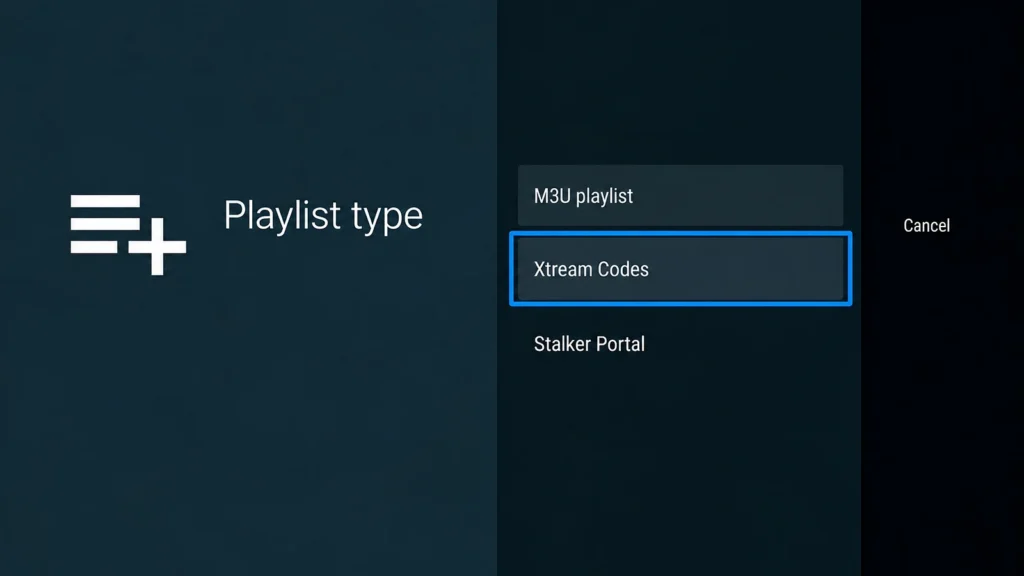
TiviMate offers several playlist methods. Choose the one your provider actually sent: Xtream Codes uses a server address, username and password; M3U playlist uses one complete URL; and Stalker Portal is only appropriate when a provider has supplied a portal address and any required device or MAC details. No method is automatically better for every service.
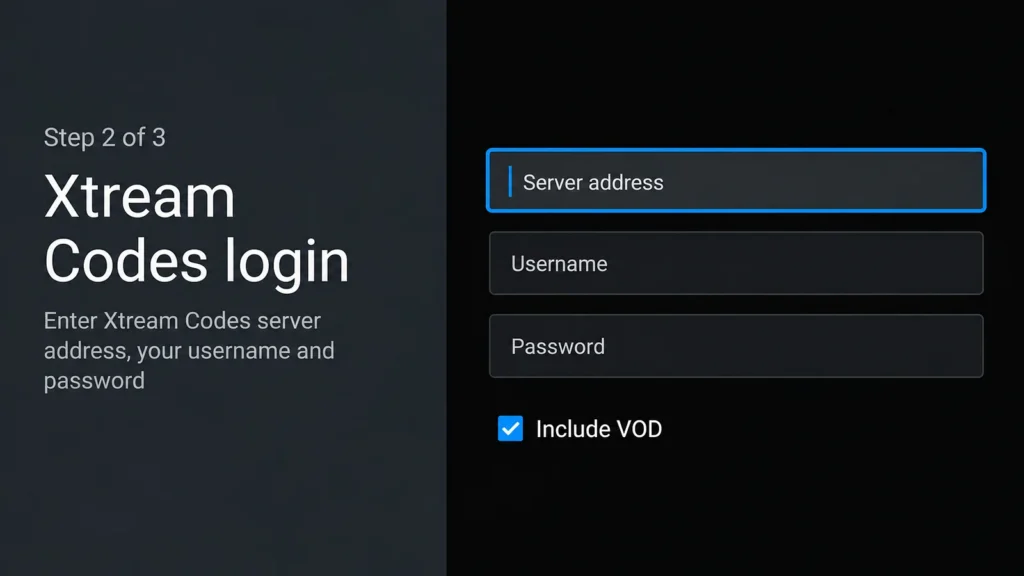
For Xtream Codes, enter the server address first, then the username and password. Copy the complete address, including http or https, capital letters and any port number after a colon. Select Next when the fields are complete.
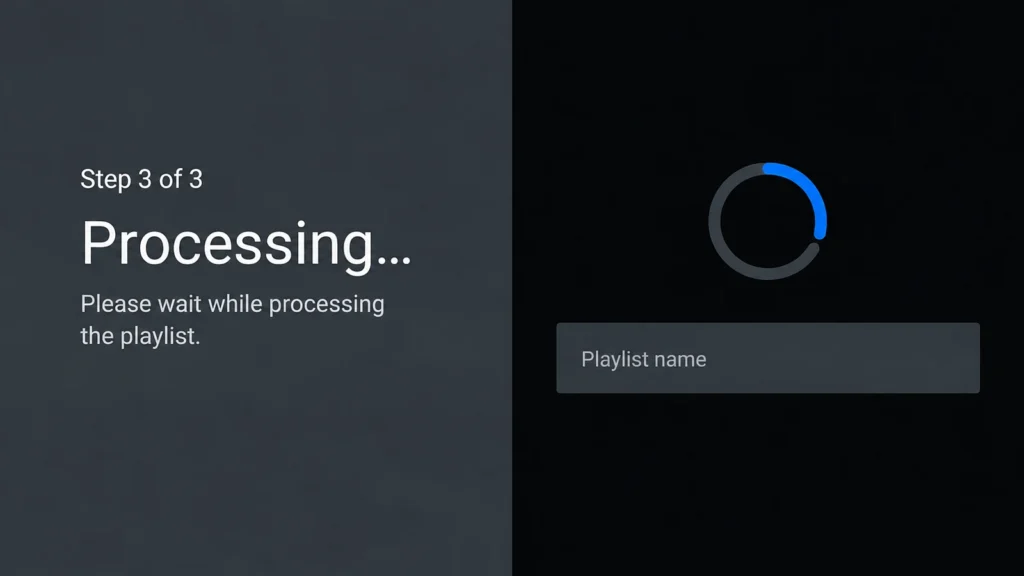
TiviMate will contact the server and process the playlist. Wait for the result rather than pressing Next repeatedly. When prompted, give the playlist a clear name so you can recognise it later.
For M3U, paste the entire link into the M3U URL field. Do not split it across lines or remove query parameters. If the link contains credentials, treat it like a password and remember that the full address can remain in browser history or device logs.
6. Add the EPG (TV Guide)
An Xtream Codes login may deliver its guide automatically, depending on the provider and current playlist. With an M3U link, TiviMate may ask for an XMLTV/EPG source immediately after the playlist is added. Paste the EPG URL exactly as supplied, or add it later through Settings > EPG > Add EPG source.
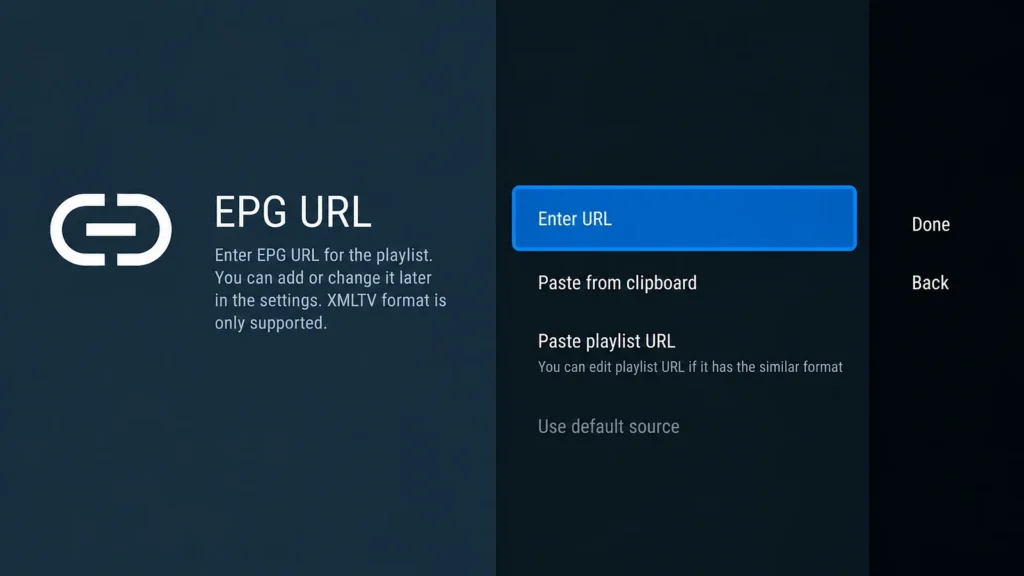
Set the guide to refresh on a sensible schedule, such as every 24 hours, if that option is available in your version. If only a few channels have no listings, check their guide source individually. If the whole guide is empty, re-check the XMLTV address, device time zone and provider status. Never publish an EPG URL that contains private account details.
7. Free and Premium TiviMate Features
The free app can be enough for watching live TV from one playlist, but the exact feature split can change with the current TiviMate release. Premium is an optional purchase from the app developer, not a replacement for an IPTV provider. The official listing describes features such as multiple playlists, favourites, catch-up, recording, multiview and parental controls; availability may depend on the active Premium plan and device.
- Hold OK on a channel to add it to Favourites or hide it.
- Hide groups you never watch so the guide stays manageable.
- Use the guide and playback settings to choose the start channel, programme layout and other personal preferences.
- Recording requires suitable storage and a provider stream that permits the relevant playback function.
Keep the app purchase separate from the service plan. A Premium subscription cannot add channels or repair an invalid provider login.
8. Optimise Settings and Troubleshoot
| Problem | Likely cause | What to try |
|---|---|---|
| Login fails | Typing error, wrong capitalisation or missing port | Re-enter the server URL, username and password exactly as supplied. |
| Downloader cannot install the APK | Unknown apps are blocked, or the Fire TV model/OS is incompatible | Check Developer Options and Install Unknown Apps, then confirm your model supports the Android route. |
| Channels are missing or old | The playlist has not refreshed | Open Settings > Playlists, select the source and update it. |
| The guide is empty | No EPG source, expired URL or provider-side problem | Check Settings > EPG, confirm the XMLTV link and ask the provider if the whole service is affected. |
| Guide times are wrong | Device time zone or daylight-saving setting | Use the device automatic time-zone setting, then refresh the EPG. |
| Playback freezes | Wi-Fi congestion, device load or provider capacity | Try Ethernet or 5 GHz Wi-Fi, test another channel and compare another device before changing the playlist. |
TiviMate itself does not require a VPN. If you use one for privacy, connect it at device level before opening the player and check whether it improves or worsens playback. A VPN cannot make an unlicensed service lawful, and it cannot fix an overloaded provider.
9. IPTV Legality in the UK
TiviMate is a media-player application. The legal question concerns the service and programmes you connect to it, not the existence of the player itself. Use a provider that is authorised to supply its channels and on-demand content in your region, follow the provider’s terms and avoid suspicious offers promising premium channels for an implausibly low price.
Do not share or resell playlists that you do not own, and do not assume that a VPN changes licensing rights. When in doubt, check the provider’s published rights information or seek independent legal advice.
Frequently Asked Questions
Is TiviMate free?
The player can be installed without buying Premium, but some features require the developer’s paid upgrade. Your channels and guide still come from a separate IPTV provider.
Which devices work with TiviMate?
It is designed for Android TV and other compatible large-screen Android devices, including many Google TV and NVIDIA Shield setups. Fire TV support varies by model and Fire OS version. It is not a general iPhone, iPad, Apple TV, Samsung, LG, Roku or touch-phone player.
What is the Downloader code for TiviMate?
The official TiviMate site currently lists 272483 for Downloader. You can also type tivimate.com/apk directly, provided your compatible Fire OS device permits the installation.
Does TiviMate include channels?
No. It plays the playlist you provide through M3U, Xtream Codes or another supported source. It does not sell or supply channel access.
Should I use Xtream Codes or M3U?
Use the format your provider issued. Xtream Codes can make the guide and categories easier to load from one login, while M3U is a single playlist URL and may require a separate XMLTV link for the EPG.
Why is the TV guide blank?
With M3U, check that an XMLTV/EPG source was added and is still valid. With Xtream Codes, refresh the EPG, confirm the device time zone and ask the provider whether the guide service is operating.
Can I use TiviMate on a phone?
The interface is built for a television and remote rather than a touch screen. A mobile-focused IPTV player is usually easier to use on a phone.
Conclusion
For most people, how to set up IPTV on TiviMate comes down to four stages: install the player on a compatible screen, select Add Playlist, enter the provider’s M3U or Xtream Codes details and confirm the EPG. Keep every URL private, check the device and Fire OS version before sideloading, and treat missing channels or guide data as a provider or configuration issue rather than something Premium can fix.
Once the playlist loads, tidy the guide by hiding unused groups and starring the channels you watch most. If you need a suitable device or plan, return to the device guide, review the Nesta IPTV plans or use the local trial route before making a longer commitment.