
Smarters Pro setup starts with the login format supported by the current app build and the details supplied by your authorised provider. The common choices are Xtream Codes, an M3U playlist or a provider-specific connection, so select the matching option instead of guessing from the app name.
Prepare the device, install the app from its available official store and keep the server URL, username and password private. If the first login fails, check each character and the account status before reinstalling or switching players.
1. What You Need Before You Start
- Xtream Codes details: a server URL, username and password. Copy every character, including a port such as
:8080when your provider includes one. Login details are case-sensitive. - Or an M3U playlist link: use the complete
http://orhttps://address supplied for your account. Our IPTV URL guide explains the different formats. - An EPG (XMLTV) link: add this separately only when your provider supplies one. Xtream Codes often loads guide data automatically.
- A stable internet connection: test the main television in the evening and use Ethernet where practical.
Smarters Pro is a media player, not a television service, and it does not include channels. Use an account from a provider that is authorised to supply the content you watch. If you need to test a new setup, use the local IPTV free trial or compare the current IPTV plans; neither route should require you to publish your private credentials.
2. How to Log In to IPTV Smarters Pro: Adding Your Xtream Codes or M3U Details
If Smarters Pro is not installed yet, use the relevant device section below first. On the first launch, accept the app’s terms and allow only the permissions you are comfortable granting. If a device selector appears, choose TV or Mobile so the layout matches your screen.
The labels can differ slightly between releases:
- Android TV, Android phones and LG: look for Login with Xtream Codes API or Load Your Playlist or File/URL.
- Samsung: choose Xtream Codes API or M3U URL when those options are shown.
- iPhone, iPad and Apple TV: the Xtream form may be called Player API; M3U is usually labelled M3U URL.

Xtream Codes. Give the profile a memorable name such as Home TV, then enter the server URL, username and password exactly as supplied. The app normally separates live channels, films and series and may bring in the programme guide automatically. That is convenient, but it is not a guarantee that every provider exposes the same features.
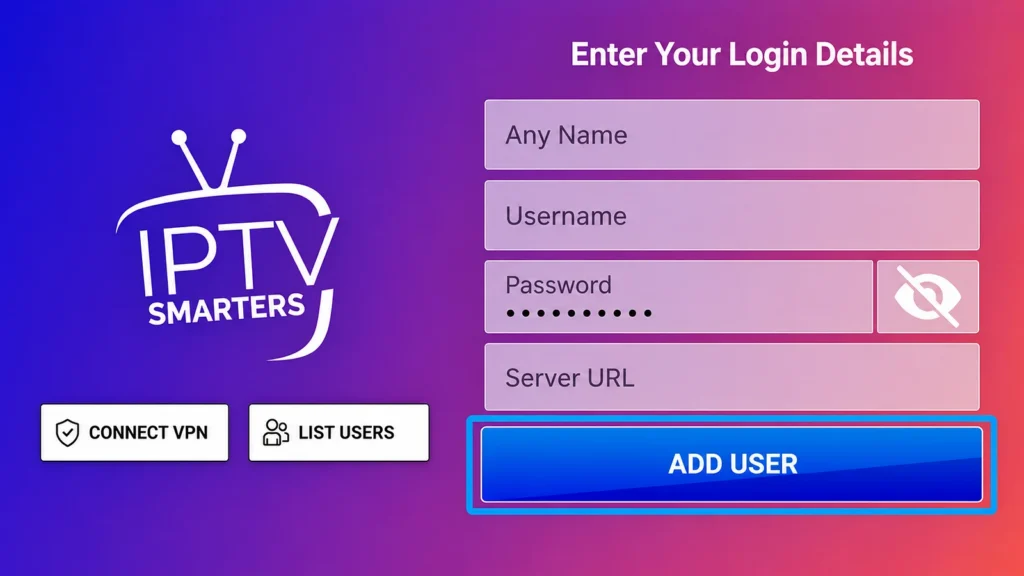
M3U playlist. Name the playlist and paste the complete link. It should begin with http:// or https://, with no missing characters or spaces at either end. Treat an M3U link like a password: it can contain embedded account details and may be stored in clipboard history, browser history or device logs.
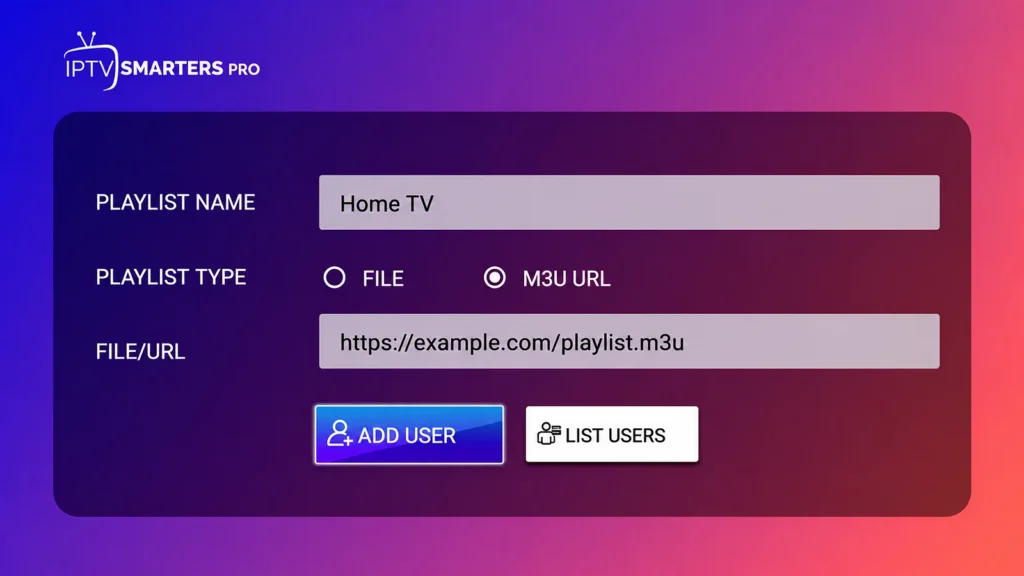
Select Add User (or Add Playlist on some Apple versions) and leave the app open while the data is imported. Large playlists can take longer the first time. Never paste a real username, password or private playlist into a public example, support forum or screenshot.
3. Install on Android TV, Google TV, or an Android Box
Open the Google Play Store on the television or box, search for Smarters Pro, and check that the listing is from Tech Smarters before selecting Install. The verified Google Play listing is the safest place to confirm the current package and device support. Open the app after installation, then return to section 2 to add your provider details.

For device-specific Android TV steps, see the Android TV, Google TV and NVIDIA Shield guide. Menus and app availability can vary between Android TV versions, Google TV updates and regions.
4. Install on an Android Phone or Tablet
On an Android phone or tablet, open Google Play, search for Smarters Pro and confirm the developer before tapping Install. Open it, allow only the requested permissions you need, choose Mobile if the app asks, and use the login options in section 2. A smaller screen may use a different layout, but the Xtream and M3U fields work in the same way.
5. Install on iPhone, iPad, or Apple TV
iPhone and iPad: open the App Store, search for Smarters Pro, and select the listing by Tech Smarters Private Limited. The verified UK App Store listing states that it requires iOS or iPadOS 15.6 or later. Select Get, allow local-network access if iOS requests it, and open the app.
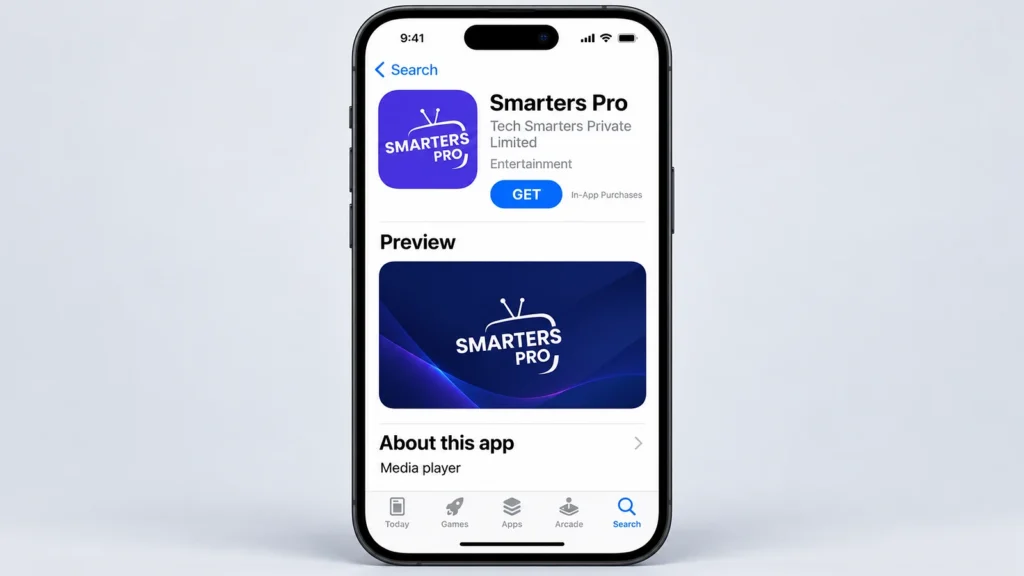
On Apple devices, Player API is often the name used for the Xtream login. It still needs the same server URL, username and password. Choose the M3U option if your provider supplied a playlist instead.
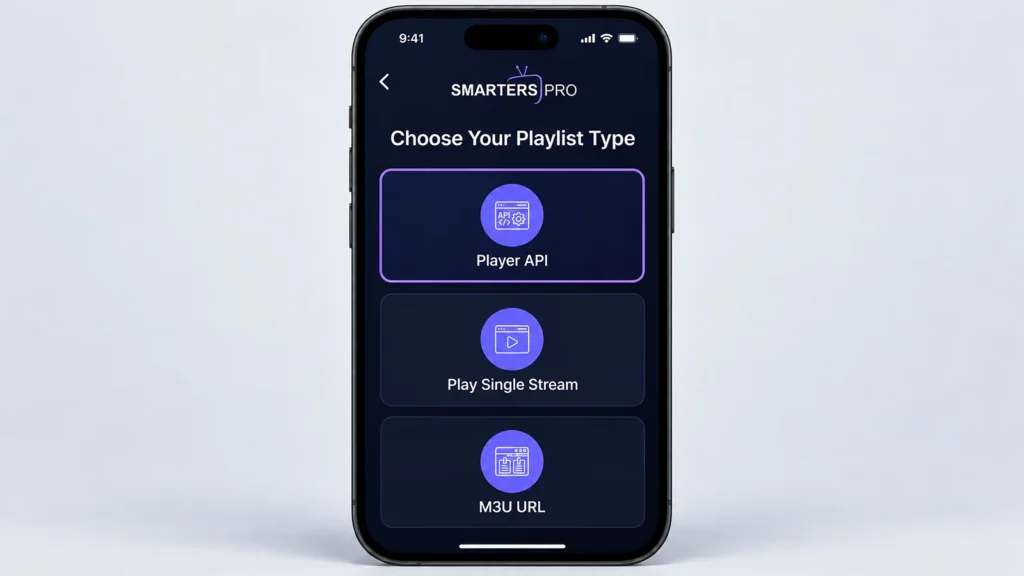
Apple TV: open the App Store, choose Search and look for Smarters Pro. The UK listing exposes iPhone, iPad and Apple TV support, but the exact result and minimum tvOS version can vary by model and region. Select the verified publisher when it is shown, install the app, and then use Player API or M3U as described above.

The Apple TV setup guide covers the remaining device settings. If the listing is not offered for your Apple TV, do not install an unrelated clone simply because its name looks similar.
6. Windows and Mac
Windows: we could not verify a current official Smarters Pro listing in the Microsoft Store during this review. Avoid installers from random download sites or lookalike apps. For a Windows computer, use a reputable player such as MyIPTV Player, VLC or Kodi with the same M3U details, and follow the Windows IPTV guide. Availability and naming can change, so check the publisher before installing anything.
Mac: the UK App Store page identifies Smarters Pro as designed for iPad and says that macOS compatibility is not verified. Treat Mac support as unconfirmed rather than guaranteed. If the app is offered for your Mac, check the developer and permissions; otherwise use a trusted desktop player and your provider’s M3U or Xtream details.
7. Install on a Samsung or LG Smart TV
Samsung: sign in to the Samsung account, press Home, open Apps and search for Smarters Pro. The supplied screenshot shows a listing from Tech Smarters Private Limited. Install only when the same publisher and app details appear for your TV and region; if the result is missing, use another player offered by the TV’s store. The Samsung IPTV guide lists alternatives.

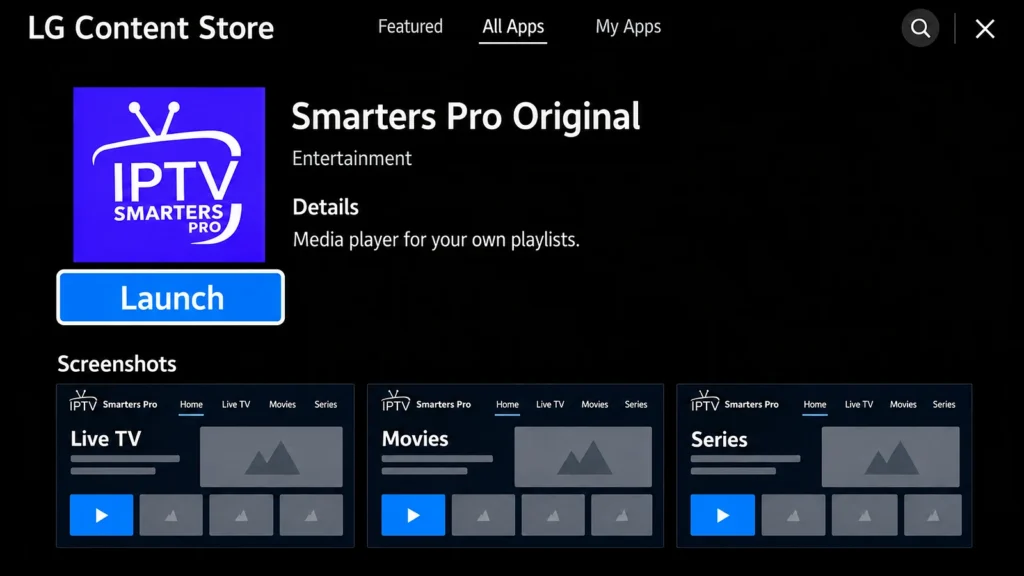
LG: open the LG Content Store and search for Smarters Pro Original. The supplied screenshot shows that title with a Launch button, but app availability depends on the webOS version, TV model and region. Verify the publisher and current listing before installing. If it is not offered, the LG webOS guide explains safer alternatives.
When neither store offers a suitable player, connect a supported streaming stick or Android box and install the player through its official store. This avoids sideloading an unknown package onto an older television.
8. Firestick or Fire TV
We could not verify a current official Smarters Pro listing in the Amazon Appstore during this review. Do not treat an old Downloader code or an APK from an unknown site as a guaranteed or safe installation. If Smarters Pro is not listed on your Fire TV, choose a supported player such as TiviMate from the Amazon Appstore and enter the same Xtream or M3U details. The Fire Stick guide explains the available options and device limitations.
9. Manage Profiles, the Programme Guide, and Favourites
After a successful login, Smarters Pro saves the profile under the name you entered. Keeping separate profiles is useful when people in the same household have different provider accounts.
- Open the user list on the home screen and choose Add User to save another set of details.
- Select a profile to switch accounts. Use the delete option only when you are sure you no longer need those credentials.
- In Live TV, highlight a channel and hold OK (or long-press on a phone) to add it to Favourites.
- If the programme guide is empty, refresh the EPG in Settings. With M3U, add the separate XMLTV address from your provider.
- If listings are shifted, correct the time zone on the device and refresh the guide again.
For related fixes, see the Smarters Pro subtitles guide and the site’s IPTV FAQ. Do not share exported profiles because they may include active credentials.
10. Optimise Playback and Fix Login Problems
On Android TV, open Settings from the home screen, enter the player settings and try Hardware Acceleration for smoother playback. If one channel will not start, switch hardware decoding off or choose another player under Player Selection. Different streams use different codecs, so one decoder may work better than another.

| Problem | Likely cause | Fix |
|---|---|---|
| Login rejected | A typo, wrong capitalisation or a missing port | Copy the server URL, username and password again and confirm the plan is active. |
| M3U invalid or empty | A missing character or a space at the end | Copy the entire link and paste it rather than typing it. |
| Stuttering or freezing | Weak Wi-Fi or a busy connection | Try Ethernet or 5 GHz Wi-Fi and review the speed guide. |
| App feels slow | A full cache or a large playlist | Clear the app cache, restart it and refresh the playlist. |
| Nothing plays on any channel | The provider or account rather than the app | Check the account status and contact the provider’s support team. |
A VPN is not required for Smarters Pro. It can change routing and may help with a specific, evidence-based ISP throttling problem, but it also adds latency and does not make an unlicensed service legitimate. Test the connection with and without it and follow the provider’s support instructions when diagnosing playback.
Frequently Asked Questions
Why can’t I log in to IPTV Smarters Pro?
Most failed logins come from one incorrect character, a missing port in the server URL or an expired account. Copy the credentials again, check the device clock and confirm that the provider has not issued a new server address.
Which devices does IPTV Smarters Pro work on?
It is listed for Android TV and Google TV, Android phones and tablets, iPhone, iPad and Apple TV, with TV-store listings also appearing on some Samsung and LG models. Availability depends on the model, operating-system version and region. Fire TV and Windows support were not verified as official in this review.
Do I need a subscription to use the app?
Yes, you need your own authorised media source or provider account. Smarters Pro is only a player and does not supply channels by itself.
Can I use IPTV Smarters on a Fire Stick?
Only if a current, official listing is available for your Fire TV model and region. That listing was not verified during this review, so use a supported player from the Amazon Appstore rather than an untrusted APK.
Is an M3U link or Xtream Codes better?
Use whichever your provider and player support. Xtream Codes can organise live, film and series sections automatically, while M3U is a straightforward playlist link that works in many players.
Which Smarters app should I install on Apple TV?
Choose the official Smarters Pro listing by Tech Smarters Private Limited when it is offered for your Apple TV. Confirm the publisher and the minimum tvOS requirement in the store before installing.
Why is there no Xtream Codes option on my iPhone?
The same login may be labelled Player API on iPhone and iPad. Enter the server URL, username and password in that form, or choose M3U if your provider sent a playlist link.
A channel freezes or won’t start. How do I fix it?
Try another decoder or player for that channel, then check the network and account status. If every channel fails on every device, contact the provider rather than reinstalling the app repeatedly.
Conclusion
If you are checking how to log in to IPTV Smarters Pro, the safest route is to install the listing supplied by your device’s own store, confirm the publisher, and then enter the credentials from an authorised provider. Use Xtream Codes when it is supported, or paste the complete M3U link when that is the format you received. Keep the details private because they can grant access to your account.
Check the device-specific setup guides and device list when menus differ. App availability is not universal: models, software versions and regions change what each store displays. Verify the current listing before installing, keep your playlist secure, and use the troubleshooting table when a login or channel does not behave as expected.