
Choosing a free IPTV player starts with the device and the playlist format, not with a promise of free channels. Compare the player?s supported login method, guide handling, remote controls and privacy practices, then connect it only to a service authorised to distribute the content.
A free player is software: it reads a playlist and presents the channels or on-demand items supplied by a source. It does not create channels, include a subscription or make an unlicensed stream lawful. Use a service that has the necessary rights, keep your login details private and check the rules that apply where you live. If you are new to the terminology, our what is IPTV guide explains the difference between a player, a playlist and a provider.
1. Player and service: know the difference
A free download may be a capable player, a limited version or an app with optional paid features. Separate the cost of the software from the cost and licensing of the content source, and test one suitable player before installing several apps that all store the same private credentials.
| Term | What it does |
| IPTV player | Reads and plays the playlist, guide data and media supplied to it. |
| IPTV service or source | Provides the channels, programmes, stream URLs and, where available, EPG data. |
Changing players can help when an app has a decoding or interface problem, but it cannot repair an expired account or an unavailable stream. Start with a legitimate source, then choose an app that suits the device and the playlist format you have been given.
2. Features worth checking in an IPTV player
Before installing an app, compare the features that will affect everyday use:
- M3U and Xtream Codes support: use the format supplied by your provider rather than converting credentials unnecessarily.
- EPG or XMLTV support: a programme guide makes a long channel list easier to browse.
- Hardware decoding: this can reduce dropped frames on compatible televisions and streaming boxes.
- Playlist and category controls: favourites, groups and filters keep large lists manageable.
- Current maintenance: an app that still receives updates is more likely to keep working after an operating-system change.
Feature names and availability vary between versions, regions and devices. Treat the store listing and the app’s own help pages as the final authority.
3. The 11 best free IPTV players by device
1. TiviMate
Best for Android TV, Google TV and compatible Fire TV devices. TiviMate is designed around a television-style guide, with playlist management, favourites, search, catch-up and recording features where the device and source support them. The official site describes it as an Android TV player and makes clear that it supplies no channels. Its free and premium feature sets can change, so check the current app listing before relying on a particular limit. See the official TiviMate site for current platform and download information.
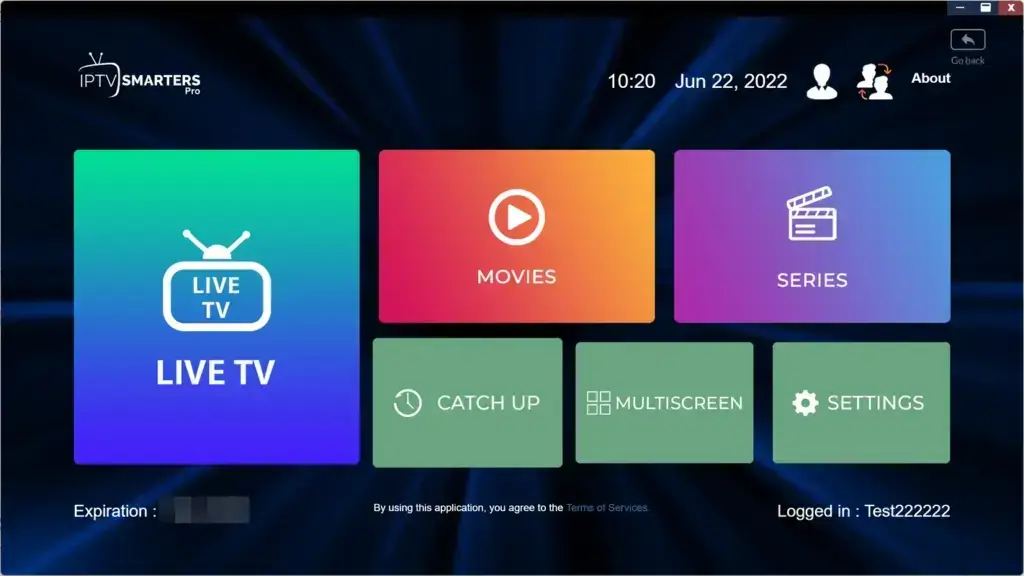
2. IPTV Smarters Pro
Best when a household uses several supported platforms. IPTV Smarters Pro is commonly used with M3U playlists and Xtream Codes, although the exact app name, developer and features differ between store versions. Check the listing for your device rather than assuming that an option shown on Android is also present on iOS, Windows or a smart TV. Keep the player’s parental controls and profile options separate from the permissions and content supplied by your service.
3. GSE Smart IPTV
Best for people who work with more than one playlist format. GSE Smart IPTV is associated with M3U and Xtream Codes support and is available on some mobile and television platforms. Store availability and advanced functions such as recording, casting and multi-screen playback depend on the version installed. Confirm the current developer and permissions before importing a playlist.
4. XCIPTV
Best for Android users who want a configurable interface. XCIPTV is available in some Android stores and may offer separate built-in playback engines. If it is unavailable in your region, only sideload an APK from a source you can verify; avoid copied download pages and modified packages. Categories, banners and playback settings may vary with the release.

5. OTT Navigator
Best for Android TV power users. OTT Navigator focuses on detailed playlist organisation, custom groups and EPG matching. It can be useful when you manage several sources, but the number of playlists and controls exposed depends on the current build. Give each source a clear name so you can identify which account is having a problem.
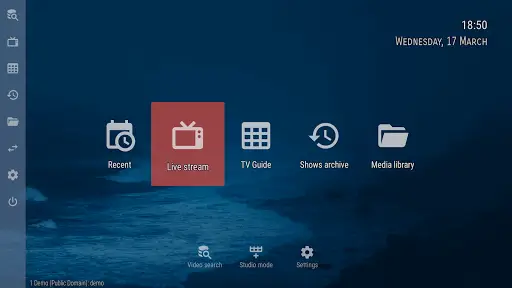
6. Perfect Player
Best for a simple layout on older Android hardware. Perfect Player is known for a straightforward channel list and guide view. Installation support and maintenance status can differ by release, so confirm that the version you find is still maintained. If playback stutters, compare the built-in decoder with an external player only when the device supports that option.
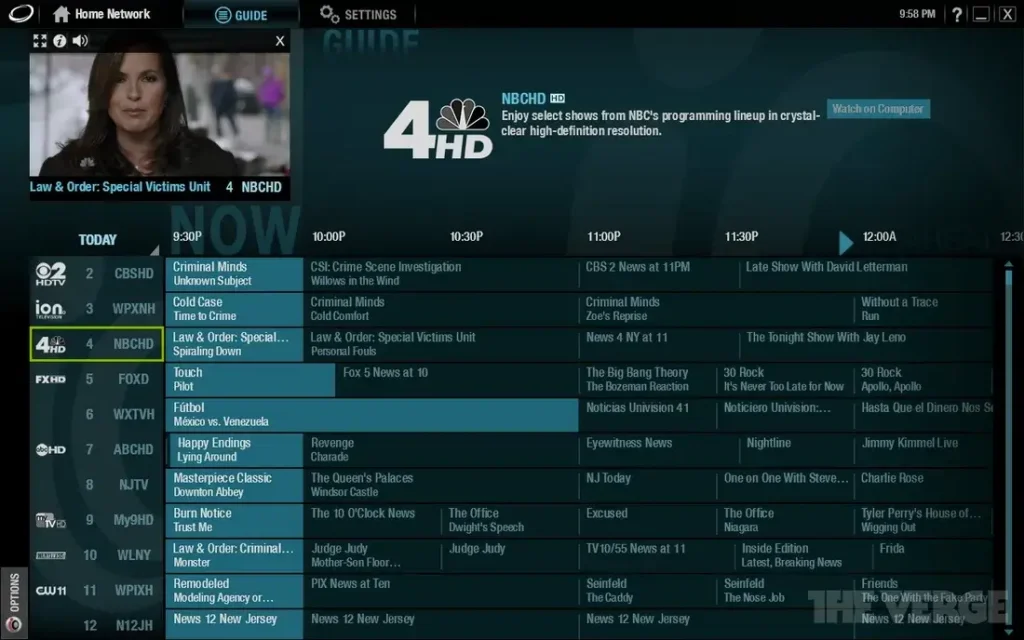
7. Televizo
Best for a remote-friendly Android interface. Televizo keeps playlist import, channel switching and favourites easy to reach. It is a sensible choice for a large-screen setup when you prefer a less technical layout. Check the store listing for your model before assuming that a phone and television release share the same controls.
8. Sparkle TV
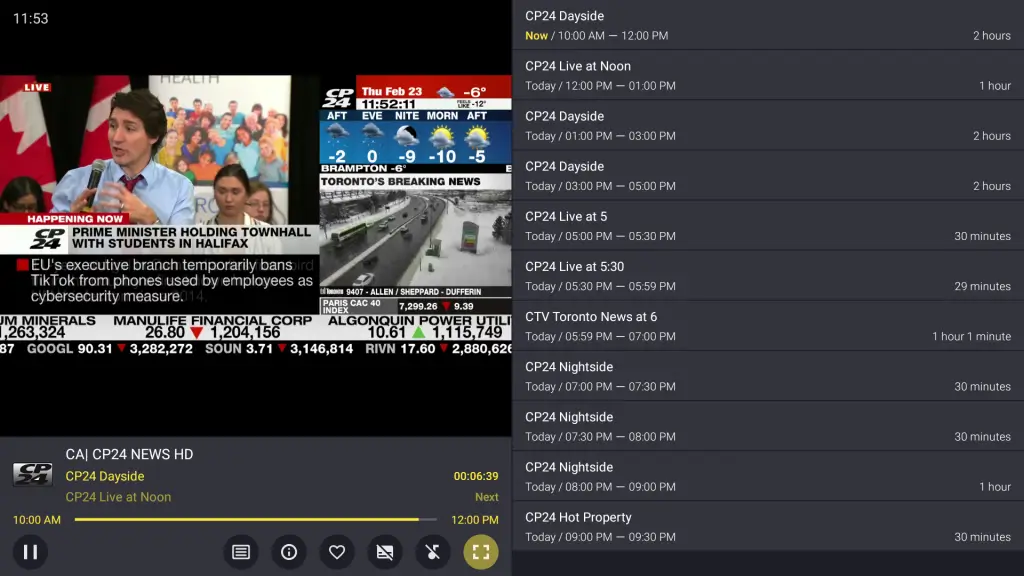
Best for Android TV, Google TV and Fire TV users who want a guide-led player. Sparkle TV’s official platform page lists M3U, Xtream Codes and XMLTV support alongside guide, recording and multi-source features, with some functions reserved for its paid tier. It is not an Apple TV or iOS player, so do not use those platforms as the basis for this setup. Check the official Sparkle TV platform page for current compatibility.

9. Ibo Player Pro
Best for people who already have a playlist and want a minimal player. Ibo Player Pro is marketed for a range of smart televisions and streaming devices, but installation, activation and supported formats vary by platform. Treat it as a player only: it does not supply channels. Verify the app publisher and the activation terms shown on your device before adding credentials.
10. Flix IPTV
Best for supported smart-TV and streaming-box installations. Flix IPTV uses an activation and playlist workflow that can differ between television brands. Do not assume that a playlist uploaded on one device automatically appears on another; follow the current instructions for the exact model and keep your activation details private.
11. IPTV Stream Player
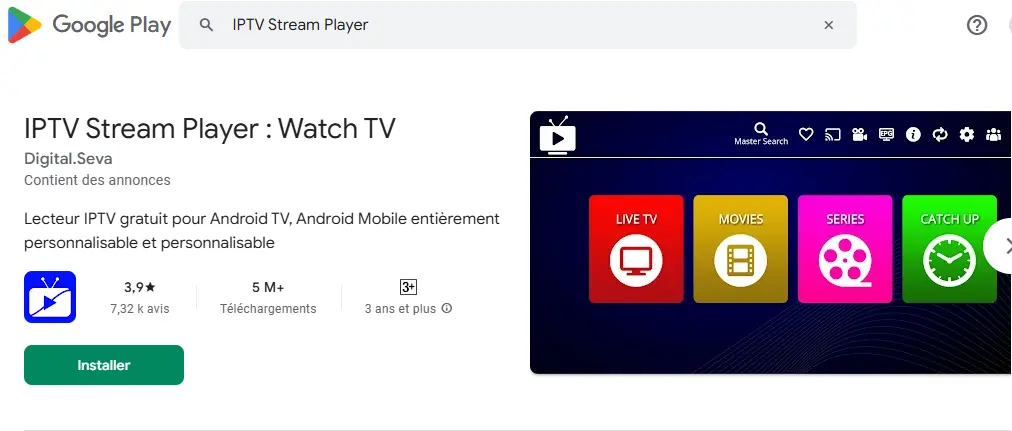
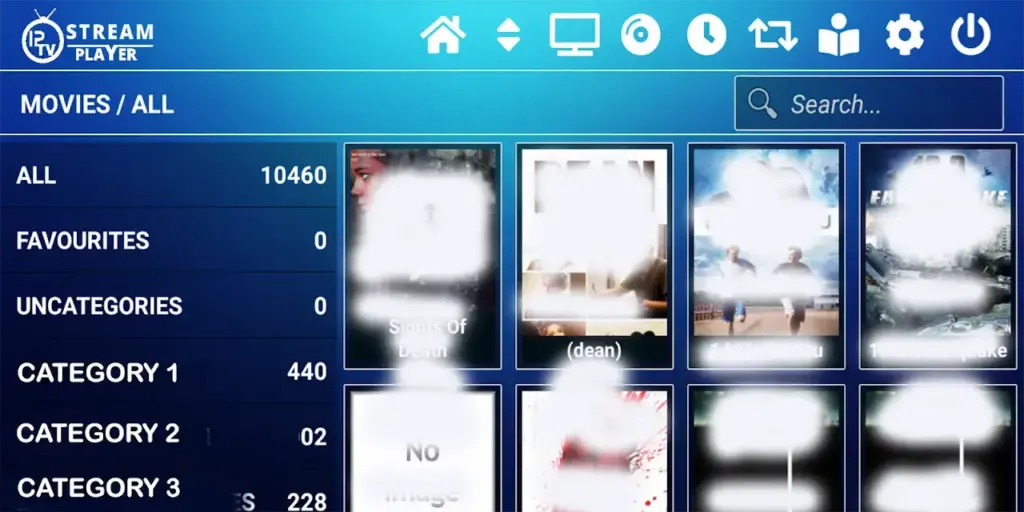
Best for a first setup when the app is available in your store. IPTV Stream Player presents simple options for an M3U URL, a local playlist file and, on supported releases, Xtream Codes. The walkthrough below uses the Android interface shown in the screenshot; menu wording can differ on another platform.
4. Install your player safely
- Use the official store first. Open Google Play, the App Store or the Amazon Appstore, search the exact name, check the developer and read the current compatibility notes. Our supported devices guide can help you choose the right platform.
- Sideload only when necessary. Android and Fire TV devices may allow an APK installation, but use the developer’s own download page or a source you can independently verify. Avoid modified APKs and random download repositories.
- Prepare your access details. Keep the M3U URL or Xtream Codes server, username and password available before launching the player. Never paste credentials into an untrusted website or share them in a public screenshot.
5. Add your IPTV playlist
The labels differ slightly between apps, but the sequence is usually the same. IPTV Stream Player is used here as the example.
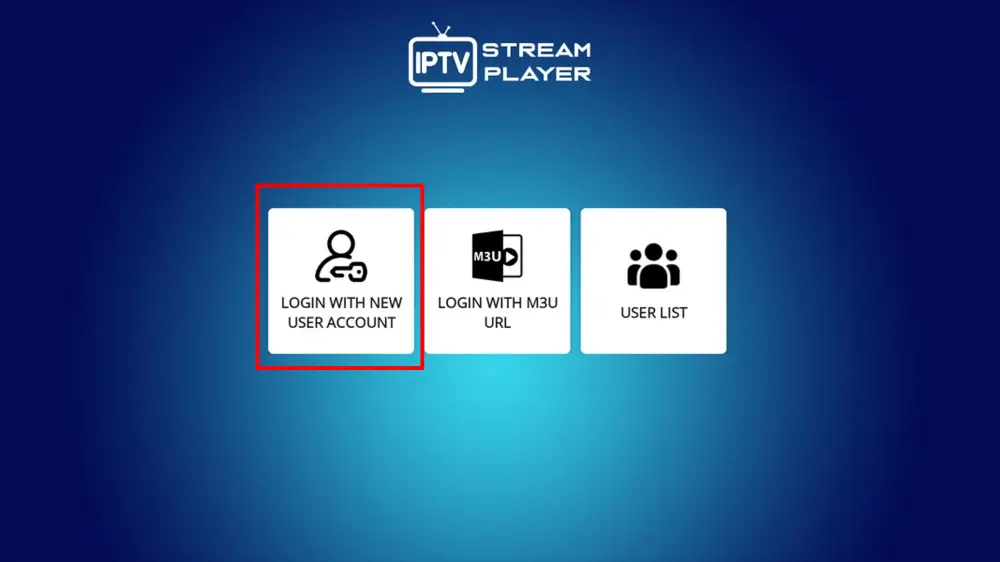
Option A — M3U playlist URL
- Open the player and choose Add Playlist.
- Paste the complete M3U URL supplied by your provider. Check for spaces or missing characters.
- Select Add and wait for the playlist to import.
Option B — local M3U file
- Choose Add Playlist and select the file option.
- Browse to the saved
.m3ufile and select it. - Allow the player to read the file and build the channel list.
Option C — Xtream Codes (only in players that offer this method)
- Select Login with Xtream Codes API.
- Enter the server URL, username and password exactly as supplied.
- Confirm the form and wait for the account, channels and available guide data to load.
6. Configure the EPG
An Electronic Programme Guide (EPG) adds programme times and descriptions to a raw playlist. The provider must supply the guide data; the player can only display what it receives.
- If the guide did not load automatically, open the app’s EPG or XMLTV settings and paste the EPG URL supplied with your account.
- Choose a refresh interval supported by the app, such as once or twice per day, so listings remain current.
- If programme times are shifted, set the time-zone or time-shift option to your local UK time and refresh the guide.
7. Adjust the everyday settings
A few small changes make a large playlist easier to use:
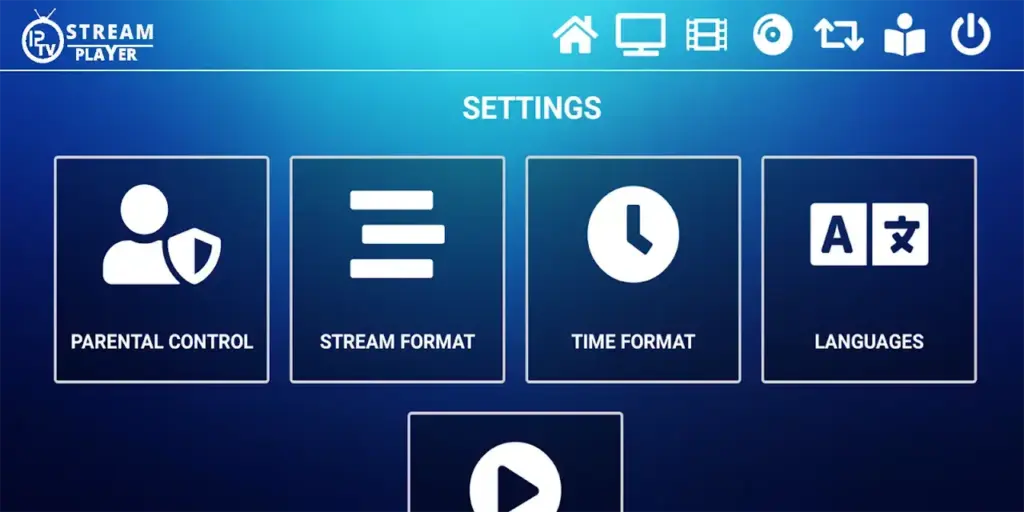
- Playback: try hardware decoding on a compatible device, then switch back if it causes a black screen or missing audio.
- Language and subtitles: choose preferred audio and subtitle behaviour where the player exposes those options.
- Favourites: save the channels you actually watch rather than scrolling through the whole list.
- Categories: hide unused regions or genres to make remote navigation quicker.
- Parental controls: protect settings and unfiltered categories with a PIN when appropriate.
Open a channel after saving the settings and check both live playback and the programme guide.
8. Troubleshoot channels that will not load
Work through these checks in order so you can separate an app problem from a source problem:
- Check the credentials. Re-paste the M3U URL or re-enter the Xtream Codes without spaces.
- Check the account. Confirm that the subscription or account is active and has not reached its connection limit.
- Test the network. Try Ethernet or a stable 5 GHz connection if the device is receiving a weak signal.
- Refresh the playlist. A provider may have changed a channel or guide entry since the last import.
- Test the decoder. Switch between hardware and software decoding when the symptom is a black screen or missing sound.
- Try a second compatible player. If the same credentials fail in two maintained apps, the source or account is more likely to be responsible.
- Contact the source’s support team. Give them the device, app version and non-sensitive error details, never your password in a public message.
9. Why the source behind the player matters
A well-designed player cannot compensate for an unavailable or overloaded stream. When comparing a service, look for clear business information, transparent terms, a sensible refund policy and support that explains what is included. A trial can help you test playback on your own device, but it is not proof that every channel or programme will remain available.
The app itself may be free, while the licensed content source is paid. You can review Nesta IPTV’s current plans or use the local trial information when deciding whether a service is suitable. Do not treat a public playlist advertised as “free” as a guarantee of quality, security or lawful distribution.
10. Keep the setup legal and secure
Players are general-purpose software. The legal position depends on the content source, the rights held by the distributor and the law where you live.
- Use authorised sources: choose a service or broadcaster that can explain how its channels and programmes are licensed.
- Be cautious with public playlists: an anonymous M3U file may be unstable, unsafe or carrying content without permission.
- Protect your account: M3U URLs and Xtream Codes can contain credentials, so do not publish them in screenshots, browser history or support posts.
Frequently Asked Questions
What is the best free IPTV app?
There is no single best free IPTV player for every device. TiviMate and Sparkle TV suit compatible Android TV hardware, IPTV Smarters Pro and GSE can be useful for supported cross-platform setups, and IPTV Stream Player is a straightforward starting point when it is available in your store. The right choice depends on the device, playlist format and features you need.
How do I set up IPTV Stream Player?
Install the app from a trusted store, choose Add Playlist, select the M3U URL, local file or supported Xtream Codes option, enter the supplied details and refresh the list. The labels may differ slightly between releases.
How do I add channels to an IPTV player?
Channels come from the playlist or account, not from the player. Use Add Playlist to import the M3U URL, local file or Xtream Codes supplied by your authorised source, then refresh the list when the source changes it.
Do free IPTV apps work without a subscription?
The software may run without an app payment, but it still needs a playlist or other source before it can play anything. A free app does not automatically provide free channels, and a public playlist may be unreliable or unauthorised.
Is free IPTV legal?
The player application is generally just software, but the content source determines the legal position. Use licensed services and check the rules that apply in your country. Do not assume that a free playlist has permission to redistribute premium content.
Can I use a free IPTV player on multiple devices?
You can install many players on more than one compatible device, but simultaneous viewing is controlled by the source account and the player’s licence. Check the terms before sharing credentials between household devices.
Can I use a VPN with these players?
A VPN can change the network path to a player, but it cannot grant rights to content or repair an invalid account. If you use one, choose a reputable service, follow local law and check that the additional encryption does not reduce the bandwidth available to your stream.
What internet speed is suitable for IPTV streaming?
As a starting point, allow around 25 Mbps for one HD stream and 50 Mbps for one 4K stream. Stability, Wi-Fi quality, household traffic and the source’s server capacity matter just as much as the headline speed.
How much does an IPTV subscription cost?
Prices vary by provider, contract length, device connections and the content rights included. Compare the current terms and refund information rather than relying on an old price quoted in a guide. The player app and the content subscription are separate costs.
Do these apps work with smart TVs and streaming devices?
Support varies by app, television brand, operating-system version and region. Check the store listing for your exact device. Our setup guide hub links to platform-specific instructions, while the device guide explains the main differences.
What is the easiest way to watch IPTV?
Choose a maintained player available for your device, install it from a trusted source, enter copy-pasted credentials from an authorised provider and test live playback plus the EPG before changing advanced settings.
What should I do if channels will not load?
Check the URL or Xtream Codes, confirm the account is active, test the device’s connection, refresh the playlist and try another maintained player. If the same account fails again, contact the provider with non-sensitive diagnostic details.
Conclusion
The best free IPTV players are the ones that match your hardware, playlist format and comfort level. TiviMate is built for compatible Android TV setups, Sparkle TV is aimed at Android TV, Google TV and Fire TV, and the other apps in this comparison each have their own platform limits. Whichever player you choose, remember that it is only the viewing tool: the source supplies the channels, guide data and permissions. Install from a trusted store, keep M3U or Xtream credentials private, configure the EPG for your local time and test the service before changing advanced playback options.