
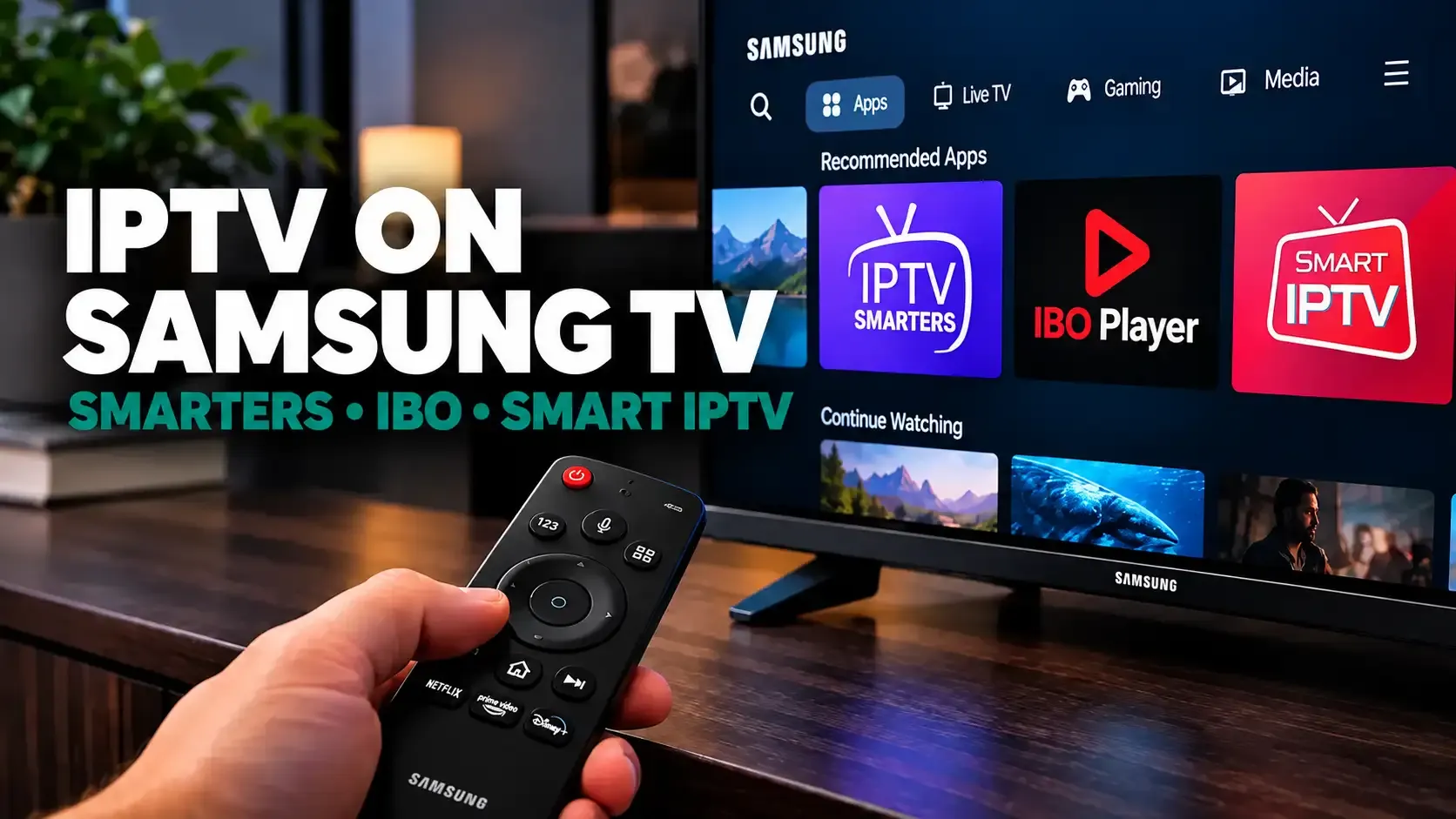
A Samsung Smart TV can run IPTV through a compatible Tizen player, but the available apps depend on the model, software version and region. This guide separates direct playlist login from MAC-address activation so you can follow the method that matches your service and television.
Samsung’s app availability is model- and region-dependent. Most apps are installed through Samsung Apps, while Smart IPTV documents manual installation for some older Samsung models. This guide covers the three player workflows and links to the official instructions where the steps differ. Need another device? See our IPTV setup guide.
1. How IPTV Works on a Samsung TV
Check the model number, update the TV if Samsung offers an update and confirm which login format your provider supplied. Samsung Apps is the normal installation route; if an app or feature is unavailable, use its official instructions or choose a supported device instead of installing an unknown file.
Many Samsung Smart TVs run Tizen, Samsung’s own operating system. That matters because menus, app availability and installation options vary by model, software version and region:
- Samsung Apps is the normal route. Do not install arbitrary packages. Smart IPTV’s official documentation separately describes USB installation for certain 2015-2018 Tizen and selected non-Tizen models, while other models use Samsung Apps.
- Apps connect in one of two ways. Some, like Smarters Pro, let you type your login right on the TV. Others, like Ib Player Pro and Smart IPTV, show a MAC address on screen and have you add your playlist on their website from a phone or computer.
Once a compatible player is configured, it can load the channels, guide data and on-demand content supplied by your service. Your provider’s welcome email tells you which details you have, such as an M3U URL or another supported login format, and section 3 helps you choose the matching workflow.
2. Check Your Samsung TV and Account First
Samsung TV setup is more model-dependent than Android TV setup. Check the TV’s model, software version, region and Samsung account before you search for a player; that prevents confusion when an app is not listed.
- Your model and software version. Open Settings, Support, About This TV. Samsung and app documentation do not guarantee that every model supports every player, so check the listing shown on your TV. Smart IPTV publishes separate store and manual-install guidance for different Samsung generations.
- A Samsung account. You can create one free at account.samsung.com; step 4 shows where to sign in on the TV.
- The right details for your app. Smarters Pro’s current listing describes M3U and JSON playlist support, while IBO Player Pro and Smart IPTV use the playlist and device details shown by their own workflows. Your IPTV subscription or IPTV free trial should provide the account details you are entitled to use.
- A connection that holds up at busy times. Test the connection on the TV or the same network you will use for streaming. Our setup guide covers the basic connection checks.
3. Choose Your App: Direct Login or MAC Activation
Start with the player that is listed for your TV and matches the details supplied by your service. Store listings change by model, software version and region, so check what your TV offers before deciding.
| App | How it connects | Cost | Best for |
|---|---|---|---|
| Smarters Pro (IPTV Smarters Pro) | Use the login and playlist formats supported by the current app listing | Check the current listing for any in-app charges | Anyone whose Samsung TV lists it and whose service supplies a compatible login |
| IBO Player Pro | MAC address and Device Key, with playlist management through the official workflow | Activation terms vary; check the current official site | Owners who prefer a MAC-based playlist workflow |
| Smart IPTV | MAC address; playlist uploaded through the official playlist page | Official page currently lists 5.49 EUR per TV/device for activation | Owners who prefer a MAC-based M3U workflow |
Do not assume that all three players accept the same login formats. Follow the fields and playlist instructions shown by the current app and its official documentation. Our device guide lists the main platform routes if none of these players is available.
4. Connect Your Samsung TV and Sign In
Connect the TV to your network first, preferably with an Ethernet cable, then sign in to your Samsung account.
Step 1: Open the network settings
Press Home on the remote and open Settings. On 2023 and newer models, go to All Settings, Connection and select Network; on older models, go to General, Network.
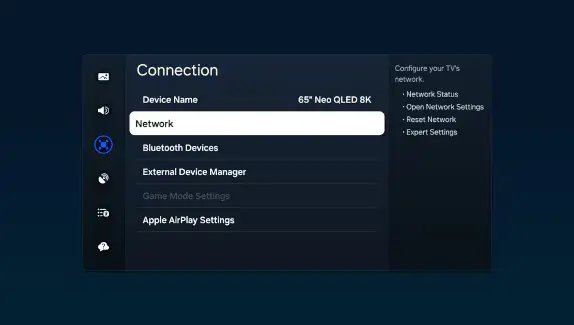
Select Open Network Settings (called Network Settings on older models).
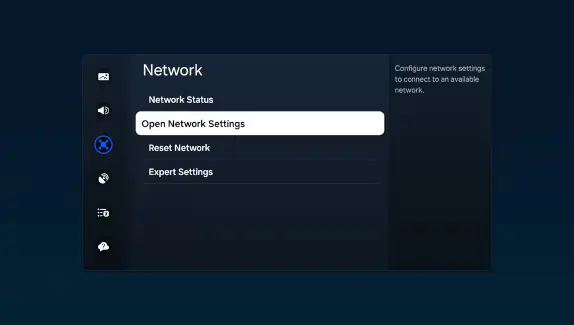
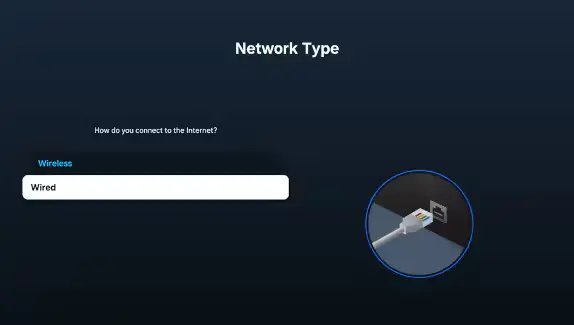
Step 2: Choose Wired or Wireless
Choose Wired if a cable is plugged in, or Wireless and then your Wi-Fi network.
Step 3: Enter your Wi-Fi password
Enter your Wi-Fi password, then open Network Status to confirm the TV is connected.
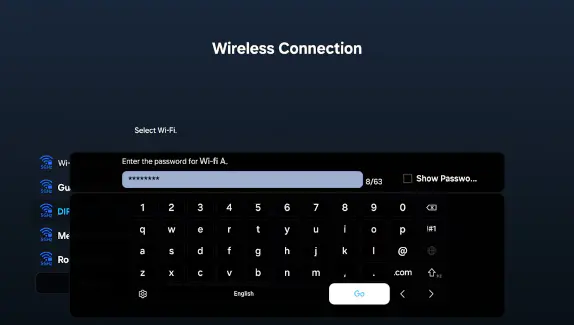
A cable is worth the effort. It removes the interference that causes most Wi-Fi buffering, especially between 7 and 10 p.m. when neighbouring networks are busiest.
Step 4: Sign in to your Samsung account
From the Home screen, open the menu on the left and select Sign In (or go to Settings, General, System Manager, Samsung Account).

Enter your email and password, or create an account, and accept any sync prompts.

While you’re in the account settings, review the privacy options and app permissions. The data collected and the available controls vary by TV model, software version and app.
5. Install Your IPTV App From Samsung Apps
Press Home, go to Apps and select the search icon. Type the app’s name, check the current publisher or developer shown for your region, then select Install and Add to Home when those options are available.
- Smarters Pro: check the current Samsung listing for its publisher. The official Google Play listing identifies the developer as Tech Smarters; regional Samsung listings may display different wording.
- IBO Player Pro: check the current publisher shown in your Samsung listing and use the official website linked by the app.
- Smart IPTV: the official instructions cover Samsung Apps on 2019+ Tizen TVs and separate manual-install routes for some older models; not every TV is supported.
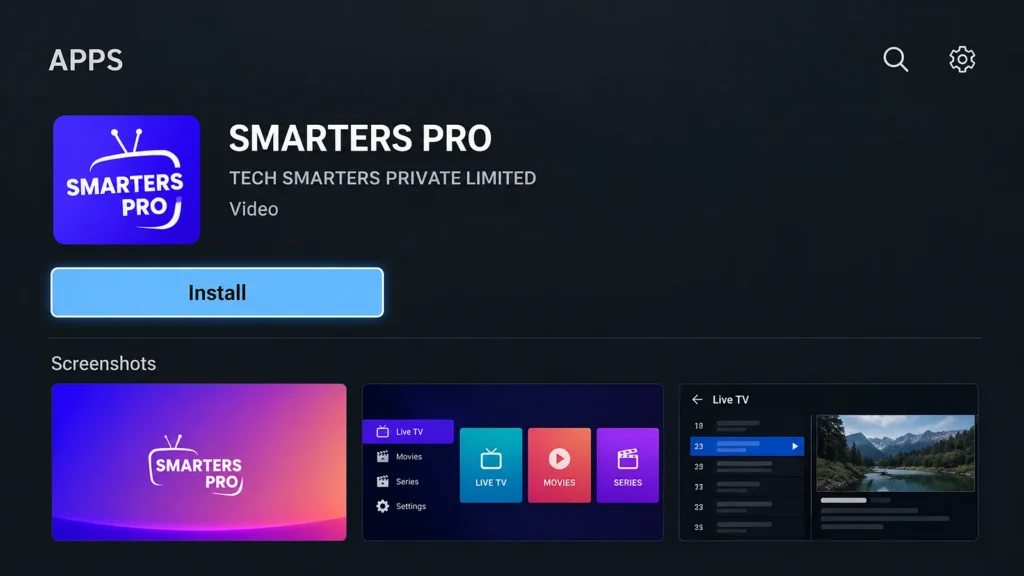
If the app you want does not appear, your TV’s model, software version or region may not list it. Check the developer’s official instructions and choose another compatible player only if its supported input format matches your service.
6. How to Install IPTV on Samsung TV with Smarters Pro
Open the app and choose the login or playlist option supported by your current version. Smarters Pro’s official listing describes M3U and JSON playlist support; follow the fields shown on your TV and select Add User.
Step 1: Open Smarters Pro
Select Open on the app page, or open Smarters Pro from your Home screen. If the app asks what kind of device it’s on, choose TV and Save, then accept the terms.

Step 2: Add your service
Choose the login or playlist option shown by your version of the app. Enter the server, username and password only if the app provides those fields; otherwise use the M3U or playlist option, give it a name and paste the full URL. Select Add User.

Step 3: Let Live TV, Movies and Series load
Wait while the app loads Live TV, Movies and Series, then open Live TV to start watching.
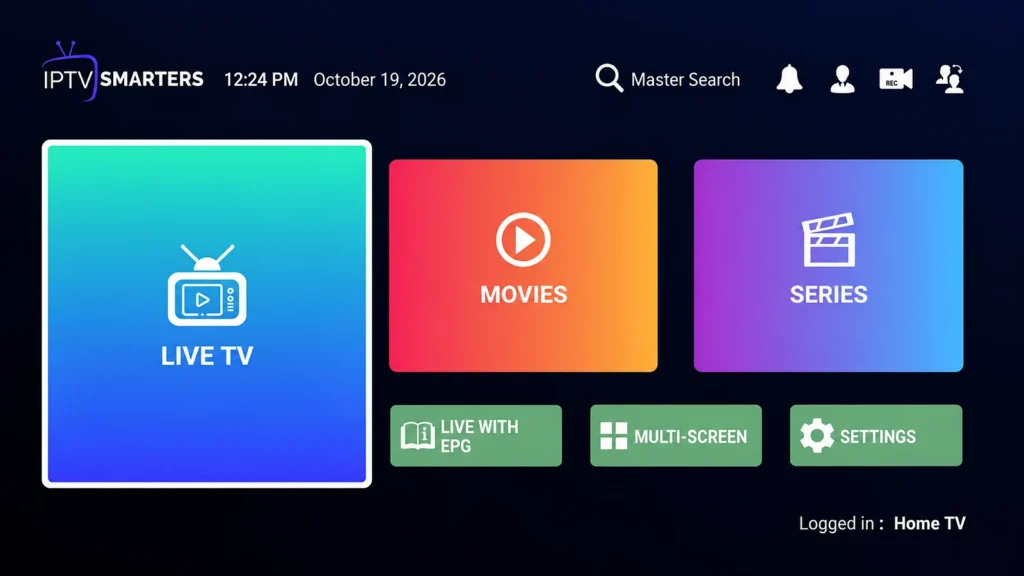
Typos cause many failed setups. Check the start of the server URL (http:// or https://), the port number if one is supplied, and every capital letter or symbol in the username and password. Our IPTV setup guide covers the same basic checks on other devices.
7. Method B: Set Up Ib Player Pro With Your MAC Address and Device Key
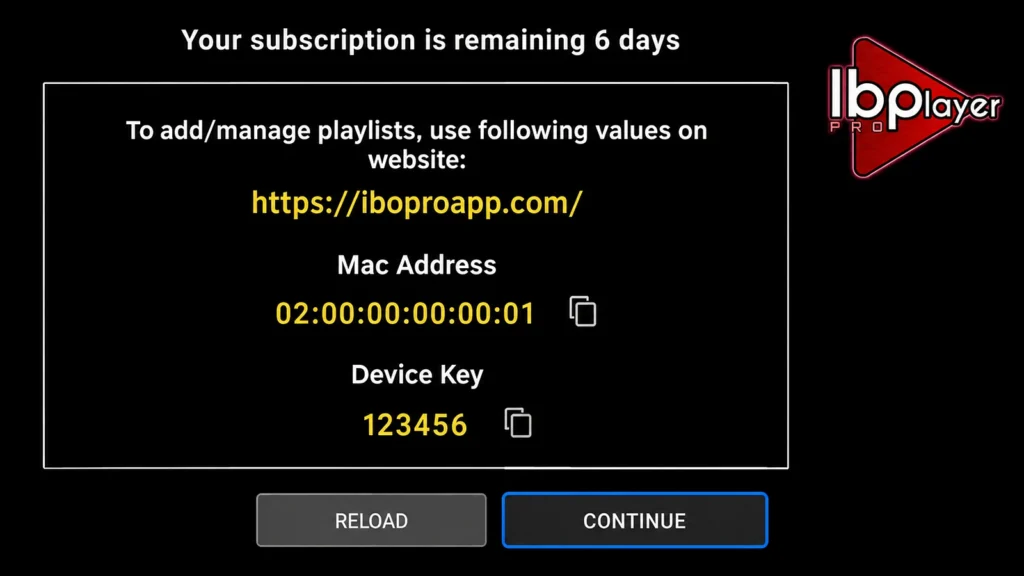
IBO Player Pro shows a MAC address and a Device Key on its first screen. Use the official website named by the app to manage the playlist or activation, then reload the app on the TV.
Step 1: Install Ib Player Pro
Press Home, go to Apps and search for IBO Player Pro. Check the current publisher shown in the listing, then select Install when the app is available for your TV.
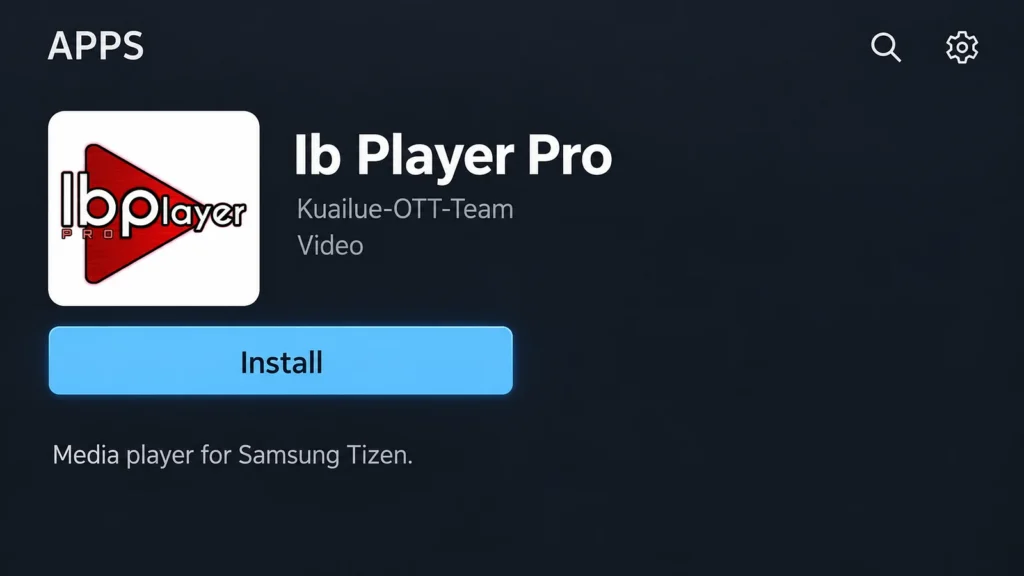
Step 2: Write down your MAC address and Device Key
Open the app and write down the MAC address, Device Key and website shown on its first screen, exactly as shown. Use the MAC from the app, not the one in your TV’s network settings.
Step 3: Open the app’s official website
On a phone or computer, open the website the app shows. For IBO Player Pro, the official site is iboproapp.com; its FAQ says that domain is the recommended route. Avoid look-alike sites and only enter details on the address shown by the app or its official documentation.

Step 4: Activate and log in
Choose Activate, enter the MAC address and Device Key and follow the current activation steps. Do not assume a fixed trial period or fee; check the terms shown by the official site and distinguish any player activation charge from your IPTV subscription.

Step 5: Add your playlist
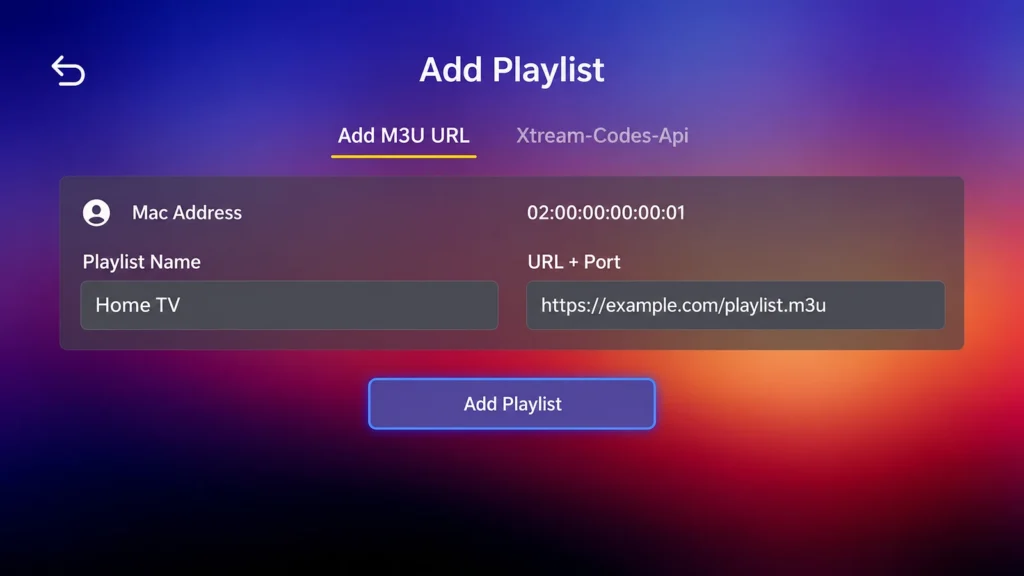
Add your playlist using the fields provided by the official workflow. IBO’s current documentation centres on playlist management; if your version offers a different login method, follow the labels shown in that version rather than assuming every format is supported.
Step 6: Reload the app
Select Reload if it’s shown, or close the app completely and open it again. Select your playlist if asked, then open the sections available in your version.

To change or add a playlist, use the same MAC and Device Key shown by the app, save the change and reload it. Any player activation is separate from your IPTV subscription. For other platforms, see the local device guide.
8. Method C: Set Up Smart IPTV With Your MAC Address
Smart IPTV shows a MAC address. You upload your M3U URL against it on the official playlist page, then restart the app. Its activation is separate from any IPTV subscription.
Step 1: Install Smart IPTV
On a 2019 or newer Tizen TV, search Samsung Apps for Smart IPTV and select Install when it is listed. The official Samsung instructions also document USB installation for some 2015-2018 Tizen TVs and selected non-Tizen models; D series and older TVs are not supported.

Step 2: Write down the MAC address
Open Smart IPTV and write down the MAC address it shows on screen.

Step 3: Open the playlist upload page
On a phone or computer, open siptv.app/mylist to add your playlist. Activation is separate; the official activation page currently lists a one-time 5.49 EUR fee per TV or device and says that no channels are supplied.

Step 4: Upload your M3U link
Enter your TV’s MAC address and your full M3U link, complete any check the form asks for, then select Send.

Step 5: Restart Smart IPTV
Restart Smart IPTV on the TV. Your channels load from the playlist you added.

9. Load Your Channels, Set Up the Guide and Test Everything
Give the app time to complete its first load so it can fetch the channel list and any EPG data supplied by your service. Our setup guide explains the general EPG checks.
If channels are still empty after that, use the app’s Refresh or Reload playlist option. Then run these checks before you settle in:
- Channel test: open three or four channels from different categories (news, sports, kids). Each should start within a few seconds, and switching should feel quick.
- Guide check: open the TV guide and confirm the current show matches what’s on screen. If the times are wrong, check the app’s time-zone or EPG-offset setting and the data supplied by your service.
- Favourites: mark the channels you watch most so you don’t scroll the full list every evening. Use the player’s own help or the local IPTV FAQ if the menu differs.
- Audio and subtitles: set your language preferences once in the app’s settings.
- Parental controls: set a PIN before children get the remote and check the player’s own controls.
- Peak-hour test: watch for a while between 7 and 10 p.m., when home networks are busiest. That’s the real test of stability.
Want to use the same subscription on a phone or second TV? Check how many connections your plan allows first. The local IPTV FAQ covers common multi-device questions.
10. Troubleshooting IPTV on a Samsung TV
The most common fix is re-entering your login details, because a single wrong character in the server URL, port or password stops channels loading. Check that before anything else.
| Problem | Likely cause | Fix |
|---|---|---|
| Channels won’t load | Typo in the URL or login, unavailable playlist, or account issue | Re-enter the details, check the playlist source and confirm the account is active |
| IBO Player Pro shows no playlist or an activation message | Playlist saved to a different MAC, or activation terms require attention | Confirm the MAC on the official site matches the app and follow the current activation steps |
| App isn’t in the store | Model, software version or region does not list it | Check the developer’s official compatibility guidance before choosing another supported player |
| Streams buffer or freeze | Wi-Fi interference, network congestion or service-side issues | Try Ethernet where practical, test another quality level and review the local setup guide |
| TV freezes or apps crash | Low memory or old firmware | Close other apps, restart the TV, and update under Settings, Support, Software Update |
| Unsupported Samsung TV | Model or software version is outside the app’s documented support | Check the official compatibility notes or use a supported external device; see the local device guide |
Updates. Samsung updates apps automatically when Auto Update is enabled under Apps, Settings. If an app misbehaves after a TV firmware update, check the developer’s support notes before reinstalling it. Playlist persistence depends on the app’s current workflow and the MAC or account details it uses.
About VPNs. A VPN can be useful in some network troubleshooting situations, but it does not make a service legal or guarantee better performance. Samsung TVs may not run VPN apps directly; check your router, external device and provider setup before changing anything.
11. Legal and Practical Considerations in the UK
Installing a player app is separate from the legality of the content or service connected to it. Use official app sources where available and only use services and content you are entitled to access. App availability and warranty terms depend on the TV model, software and installation method.
- Licensed vs unlicensed services. Choose a provider that can explain its rights to the content it supplies. Do not infer legality from a low price or a large channel list; if licensing, business details or payment practices are unclear, avoid the service.
- Warning signs. Thousands of channels for a few dollars a month, no business contact details, and payment only by gift card or crypto all point to an unlicensed service.
- Activation sites. For Ib Player Pro and Smart IPTV, only enter your MAC address and payment details on the website the app itself shows you. Resellers of “activations” aren’t needed, and you can’t get a refund from a look-alike site.
- Privacy. Review the Samsung account, TV and player privacy settings before signing in. Collection, permissions and controls vary by model, software version and app.
Frequently Asked Questions
Does IPTV work on every Samsung Smart TV?
No. Compatibility depends on the model, Tizen or other Samsung platform, software version, region and the individual app. Check the listing or the developer’s official instructions for your TV; unsupported models may need an external device.
Which IPTV app is best for a Samsung Smart TV?
There is no single best player for every Samsung TV. Choose one that is listed for your model and supports the login or playlist format supplied by your service. Smarters Pro may offer direct playlist entry, while IBO Player Pro and Smart IPTV use their own MAC and playlist workflows; check current app terms and documentation.
Is IBO Player Pro free on Samsung TV?
It may be free to install, but installation and activation are separate. Check the current activation terms on iboproapp.com, the official site named by the app. Any player charge is separate from your IPTV subscription and does not provide channels.
Where do I find the MAC address for IBO Player Pro?
On the app’s own first screen. Open IBO Player Pro and use the MAC address and Device Key shown there, not the MAC address listed in your TV’s network settings.
Can I sideload IPTV apps on a Samsung Smart TV?
Use Samsung Apps for ordinary app installations and do not sideload arbitrary packages. Smart IPTV’s official documentation describes USB installation for certain older Tizen and selected non-Tizen Samsung models; follow those instructions only where they explicitly apply. If no supported route exists, use another compatible player or an external device.
Why does my Samsung TV say an IPTV app is not available in my region?
The app may not be listed for your model, software version or region. Check the developer’s official compatibility notes and avoid changing the TV region just to force an installation, because that can reset Smart Hub or affect other apps.
Will installing IPTV apps void my Samsung warranty?
Using an official store app is different from modifying TV firmware, but warranty terms vary by model and region. Do not modify firmware or install unsupported packages unless the manufacturer or app developer explicitly documents the method.
Conclusion
Which app you choose depends on the formats your service supplies and what your Samsung TV supports. Smarters Pro can provide direct playlist entry where the current listing and app support it; IBO Player Pro and Smart IPTV use their documented MAC and playlist workflows. If an app is not listed, follow the official model-specific instructions or use another compatible device rather than searching for an arbitrary package.
Two habits prevent many Samsung problems: add a playlist only on the website or screen the app itself names, and allow the first load time to complete before deciding that something is wrong.