
An iPhone or iPad can become a useful IPTV player without a computer or sideloading when the required app is available from the App Store. Install a compatible player, add the M3U or Xtream Codes details from your authorised provider and keep the account information out of screenshots and messages.
Everything here happens on the phone: no computer or sideloading is needed for these App Store installs. Want it on the TV permanently instead? Our IPTV setup guide covers Apple TV and other devices.
1. How to Install IPTV on iPhone: What You Need
Prepare the device with the latest supported iOS or iPadOS version, enough storage for the app and a stable Wi-Fi or mobile-data connection. Test playback on the phone first; AirPlay adds another compatibility step and does not guarantee that every channel or subtitle track will appear on the television.
- A supported iOS or iPadOS version. Smarters Pro requires iOS or iPadOS 15.6 or later, IPTVX requires iOS or iPadOS 16 or later, and GSE has its own current App Store requirement. Check each listing before installing.
- Your provider details on the phone. They should include an M3U link or Xtream Codes details (server, username and password). Copy and paste them rather than typing; one wrong character can stop the app connecting. If you are trying a free trial, credential delivery and timing depend on the provider.
- Not an APK. If a provider sends an Android app file, ask for M3U or Xtream Codes details instead; iPhones can’t install APKs.
- Wi-Fi or a data plan that can take it. HD streaming uses roughly 1 to 3 GB an hour. On mobile data, keep an eye on your allowance.
The app itself only plays what your IPTV subscription provides; none of these players come with channels.
2. Choose Your App
| App | Cost | Needs | Best for |
|---|---|---|---|
| IPTV Smarters Pro | Free, with upgrades | iOS 15.6+ | Most people; the same app as on Apple TV and smart TVs |
| GSE Smart IPTV Pro | Paid; check current UK listing | App Store | A detailed TV guide and remote EPG sources |
| IPTVX | Free, with an optional Premium | iOS 16+ | A clean, ad-free layout |
Not sure? Start with Smarters Pro: it is free to download and straightforward to try. More players are compared in our best free IPTV apps.
3. Option 1: IPTV Smarters Pro
Step 1: Get the app
Open the App Store, search for Smarters Pro, pick the one by Tech Smarters Private Limited and tap Get. It needs iOS or iPadOS 15.6 or later.

Step 2: Add a playlist
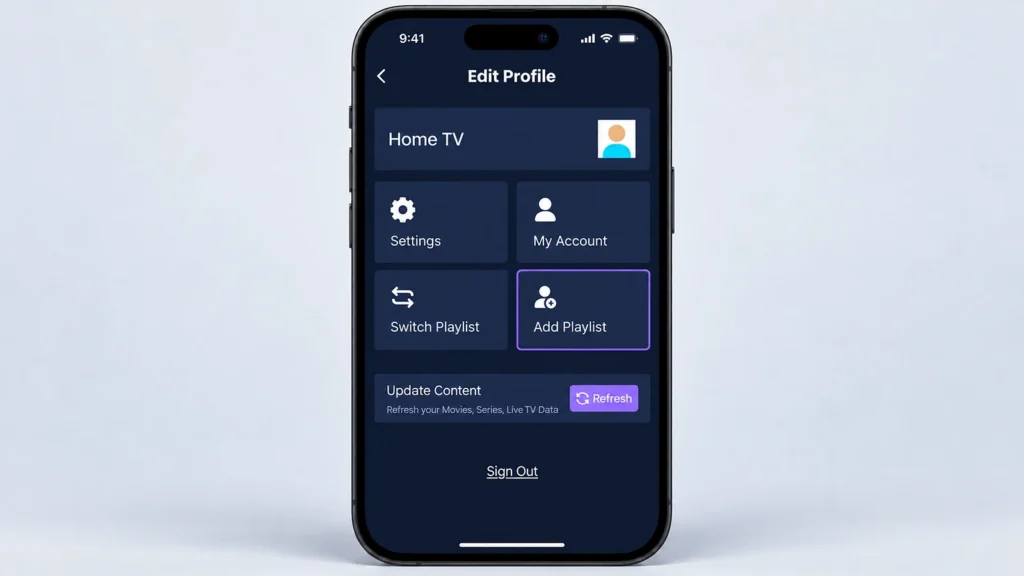
Open the app and tap the option to add a playlist. A new install usually goes straight there; if you already have a profile, tap Add Playlist on the Edit Profile screen.
Step 3: Choose the login type
Choose Player API if the current Smarters Pro version offers it and your provider supplied a server, username and password. Otherwise use the M3U URL option. Menu names can vary between app versions.

Step 4: Enter your details
Enter a playlist name and your details carefully, then tap Add Playlist (or Add User).

Step 5: Start watching
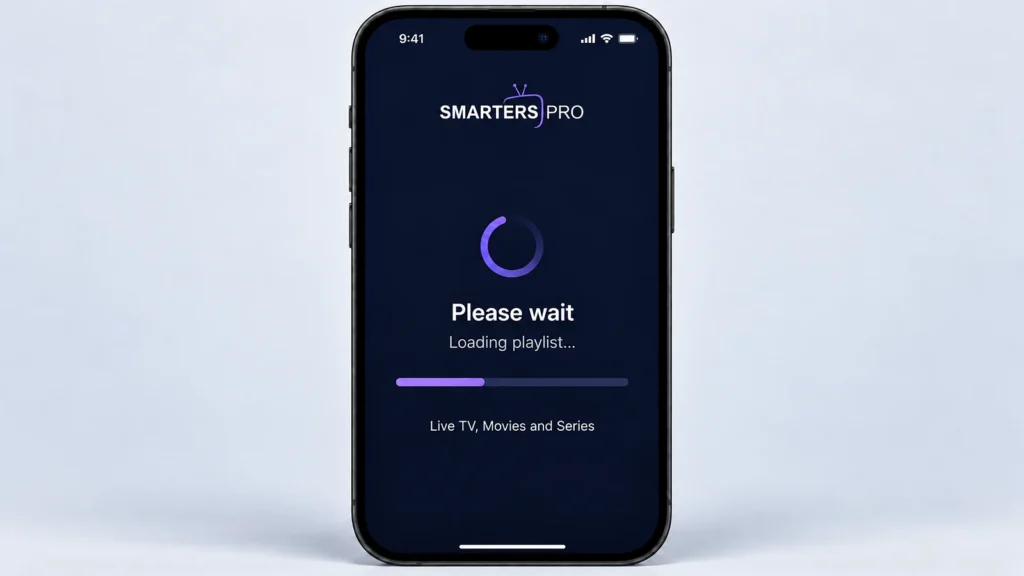
Wait while the playlist loads, then open Live TV, Movies or Series.
Step 6: Send it to your TV (optional)
Connect your iPhone or iPad and your Apple TV or AirPlay TV to the same Wi-Fi, play a channel, tap AirPlay and choose the TV. It works when the app and the stream support AirPlay.

Your provider may use the same credentials across supported devices, but each app version can present a different login flow; our IPTV Smarters Pro guide covers the rest.
4. Option 2: GSE Smart IPTV Pro
Step 1: Buy the app
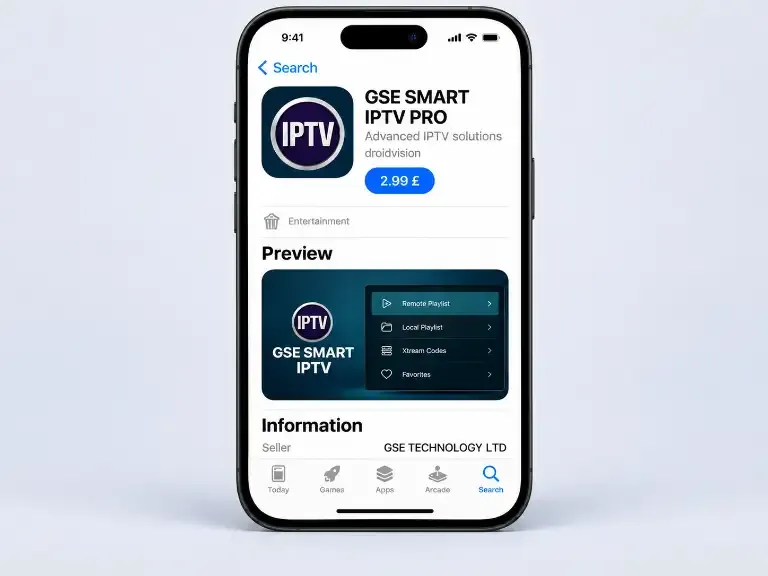
Open the App Store, search for GSE Smart IPTV and buy GSE SMART IPTV PRO (developer droidvision, sold by GSE Technology). It is a paid app; pricing and availability can change by region, so check the current UK listing.
Step 2: Open Remote Playlists
Open the menu and tap Remote Playlists to add your M3U link. Using Xtream Codes instead? Tap Xtream Codes API in the menu, then + and enter your server URL, username and password.

Step 3: Add an M3U URL
Tap +, then Add M3U URL.

Step 4: Paste your link
Enter a playlist name, paste the full M3U link from your welcome email and tap Add. Open the new playlist to load the channels.

Step 5: Add the TV guide
For the TV guide, open EPG program guide, tap + and Add Remote EPG source, enter a name and your EPG (XMLTV) link, then tap Add.

Our GSE Smart IPTV guide goes deeper into its settings. Apple TV availability is a separate app/store listing.
5. Option 3: IPTVX
Step 1: Get IPTVX
Open the App Store, search for IPTVX by Bending X – FZE and tap Get. It is free to download with optional in-app purchases and requires iOS or iPadOS 16 or later.

Step 2: Start a new playlist
Open the app’s menu and tap New playlist.

Step 3: Enter your details
Choose Xtream (recommended) and enter a playlist name, then the server URL, username and password from your welcome email. With an M3U link, use the M3U option and paste the full link.

Step 4: Save and let it download
Tap Save and wait while the playlist loads; the timing depends on the playlist and connection.

Step 5: If a channel won’t play
If a channel won’t play, or AirPlay is missing, open Settings, then Player, and choose Auto so IPTVX tries Apple’s own player first. AirPlay still depends on the stream.

6. Make It Comfortable to Watch
- Favourites. Star the channels you watch most so they’re at the top, not buried in a list of thousands.
- The guide. Xtream Codes may provide EPG data when your provider supplies it; with an M3U link, add a separate XMLTV/EPG link if one is provided. Our EPG guide covers missing listings.
- Picture in Picture. If the player and your iOS version support it, start a channel and swipe up to go home: it may keep playing in a small window while you use other apps.
- Subtitles and quality. Turn subtitles on from the player controls; our guide to subtitles in IPTV Smarters Pro shows where. Leave quality on Auto so it adapts between Wi-Fi and mobile data.
7. Watching on Your TV
AirPlay is the wireless way: play a channel, tap the AirPlay icon and choose an Apple TV or AirPlay 2 smart TV on the same Wi-Fi. Apple’s AirPlay support page covers the codes and settings. For a wired connection, an iPhone with a Lightning port needs Apple’s Lightning Digital AV Adapter, and an iPhone with USB-C a USB-C to HDMI adapter. If you watch on the TV most evenings, a dedicated app on the TV is steadier; our Apple TV guide shows how.
8. Smooth Streaming on Wi-Fi and Mobile Data
- Use 5 GHz Wi-Fi at home. It’s faster and less crowded than 2.4 GHz; our internet speed guide explains how much you need (about 25 Mbps for HD).
- Try another stream format. If one channel buffers and others don’t, switch the player’s stream format between HLS and MPEG-TS in the app settings.
- VPN and mobile data. A VPN is optional, not required. If you use one, connect it before opening the player and check your provider’s terms; our VPN guide explains when it may help.
9. Troubleshooting on iPhone
| Problem | Likely cause | Fix |
|---|---|---|
| The app won’t install | iOS older than the app needs | Update iOS; check each app’s minimum on its App Store page |
| Login fails or the list is empty | A typo, a space at the end, or an expired plan | Paste the details again from the email; check your renewal date |
| One channel buffers, others are fine | Stream format | Switch between HLS and MPEG-TS |
| Everything buffers in the evening | Busy Wi-Fi or mobile network | Move to 5 GHz Wi-Fi; see our buffering and outage guide |
| No AirPlay button on a channel | App or stream doesn’t support AirPlay | In IPTVX choose Player, Auto; or use a TV app instead |
10. UK Legal and Licensing Basics
The apps in this guide are media players; App Store approval does not determine whether the channels or service you use are authorised. In the UK, choose a provider that has the appropriate rights for the content it supplies and check the provider’s terms before entering your login details. The players do not supply channels themselves. Our IPTV FAQ covers common service checks.
Frequently Asked Questions
What is the best IPTV app for iPhone?
IPTV Smarters Pro is a practical starting point for most people because it is free to download. GSE Smart IPTV Pro suits anyone who wants a detailed TV guide, and IPTVX has a clean layout with optional paid features.
Which iOS version do I need?
Smarters Pro needs iOS 15.6 or later and IPTVX iOS 16 or later. Check the App Store listing for GSE’s current requirement.
Can I watch IPTV on mobile data?
Yes, on 4G, LTE or 5G. HD uses roughly 1 to 3 GB an hour, so Wi-Fi is the better choice for long sessions.
Is there a free IPTV app for iPhone?
Yes: Smarters Pro and IPTVX are free to download with optional upgrades. GSE Smart IPTV Pro is paid, and prices can vary by region. All of them need an IPTV subscription for the channels.
Does it work the same on an iPad?
The apps offer iPad support where it is listed, but menus and minimum requirements can differ by app and version. The bigger screen can make a TV guide easier to read.
Can I download channels to watch offline?
Live channels normally stream in real time, so an internet connection is needed while you watch. Some apps may offer offline features for supported content, so this is not universal.
How do I put IPTV from my iPhone on the TV?
Use AirPlay to an Apple TV or AirPlay 2 smart TV on the same Wi-Fi, or a Lightning or USB-C to HDMI adapter for a cable connection.
Conclusion
An iPhone can become a portable TV after you install an App Store player and add your provider’s playlist. Smarters Pro is a free place to start, GSE is useful if you rely on a detailed TV guide, and IPTVX offers a clean layout with optional paid features. Check your iOS version first, because it determines which apps you can install.
The phone is a useful way to test a provider before setting up the TV, but smooth playback on an iPhone does not guarantee the same result on a television. AirPlay still depends on a compatible receiver, app and stream; a dedicated TV app may be steadier for regular viewing.