
A Windows PC can play IPTV through a dedicated player, a media centre or a network-stream tool. This guide compares MyIPTV Player, Kodi and VLC so you can choose between a channel-list interface, a configurable media setup and a quick test of an M3U stream.
Each player gets its own step-by-step section below, with pictures, followed by fixes for buffering, an empty guide and black screens. Setting up the living-room TV next? Our IPTV setup guide covers it.
1. How to Install IPTV on Windows PC
Windows doesn’t play IPTV by itself. A player app does, using the login details from your IPTV subscription. The app fetches your channel list and programme guide from your provider’s server and plays the streams on your screen.
Have the correct M3U or Xtream Codes details, a current Windows installation and a connection that remains stable during playback. Keep playlist URLs private, test one player at a time and use the official Microsoft Store, Kodi source or VLC download rather than a modified installer.
- Dedicated IPTV players (MyIPTV Player), with channel groups, a TV guide and favourites. The best choice for everyday watching.
- Kodi, the media centre, which plays IPTV through a free add-on. A good fit if you already use Kodi for your own media.
- General media players (VLC), which open your M3U link as a plain playlist. Light and quick, but no proper guide.
- Web players in your browser, if your provider offers one. Nothing to install.
None of them includes channels. They only play what your subscription gives them, which is why you can switch players at any time without changing your subscription. For the bigger picture, see our beginner’s guide to setting up IPTV.
2. What Your PC Needs
A PC is straightforward to set up, because there’s nothing to buy. Kodi and VLC are free, and MyIPTV Player has a free Microsoft Store download. Only three things can get in the way.
- A working Microsoft Store. MyIPTV Player only comes from the Store, on Windows 10 or 11. Kodi and VLC can also be downloaded from their official sites. On a work PC where the Store is locked, a web player in your browser is the way in (section 6).
- An M3U link, and an EPG link if you have one. All three players read an M3U link. If your welcome email only has Xtream Codes (server URL, username and password), ask your provider for the M3U version of the same account; our guide on where to get your IPTV URL shows what each looks like. No account yet? An IPTV free trial gives you a link to test with.
- A steady connection. A laptop on Wi-Fi in the far bedroom is the usual cause of buffering on a PC. Plug in Ethernet for 4K or long sessions; our internet speed guide covers how much bandwidth you need.
3. Choose Your Method
Most people should start with MyIPTV Player from the Microsoft Store. Kodi suits people who already use it, and VLC is fine for a quick test.
| Method | Where to get it | Login types | TV guide | Best for |
|---|---|---|---|---|
| MyIPTV Player | Microsoft Store | M3U | Yes (XMLTV) | Most people; a Microsoft Store option that also runs on Xbox |
| Kodi | Official Kodi website or Microsoft Store | M3U (through the PVR IPTV Simple Client add-on) | Yes | People who already use Kodi |
| VLC | Official VLC website or Microsoft Store | M3U | No | Testing a link, or occasional viewing |
| Web player | Your provider’s website | Your account login | Varies | Work or shared PCs where you can’t install apps |
All of them read the same login details, so you can try one and switch later. Our roundup of the best free IPTV apps compares more players.
4. Option 1: MyIPTV Player From the Microsoft Store
MyIPTV Player has a free Microsoft Store download, updates through the Store, and also runs on Xbox. You add your M3U link and your guide link in its Settings, then refresh both.
Step 1: Get MyIPTV Player from the Microsoft Store
Open the Microsoft Store, search for MyIPTV Player, check the developer is Vbfnet Apps and select Get.

Step 2: Open the app
Open the app and allow network access if Windows asks.

Step 3: Open Add new playlist and EPG source
Open Settings, then Add new playlist and EPG source.

Step 4: Add your M3U link
Under Remote channel list, type a name, paste your M3U link and select Add remote list. A downloaded .m3u file works too, through the local file option.

Step 5: Add your EPG link
Under Program guide (EPG), type a name, paste your EPG (XMLTV) link and select Add EPG source. If you only have an M3U link, use the exact XMLTV or EPG URL supplied by your provider; endpoint formats vary.

Step 6: Refresh and open Channels
Back in Settings, select your playlist (Remote: and its name) and select Refresh, then select your EPG source and refresh it too. Open the Channels tab.

If your provider only sent Xtream Codes details, ask for the M3U link of the same account. In MyIPTV Player’s settings you can switch between the VLC library and the Windows player; trying the other player may help with some stutter or black-screen issues.
5. Option 2: Kodi With the PVR IPTV Simple Client
Install Kodi, add the free PVR IPTV Simple Client add-on, and paste your M3U link and guide link into its settings. Your channels then appear under TV in Kodi’s main menu.
Step 1: Install Kodi
Install Kodi from kodi.tv/download/windows or the Microsoft Store.

Step 2: Install the PVR IPTV Simple Client
Open Kodi and go to Add-ons, Install from repository, PVR clients, PVR IPTV Simple Client, then select Install.

Step 3: Add your M3U link
Open the add-on’s Configure screen. Set Location to Remote path (Internet address) and paste your M3U link.

Step 4: Add your EPG link
In the EPG settings, set Location to Remote path (Internet address), paste your EPG (XMLTV) link and select OK.

Step 5: Restart Kodi
Restart Kodi. Once the playlist loads, your channels appear under TV, with the guide alongside.

Kodi takes a little longer to set up, but it’s a good choice if you already use it for your own films and music. Our IPTV on Kodi guide walks through each screen with more detail and fixes.
6. Option 3: VLC or a Web Player (No Setup)
For quick viewing, open your M3U link in VLC, or sign in to your provider’s web player in a browser. Neither needs any configuration.
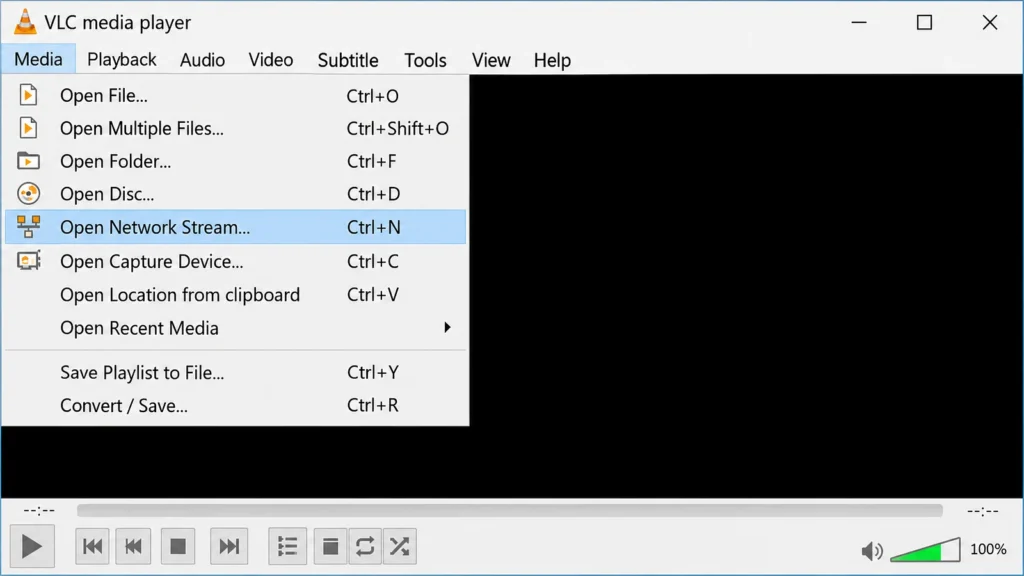
Step 1: Open Network Stream in VLC
Get VLC free from videolan.org, open it and choose Media, then Open Network Stream.
Step 2: Paste your M3U link
Paste your M3U link and select Play.

Step 3: Switch channels from the playlist
Open View, then Playlist, and double-click a channel to switch.

VLC has no TV guide and can be slow with very large playlists. It’s best for checking that a link works, or for the odd channel now and then.
Web player. If your provider offers one, sign in on their website and watch in Chrome, Edge or Firefox. It’s the quickest option on a work or shared PC where you can’t install software.
7. Set Up the Guide, Favourites and Big-Screen Viewing
Once your channels load, mark your favourites, check the TV guide times, and connect an HDMI cable if you want to watch on the TV.
Guide and favourites (MyIPTV Player and Kodi):
- Favourites. Mark the channels you watch most so they’re one click away.

- Hide what you don’t watch. Filter or hide channel groups such as international packages.
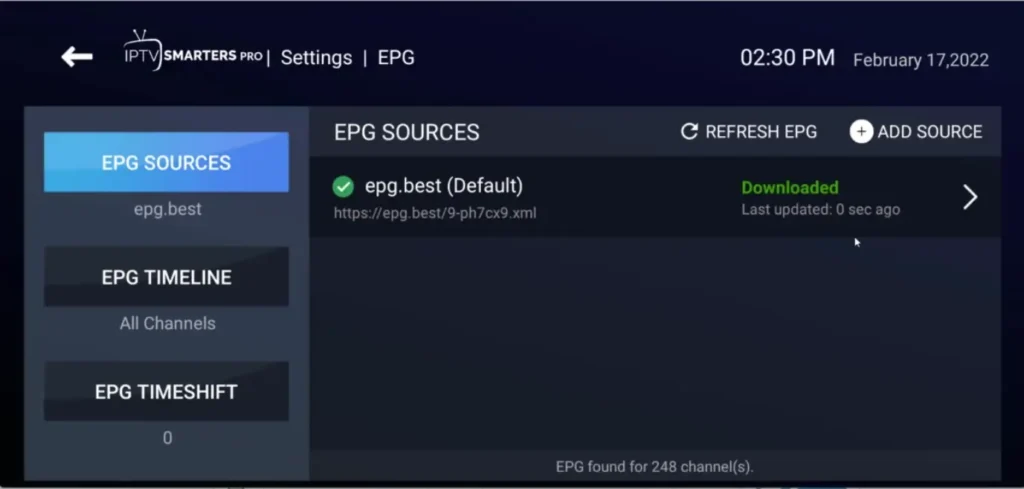
- Guide times. If the guide is off by a few hours, check the Windows time zone first, then the app’s guide or time-offset setting. Our EPG guide covers the fixes for each app.
- Parental PIN. Set one if children use the PC. Our parental control guide covers choosing one.
On your TV:
- Connect the PC’s HDMI port to a free HDMI input on the TV, and select that input.
- Press Windows key + P and choose Duplicate or Second screen only.
- Switch the player to full screen.
For a smooth picture: plan for 25 Mbps per HD stream and 50 Mbps per 4K stream, use Ethernet on a desktop (or 5 GHz Wi-Fi on a laptop), close heavy downloads while you watch, and keep your graphics driver updated through Windows Update. Watching on several screens at once uses more than one connection from your plan; our guide on watching IPTV on multiple devices explains the limits. For consoles, see our PS5 and Xbox guide.
8. Troubleshooting IPTV on Windows
The most common fix is re-entering your M3U link or login, because one wrong character stops the channel list loading. Check that first.
| Problem | Likely cause | Fix |
|---|---|---|
| Channels won’t load | Typo in the link, or an expired subscription | Paste the link into a browser to test it; re-enter it in your player; check your renewal date. Some M3U URLs contain embedded account credentials, so do not share them; they may also appear in browser history or logs. |
| Black screen, but audio plays | Video player or graphics driver | Update your graphics driver; try the HD version of the channel; in MyIPTV Player, switch between the VLC and Windows players |
| Guide empty or wrong times | EPG link missing, not refreshed, or a time zone mismatch | Add the EPG link with Add EPG source, refresh it, and check the Windows time zone |
| Buffering in the evening | Wi-Fi or network congestion | Use Ethernet; drop to HD; see our outage and buffering guide |
| App not in the Microsoft Store | Region or Windows version | Update Windows; use Kodi or VLC instead |
| Playlist loads slowly | Very large playlist | Hide unused groups; ask your provider for a smaller, filtered playlist |
About VPNs. A VPN only helps if your internet provider is managing or slowing video traffic, which you can test by comparing a stream with the VPN on and off in the evening. On Windows, the VPN app runs system-wide, so connect it before opening the player. Our VPN for IPTV guide covers when it’s worth it.
9. Staying Safe and Legal on a Windows PC
Watching IPTV on a Windows PC is lawful when the service and content are properly licensed in your country. The main Windows risks come from untrusted software and exposed account details, not from the player itself.
- Download from official sources only: the Microsoft Store, or the developer’s own website. “Free IPTV player” downloads from other sites often bundle adware or malware.
- Keep Windows Security turned on, and let Windows Update install security patches.
- Treat your login like a password. Anyone with your M3U link can use your connections.
- Use a licensed provider. Check that the service has permission to distribute the content in your region, and be wary of offers that promise premium channels for implausibly low prices.
Frequently Asked Questions
Can I watch IPTV on a Windows PC?
Yes. Install an IPTV player such as MyIPTV Player or Kodi, add your M3U link, and your channels play on your PC. You can also connect the PC to a TV with HDMI.
What is the best IPTV player for Windows?
MyIPTV Player, for most people: it has a free Microsoft Store download and a TV guide. Kodi suits people who already use it, and VLC is fine for a quick test.
Is IPTV Smarters Pro available for Windows?
The official IPTV Smarters Pro Windows download could not be verified during this review, and the former IPTV Smarters website is currently unavailable from this browser. Microsoft Store apps using the Smarters name may be from other developers, so treat Windows compatibility as unverified and do not install an APK or an unofficial download. On Windows, use a player with a verified Store or developer download, such as MyIPTV Player, Kodi or VLC.
Is MyIPTV Player free?
Yes. MyIPTV Player has a free Microsoft Store download and also runs on Xbox. Like every player, it has no channels of its own, so you still need a subscription.
How do I add the TV guide in MyIPTV Player?
In Settings, Add new playlist and EPG source, paste your XMLTV link under Program guide (EPG) and select Add EPG source. Then select the EPG source in Settings and select Refresh.
Is VLC good for IPTV?
It works for a quick test or occasional viewing, but it has no TV guide and struggles with large playlists. A dedicated player is better for everyday use.
Do I have to install anything to watch IPTV on Windows?
No, if your provider offers a web player you can use in your browser. For a TV guide and favourites, install a player app.
Conclusion
On a PC, the real decision is how much setting up you want to do. MyIPTV Player is the one to keep: a Microsoft Store option with a channel list and guide that you set up once and refresh with a click. Kodi rewards people who already use it for their media library, and VLC is the fastest way to check a link works before you commit to anything.
When something goes wrong on Windows, the cause is usually close to home: a typo in the M3U link, a laptop on weak Wi-Fi, or an old graphics driver behind a black screen. Check those three before you blame the service.