
An LG Smart TV uses webOS rather than Android TV, so IPTV setup depends on the LG Apps catalogue and the player supported by your model and country. The steps below cover direct playlist entry and the device-ID workflow used by some players.
LG uses webOS rather than Android TV, and apps are installed from LG Apps (called the LG Content Store on some versions). This guide covers the current LG workflows shown in the screenshots; app names, menus and availability can change by model and region. Need another device? See our IPTV setup guide.
1. How to Install IPTV on LG Smart TV: webOS basics
Before installing anything, check the webOS version, connect the TV to the internet and keep the authorised service details ready. App names and menu labels can change, so match the instructions to the listing on your own television and never upload a private playlist to an unrelated website.
If you also use a Samsung TV, see our Samsung IPTV guide.
- LG Smart TVs use webOS and install apps through LG Apps or the LG Content Store.
- An IPTV player handles playback; it does not provide channels itself.
- You need a provider’s authorised login details or playlist.
- App support depends on the exact LG model, webOS version and country.
2. Check Your TV’s Compatibility and Prerequisites
Most setup problems come from an unsupported app, model or region restriction, or login details that do not match the player. Check these before opening the store.
- Your webOS version. Open Settings, Support, TV Information; menu names vary. Use LG’s TV App Search with your country and TV model to check availability.
- Details that match your app. A player may support Xtream Codes fields, an M3U URL or a playlist file. Smart IPTV documents playlist-file and external-URL uploads through My List; do not assume every player supports every method.
- A way to type long addresses. The Magic Remote’s pointer works, but a USB keyboard can be quicker for a server URL.
- A stable connection. Ethernet can improve consistency for a fixed TV, while a strong Wi-Fi connection may also be sufficient.
3. Connect Your LG TV to the Internet
A stable connection helps smooth playback, so set this up before installing anything. Ethernet can be more consistent for a fixed TV, but a reliable Wi-Fi connection may also work well.
Press Home on the Magic Remote and open Settings. On newer TVs go to All Settings, General, Network (older ones have Network on the first settings screen). Connect by cable or Wi-Fi and check it says Connected to Internet.
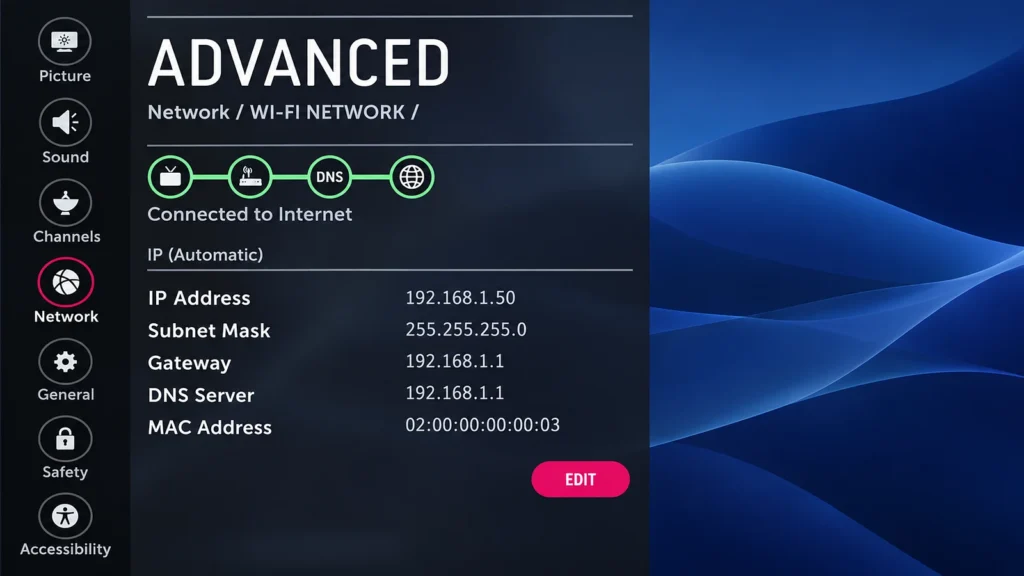
If playback later freezes or buffers, try Ethernet or a less congested Wi-Fi connection. Our connection guidance covers the basics.
4. Open the LG Content Store
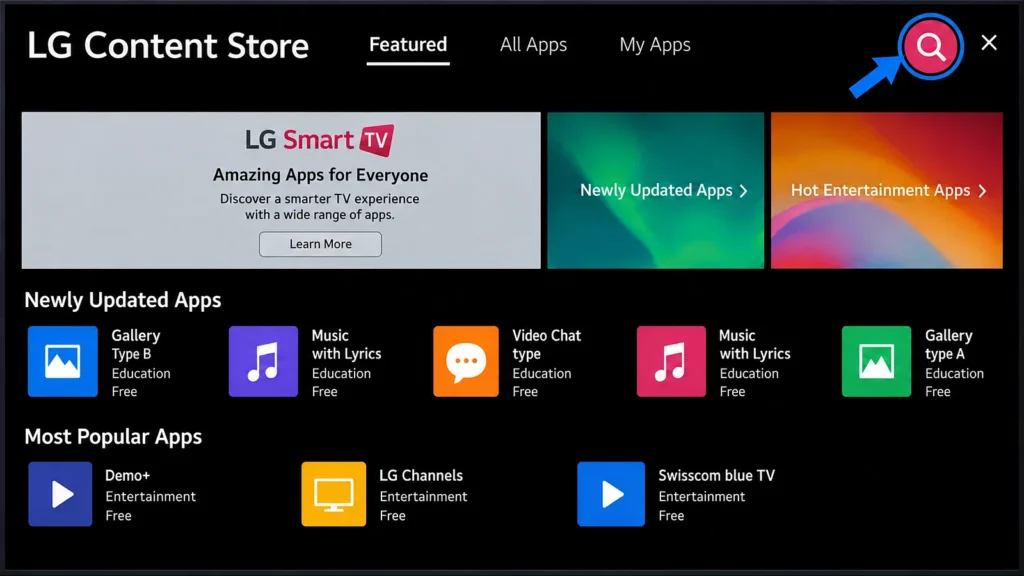
LG Apps (called the LG Content Store on some versions) is the official place to get IPTV player apps on webOS. Its icon and name vary by model and software version.
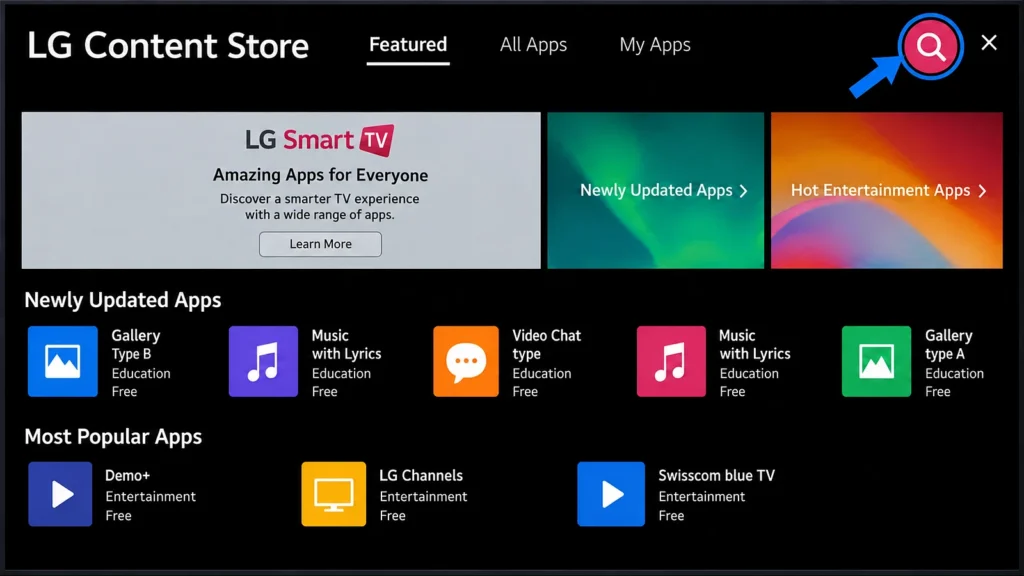
Press Home, open LG Apps or the LG Content Store and select the search icon. On some versions it may simply be labelled Apps. If it is missing, check the model, country and current LG support instructions.
5. Install an IPTV Player App
Pick a player that matches the connection method your provider supports. Availability and supported login methods depend on the app, exact LG model and country.
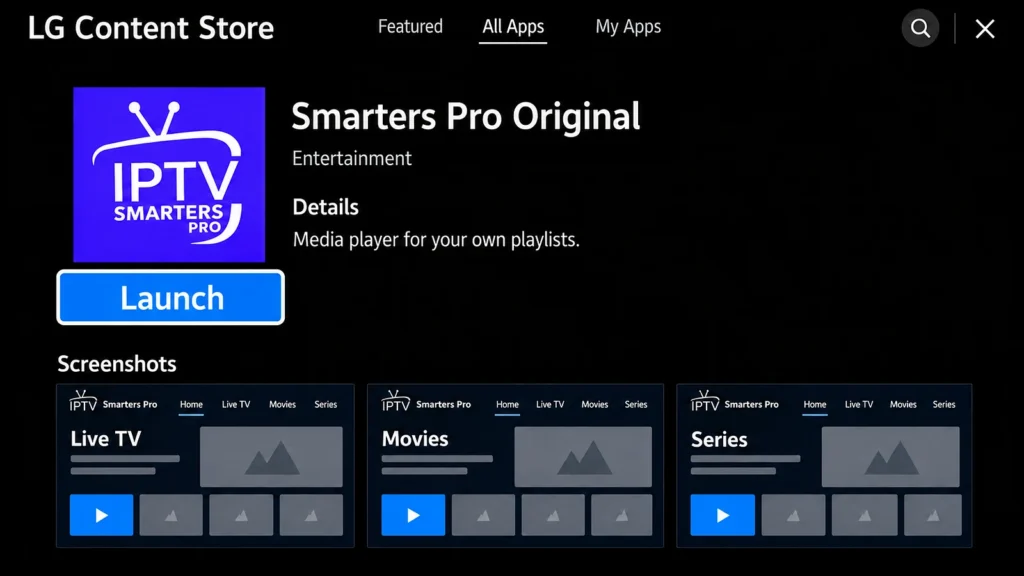
Search for the player name shown in LG Apps. If a compatible Smarters player is listed for your model and region, verify its publisher and supported login methods before installing. The screenshots show the store-install flow; availability is not universal.
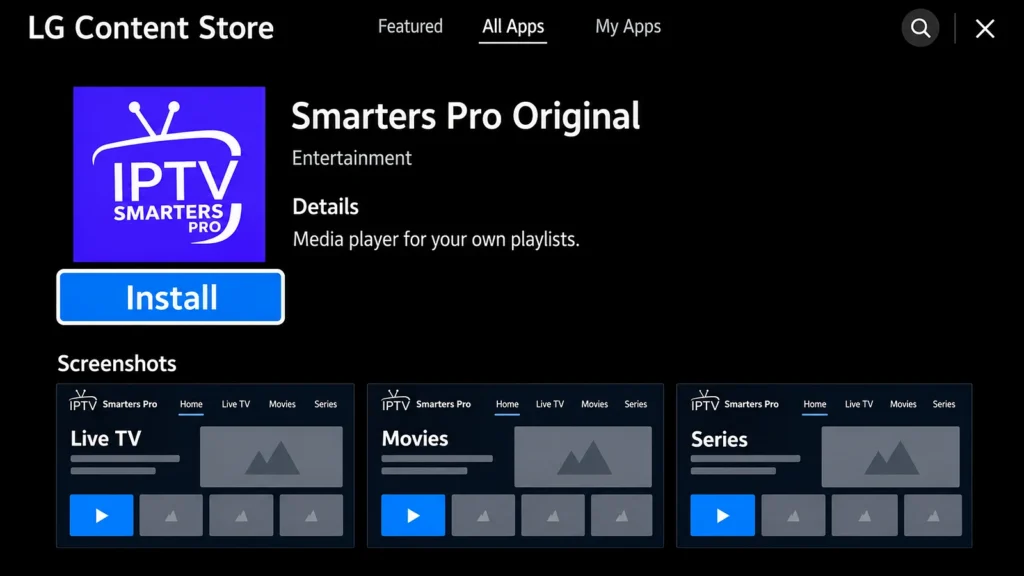
If the player you need is not listed, do not assume an Android app will run on webOS. Check the app developer’s current LG instructions or choose another player that is actually offered for your model and region.
6. Choose Your Connection Method
LG player apps can use different connection methods; the available fields depend on the app and your provider.
- Direct login (Method A): enter your Xtream Codes or M3U details inside the app, all on the TV.
- Device ID linking (Method B): the app shows a MAC address or device ID, and you add your playlist to it on the app’s website from a phone or computer.
Use the method documented by the installed app. A direct login stays on the TV; device-ID linking uses a phone or computer for the playlist step.
7. Method A: Log In Directly With Xtream Codes or M3U
This route stays on the TV when the installed player exposes Xtream Codes or M3U fields. Enter the exact details from your provider, since a single typo can block the connection. See our IPTV device guide for general player guidance.
Step 1: Open the app
Open the installed player (select Launch in the store, or open it from your apps) and, if asked, choose to add a user or playlist.
Step 2: Choose the login type
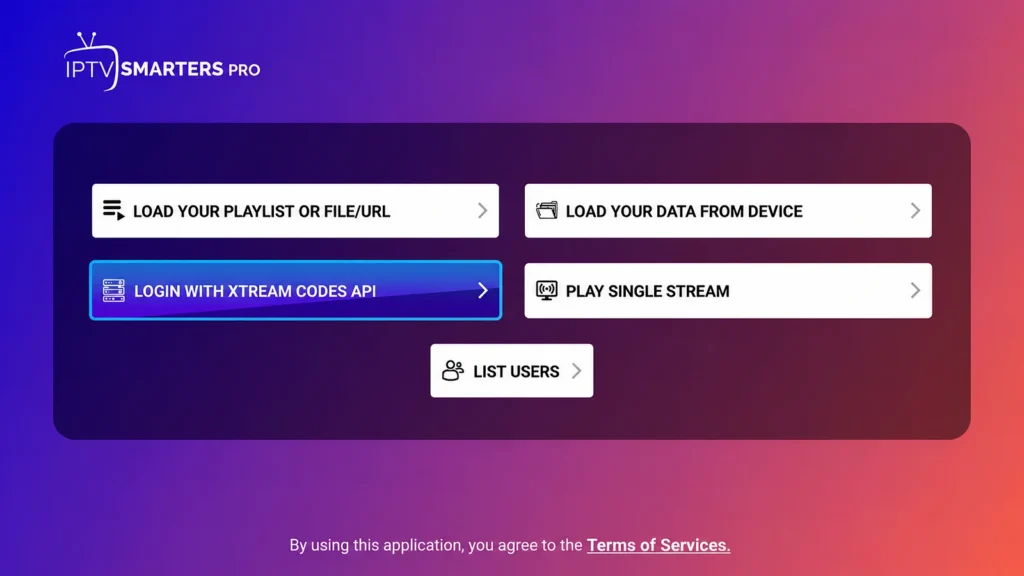
Choose Login with Xtream Codes API if the app offers it, or Load Your Playlist or File/URL for an M3U link.
Step 3: Enter your details
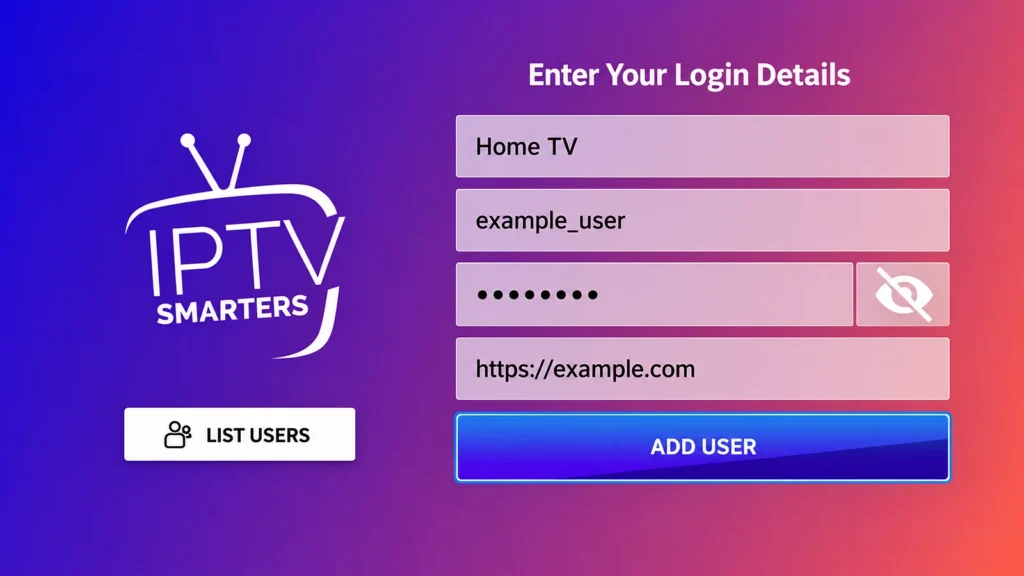
For Xtream Codes, enter any name, then your username, password and server URL, and select Add User. For an M3U link, enter the full link instead.
Step 4: Test your channels
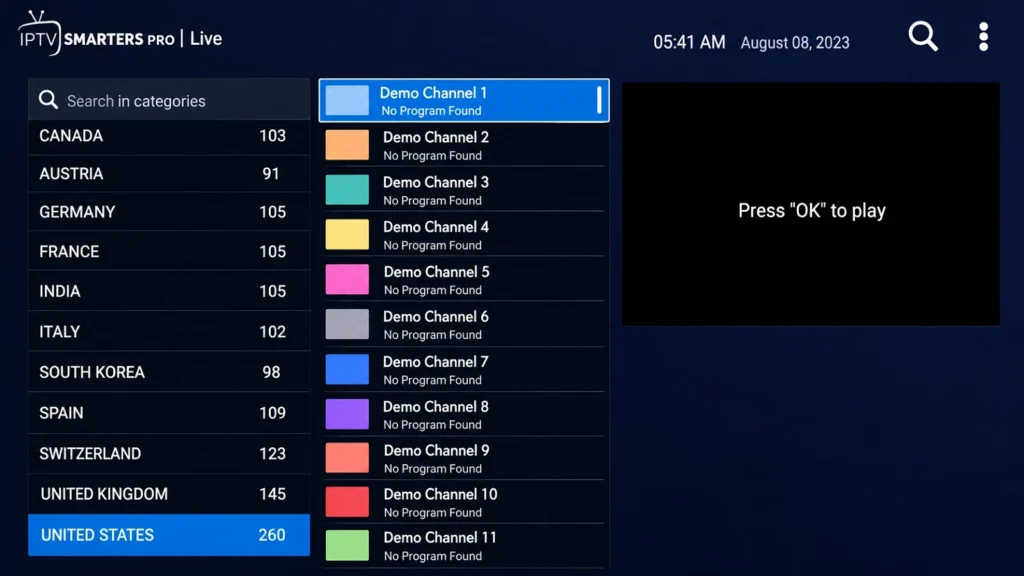
Wait for the channels and guide to load, then open the live channels list and try a few channels.
8. Method B: Link a Playlist With Smart IPTV’s Device ID
Smart IPTV links a playlist using the MAC address or device ID shown by the app. Its official LG setup page covers installation, and its My List page documents playlist uploads.
Step 1: Install Smart IPTV
Press Home, open LG Apps or the LG Content Store, search for Smart IPTV and select Install if it is offered for your model and region.
Step 2: Write down the device ID
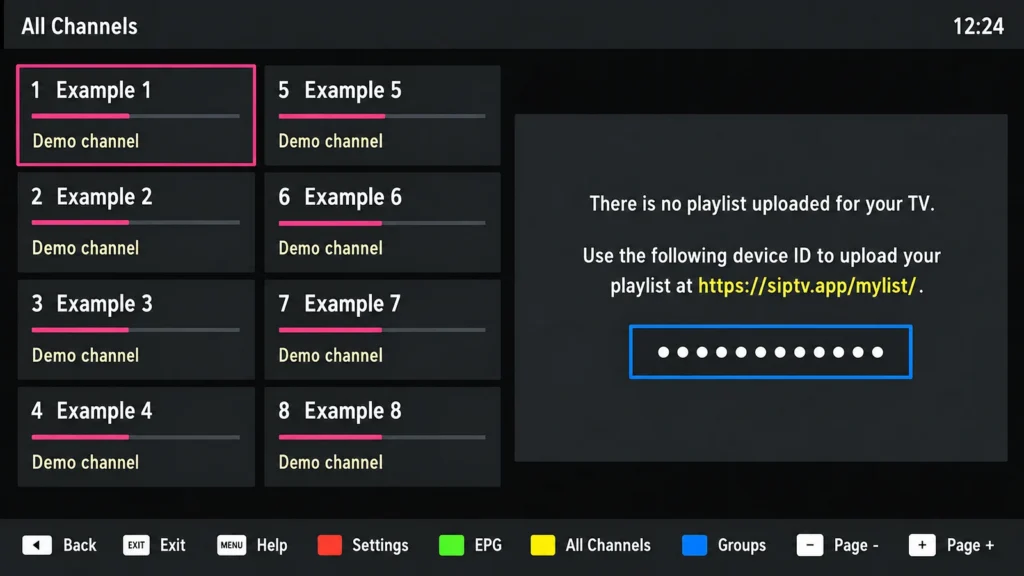
Open Smart IPTV and write down the MAC address or device ID it displays. Use the value the app requests when you upload the playlist.
Step 3: Open the playlist page
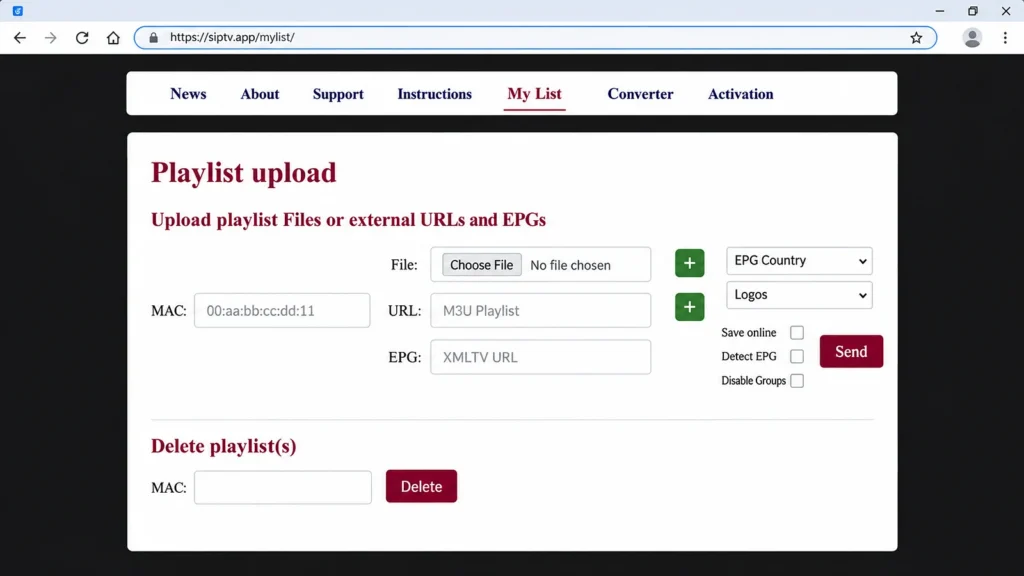
On a phone or computer, open siptv.app/mylist to add your playlist. The official activation page explains the separate paid activation step; activation does not provide channels.
Step 4: Upload your playlist
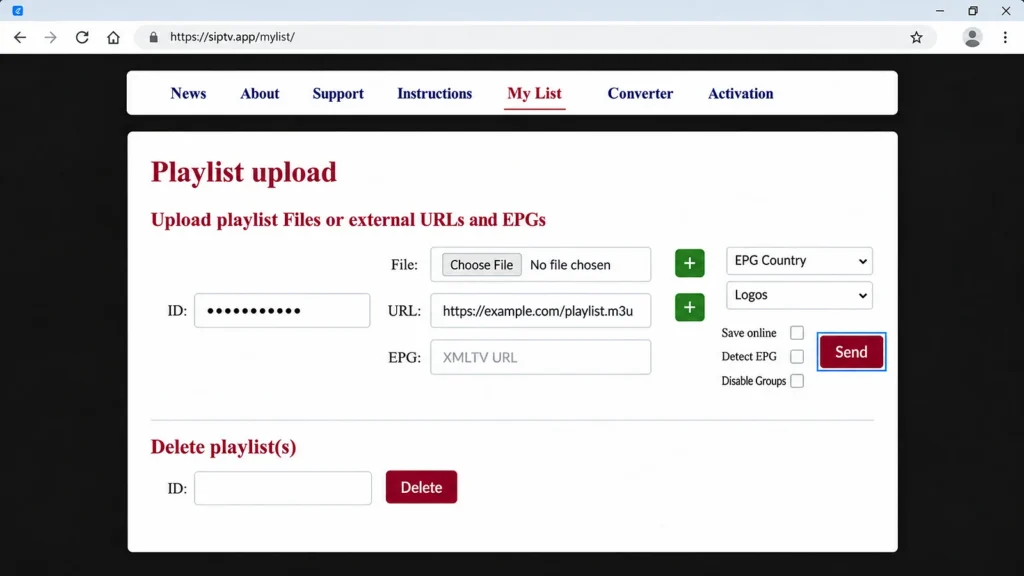
Enter the MAC address or device ID from the app, then upload a playlist file or paste an external URL. If you are using an M3U link, use the URL field and follow the form’s available EPG options before selecting Send.
Step 5: Reload the app
Restart Smart IPTV, or press 0 on the remote to reload the playlist, and then check whether your channels appear.
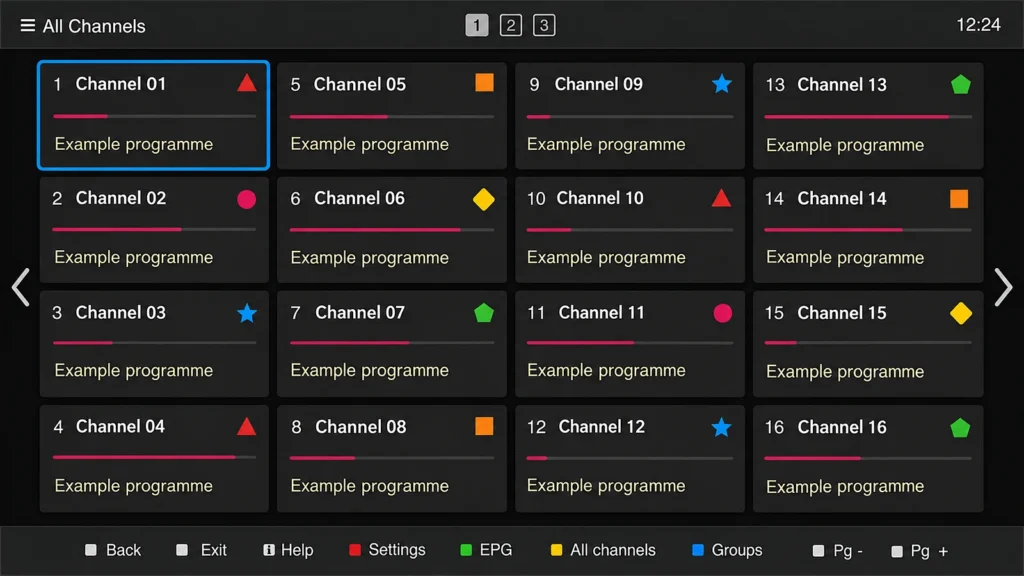
9. Load and Check Your Channels
Once connected, take a moment to confirm everything works before settling in. The first load and guide sync can take a couple of minutes.
- Test a few live channels from different categories.
- Check the Movies and Series sections if your plan includes them.
- Confirm the programme guide is showing listings. If it is empty, reload the playlist and review the provider’s or app’s EPG settings; see our IPTV FAQ.
- Add your favourite channels for quicker access.
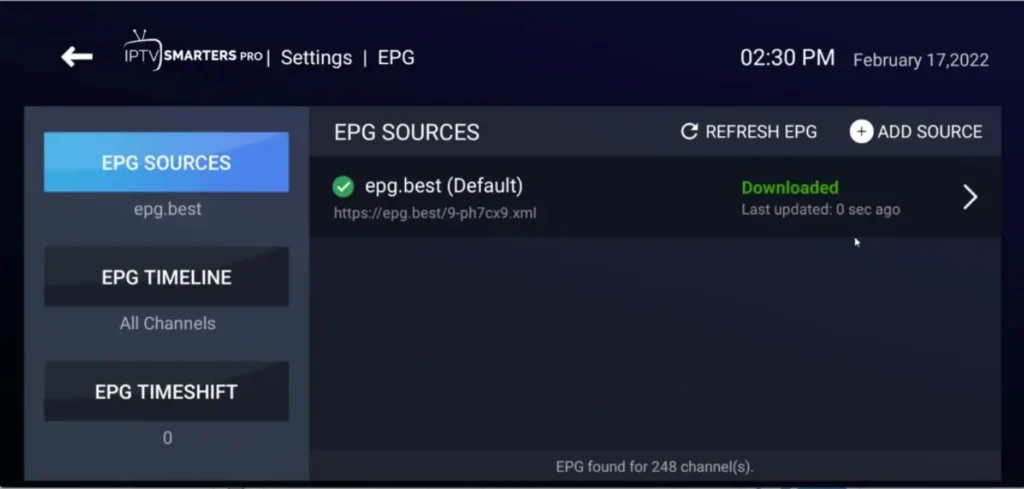
10. Optimize, Secure, and Troubleshoot
A few final adjustments help with common LG issues such as buffering or a black screen. On webOS, a black screen can reflect an unsupported video format or DRM requirement, a missing stream, or a connection problem.
- Use the provider’s recommended bandwidth. As general planning figures, allow around 25 Mbps for HD and 50 Mbps for 4K; actual needs vary.
- Try Ethernet if the picture freezes or buffers; a stable Wi-Fi connection may also be sufficient.
- If a channel shows a black screen, try its SD or HD version and check the model and app’s supported stream formats.
- Refresh or reload the playlist from the app if channels are missing.
- If everything stops at once, check whether the service itself is down and review our IPTV FAQ.
- Use the player’s parental controls or PIN settings where available before children use the TV.
Frequently Asked Questions
Can any LG Smart TV run IPTV?
Not every LG Smart TV supports the same IPTV apps. Availability depends on the exact model, webOS version, country and current LG Apps listing. Use LG’s TV App Search to check the model before relying on a player.
Older or unsupported sets may be better served by an external streaming device. Check the TV’s webOS information and the app developer’s current requirements.
Do I need an external box or stick for my LG TV?
Some compatible LG TVs can run a supported player directly, but an external box or stick may be needed when the required app is unavailable, the model is too old, or the stream format is not supported.
Use an external device only when it solves a specific compatibility problem; our device guide covers common alternatives.
Why isn’t the IPTV app showing in my LG Content Store?
App availability varies by country, exact TV model and webOS version, so a player offered in one store may not appear in another. If your search returns nothing, check LG’s country and model settings and the app developer’s current instructions.
If the required app is not offered for the TV, consider a supported alternative or an external device.
What’s the difference between direct login and device ID linking?
Direct login means you type your Xtream Codes fields or M3U link straight into an app on the TV, when that app provides those fields.
Device-ID linking means the app shows a MAC address or device ID and you add your playlist through the app’s website from a phone or computer. Use the identifier the app displays.
Why does Smart IPTV show a device ID instead of my TV’s MAC address?
Smart IPTV may show a device ID instead of the TV’s network MAC. Always enter the identifier shown by the app when you upload your playlist; do not substitute a different network address.
Why do I get a black screen on certain channels?
A black screen on one channel can indicate an unsupported codec or DRM requirement, a missing stream, or an app/player issue. Check the model and app documentation before assuming a particular codec or release year is responsible.
Try the SD or HD version of the same channel, restart the app and reload the playlist. If only one service fails, ask the provider for a compatible stream format.
What internet speed do I need for an LG Smart TV?
Use the provider’s recommended bandwidth. As general planning figures, around 25 Mbps may suit HD and around 50 Mbps may suit 4K, but stability, stream format and other devices on the network also matter.
If several devices use the network at once, allow for their combined demand so the TV is not starved of bandwidth.
Is IPTV on an LG Smart TV legal in the UK?
The LG TV and player apps are tools. In the UK, legality depends on whether the service is authorised to distribute the channels and on-demand content you access. Use a provider that has the necessary rights; an app’s availability is not proof that a service is authorised.
If you are unsure about a service, check its licensing information and seek independent legal advice. Our IPTV FAQ provides general guidance.
Conclusion
A compatible LG TV can run IPTV without extra hardware when the required player is available for that model and region. Use a player that supports your provider’s login or playlist method; Smart IPTV’s documented MAC/ID workflow is one option where the app is supported.
If playback fails, check the model and app support, playlist details, stream format and connection before changing hardware.