
GSE Smart IPTV is a playlist player for compatible Apple devices and other supported platforms. The setup is to install the current app listing, choose the matching playlist or Xtream Codes menu, add the provider details and allow the app time to download the channel and guide data.
1. What GSE Smart IPTV Is and Where It Runs
Before you start, confirm the device and app version, copy the connection details carefully and avoid sharing a URL that contains credentials. A clean test with one playlist is more useful than adding several sources at once, especially when diagnosing an empty guide or a channel that will not play.
- iPhone and iPad: use the current GSE SMART IPTV PRO listing for iPhone and iPad. The UK listing identifies droidvision as the developer.
- Apple TV: install the separate GSE SMART IPTV PRO Apple TV listing. Its requirements and price are different from the mobile edition.
- Android phones, Android TV and Google TV: current paid and free GSE listings are published by droidvision. Availability still depends on the device, Android version and store region.
- Fire TV Stick: an official GSE Amazon Appstore listing was not confirmed during this review. Do not treat an old Downloader code as an official GSE installation method; use a supported app from a trustworthy source instead.
2. What You Need Before You Start
- An Apple Account and, where required, a payment method for the relevant GSE listing.
- Your provider details: either a complete M3U playlist URL or the Xtream Codes server URL, username and password.
- An XMLTV/EPG URL if your provider supplies a separate guide feed.
Treat playlist URLs as private account information. Some M3U links contain a username, password or token, so do not post them publicly or paste them into an untrusted website for testing. Keep server details private and install the player from an official store or the developer’s trusted site.
If you want to check that your service works before buying a paid player, use a reputable free player or trial supplied by the provider. The app itself does not provide channels, and a trial or subscription should be used only in line with the provider’s terms.
3. Install GSE on iPhone or iPad
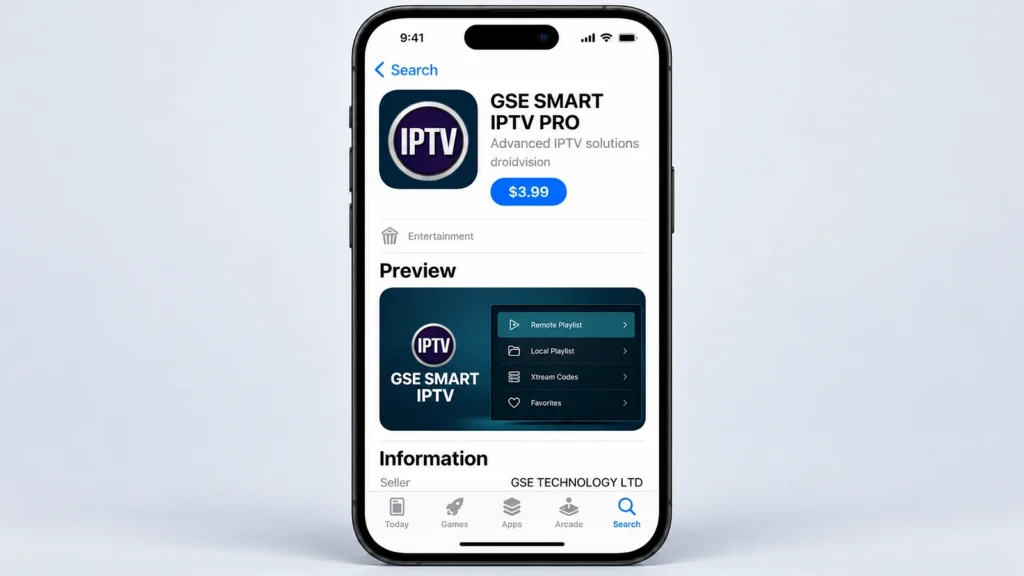
Open the App Store, search for GSE SMART IPTV PRO and check that the developer is droidvision. You can use the official UK iPhone and iPad listing; the current listing supports remote playlists, Xtream Codes API and XMLTV EPG features.
4. Add an M3U Playlist
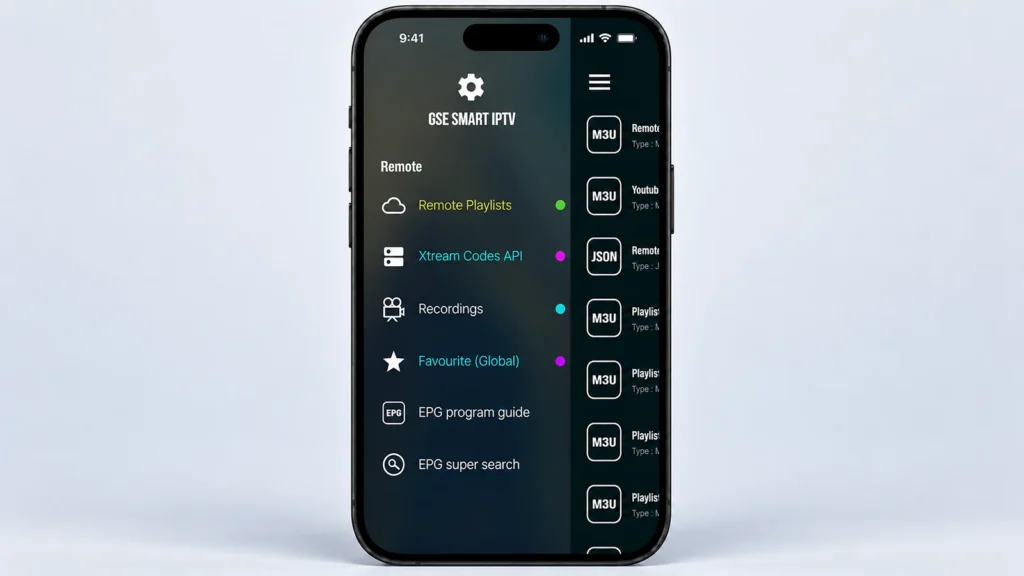
Open GSE’s side menu and choose Remote Playlists. M3U sources are managed there, while Xtream Codes API has its own menu entry for a server login.
Tap the plus button, then select Add M3U URL.
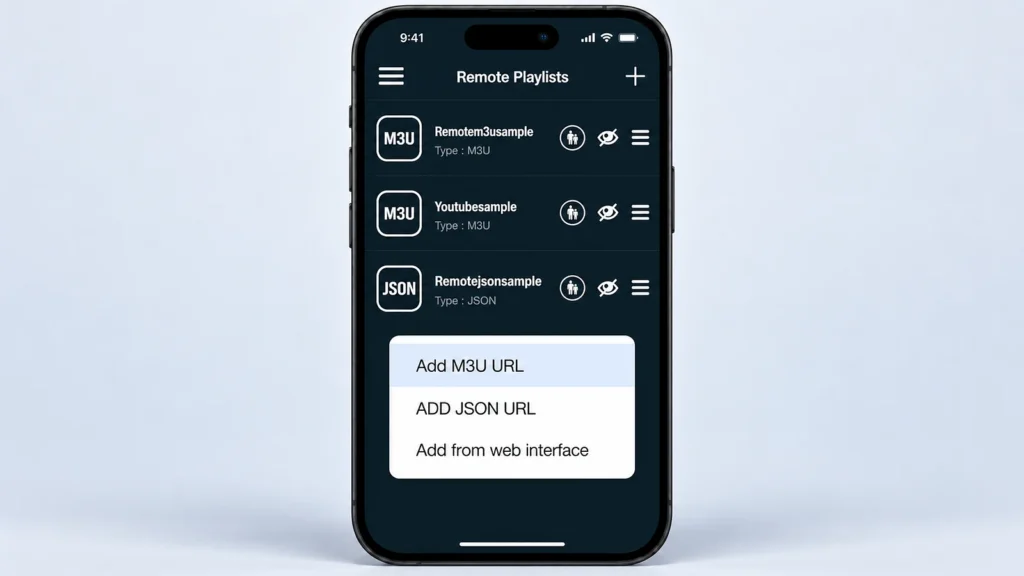
Give the playlist a short name, paste the complete M3U URL from your provider and tap Add. Open the new entry once it appears so GSE can load its channel groups. Do not share the URL: it may include credentials that give access to your account.
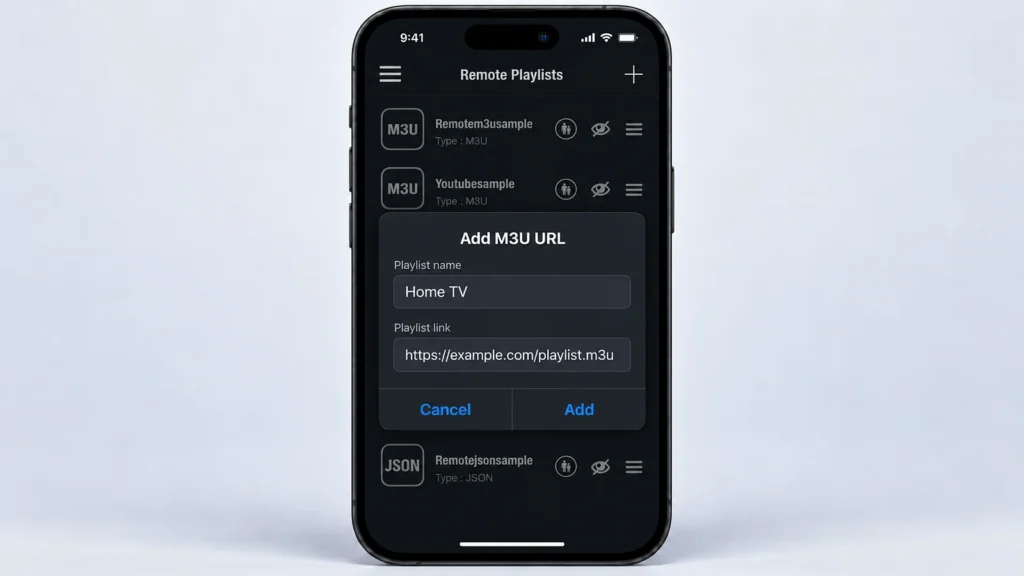
If the list does not load, copy the entire URL again rather than typing it by hand. A missing character, an expired token or a provider-side outage can all produce an empty playlist.
5. Set Up GSE on Apple TV with Xtream Codes
On Apple TV, open the App Store and install the separate GSE SMART IPTV PRO Apple TV app. It is a different listing and purchase from the iPhone and iPad version. The screenshots below show an older interface, so labels may look slightly different in a newer release.
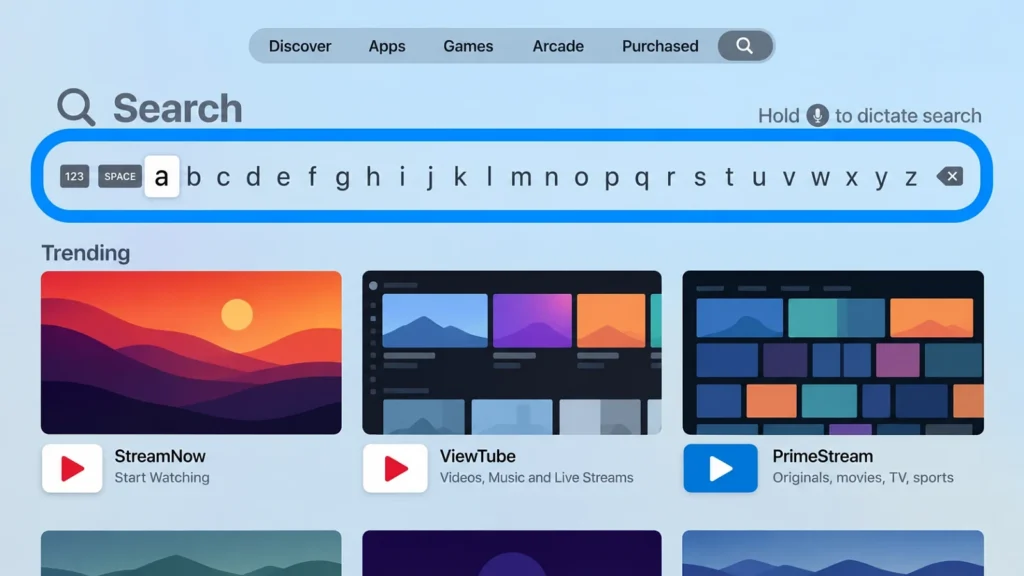
Open the app and find the playlist menu. Remote Playlists is used for M3U sources, while Xtream-codes API is used for a server URL, username and password.
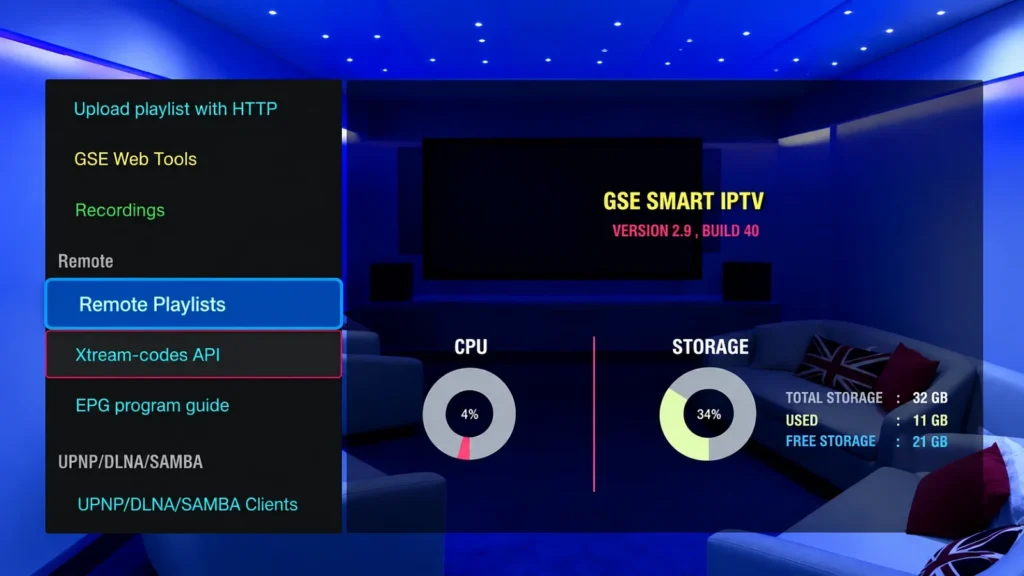
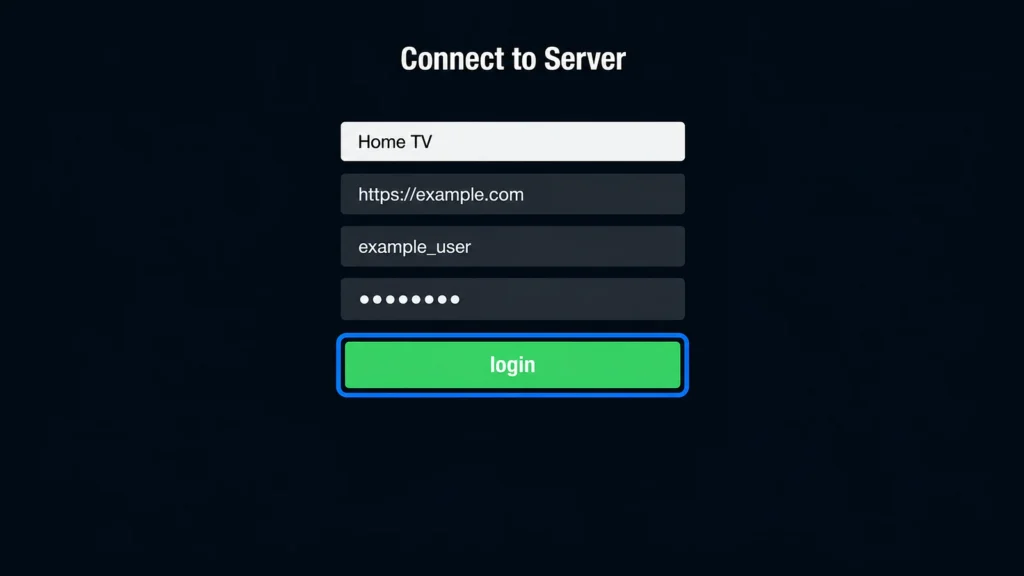
Choose Xtream-codes API and select the plus button to create a new connection.
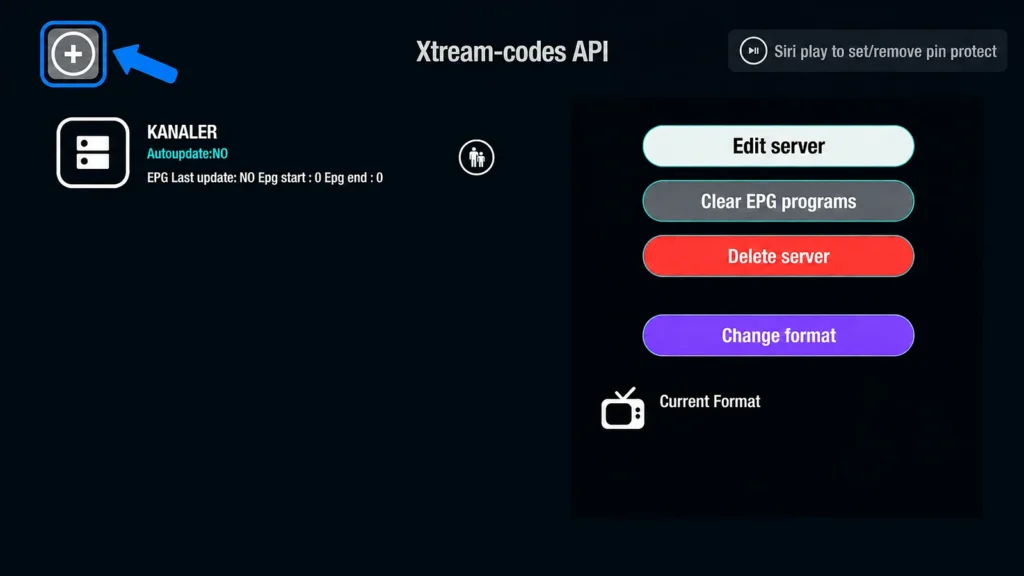
Enter a label for the connection, then type the server URL, username and password exactly as supplied. Select Login and wait for the service to respond. Keep these values private and remember that the screenshot reflects an older app build; current menu names can differ.
For related device guidance, see the IPTV setup guide and the device setup pages. The same provider credentials can be used on another supported device, but each app may have its own purchase and settings.
6. Add the TV Guide (EPG)
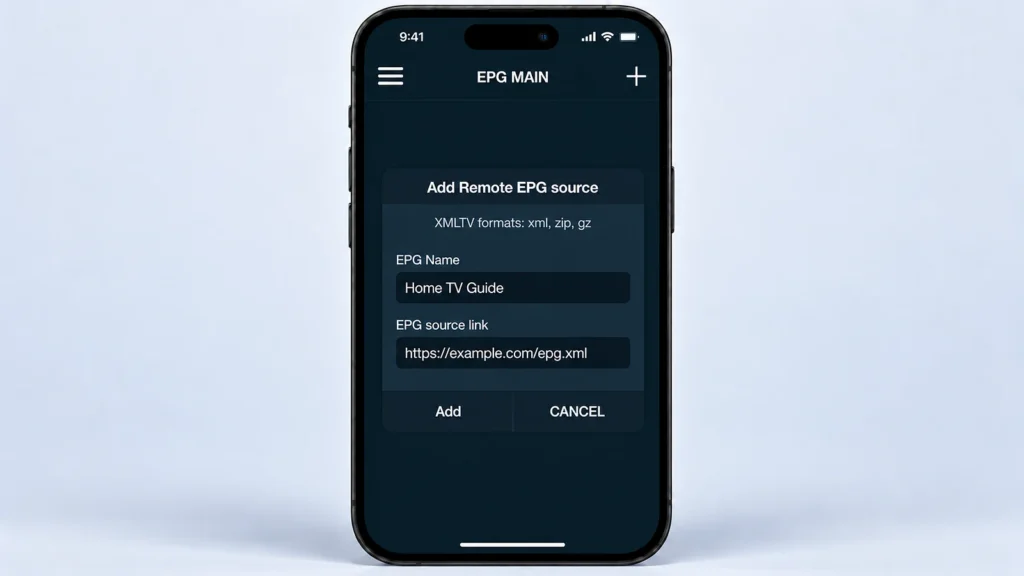
An Xtream Codes connection may bring guide data with the channels. If the guide is empty, or you used an M3U playlist, add the XMLTV source separately. On iPhone and iPad, open the EPG program guide menu, tap plus, choose Add Remote EPG source, enter a name and paste the XMLTV URL, then tap Add.
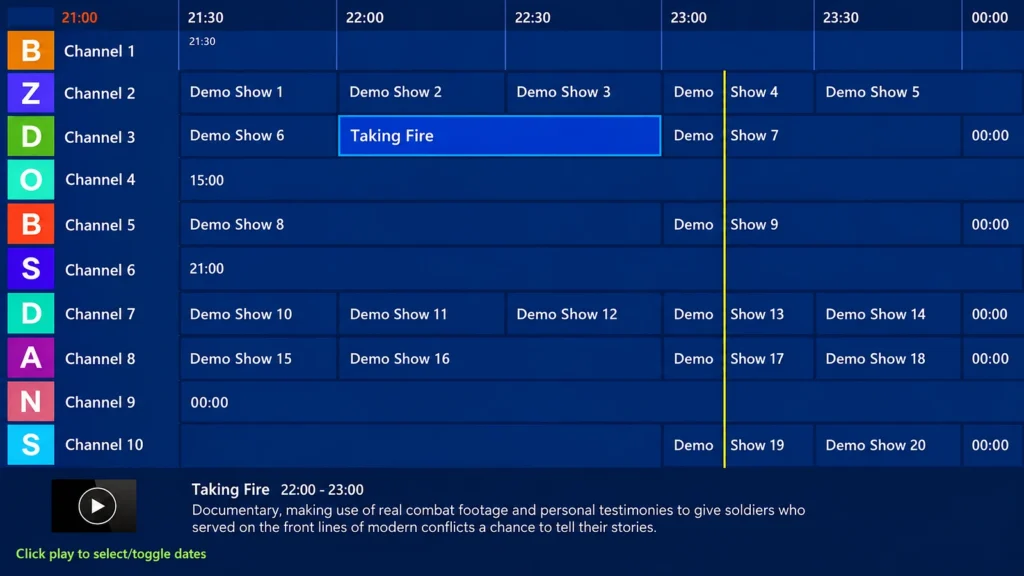
On Apple TV, the EPG option is in the app’s guide settings. Check a familiar channel after the guide loads. If every programme is shifted by the same number of hours, correct the device time zone and the app’s EPG time-zone setting where available.
7. Fix Common GSE Problems
| Problem | Likely cause | What to try |
|---|---|---|
| Playlist added but no channels | The playlist was not opened, the URL is incomplete or the provider is unavailable | Open the playlist, copy the full URL again and check the provider status |
| Xtream login fails | A typing error, wrong capitalisation or a missing port number | Re-enter the server URL, username and password exactly as supplied |
| Guide is empty | No EPG source was added or the XMLTV link is wrong | Add the XMLTV address as a Remote EPG source in section 6 |
| Guide times are wrong | The device and guide use different time zones | Set the correct time zone on the device and in GSE’s EPG settings |
| Channels freeze or buffer | Wi-Fi congestion, weak signal or a provider/server problem | Try a stronger connection or wired Apple TV network, then check the service with the provider |
| Wrong app purchased | A lookalike listing was selected | Check that the listing names droidvision as developer; Apple refund requests go through Apple’s official support |
If a channel fails in GSE, try the same provider details in another reputable player. If the connection fails there too, the problem is more likely the URL, credentials or service than the GSE app.
8. Is GSE Smart IPTV Legal?
GSE is a media player, but the legality of what you watch depends on the source and the rights behind the stream. Use playlists from providers that are authorised to supply the channels in your jurisdiction, and avoid public lists or services that cannot explain their licensing. Installing the app alone is not a guarantee that every stream is lawful. See the IPTV FAQ for general guidance.
Frequently Asked Questions
Is GSE Smart IPTV free?
The current mobile and Apple TV PRO listings are paid products, and the Apple TV edition is a separate purchase. A free GSE version may be available on some platforms, but check the current official store listing for your device.
Does GSE Smart IPTV work on a Fire Stick?
The audit did not confirm an official GSE Amazon Appstore listing, so this guide does not promise Fire TV compatibility. Use an IPTV player with a current, trustworthy listing for your Fire TV model instead.
Is GSE available on Android?
Yes. Current free and paid GSE listings on Google Play identify droidvision as the developer. Whether the app appears on a particular Android TV or Google TV device depends on its model, Android version and store region.
Should I use M3U or Xtream Codes in GSE?
Use whichever format your provider supplies. Xtream Codes can be quicker to enter on Apple TV because it uses separate fields, while M3U is convenient when you can paste a complete URL on an iPhone or iPad.
Do I have to buy GSE again for Apple TV?
Usually, yes. The Apple TV app is a separate App Store listing from the iPhone and iPad app, so check the current store page before purchasing.
Can I use GSE on several devices?
You can install supported editions on more than one device, but app purchases and provider connection limits are separate considerations. The number of simultaneous streams is set by your provider’s plan, not by GSE.
Conclusion
For anyone learning how to set up IPTV on GSE Smart IPTV, the process is a matter of choosing the right official app for your device, then adding the M3U, Xtream Codes or EPG details supplied by your provider. Start with one device, keep every login private and remember that the player does not supply channels or licensing.
When you are ready, review the IPTV plans or start a free trial offered on this local site. Check the provider’s terms and rights before you subscribe, and use the same carefully protected credentials on any other supported device.