
Formuler, MAG, Dreamlink and AVOV boxes commonly use a portal or built-in player rather than a normal mobile-app installation. The essential sequence is to connect the box, record its identifier accurately, enter the authorised portal details and wait for the provider to activate the device.
If you are learning how to set up an IPTV box for the first time, follow the sections in order and use the matching screenshots. Keep portal addresses, MAC IDs and login details private. For TVs, sticks and phones, our IPTV setup guide covers the other common routes.
1. How to Set Up an IPTV Box: How Portal Connections Work
Identify the exact model and firmware before typing anything, because portal labels and menu locations differ. Keep the MAC address, portal URL and login details private, and use the provider?s documented format rather than converting an M3U or Xtream setup into a portal address yourself.
| Box family | Manufacturer | Platform or environment | Where to enter the service | MAC activation |
|---|---|---|---|---|
| Formuler Z8/Z10/Z11 families | Formuler | Android TV with MyTVOnline | MyTVOnline Content Sources | Usually; some plans also use Xtream Codes or M3U |
| MAG 254/322/324/424/524 and similar | Infomir | Embedded portal environment | Settings > System settings > Servers > Portals | Normally required for a portal |
| Dreamlink T1, T1+ and T6 | Dreamlink | Model-dependent built-in software | Dreamlink Online (DOL2) service entry | Commonly required; verify by model |
| AVOV TVOnline families | AVOV | Built-in Market and TVOnline app | TVOnline Server Settings | Commonly required; verify by model |
When learning how to set up an IPTV box on a MAG, Dreamlink or AVOV model, remember that these devices commonly use a built-in portal or TVOnline-style application, but menus and supported formats vary by model and firmware. Treat the labels below as a practical route to the setting rather than a promise that every revision has the same screen.
For anyone learning how to set up an IPTV box, Formuler boxes are the most flexible here because they run Android TV alongside MyTVOnline. They can use a portal, Xtream Codes or M3U where supported, and may install other player apps. If you are still comparing hardware, the IPTV devices guide explains the main differences without tying the advice to one provider.
2. What to Prepare Before Setup
Before you begin learning how to set up an IPTV box, check the details twice. A single missing character in a portal URL, an unactivated MAC address or an incompatible power supply can look like a faulty box. Gather the items below before opening the setup menus.
- The portal or server address. Keep the exact value from your authorised provider. On supported Formuler setups, the provider may instead issue Xtream Codes or an M3U playlist. If you need a service plan, use the local IPTV pricing page.
- The box MAC address. The provider uses it for activation on portal-based services. Section 4 shows where the different models display it.
- A reliable network connection. Ethernet is a useful first test; if you use Wi-Fi, confirm the signal is stable where the box sits. The IPTV FAQ has general buffering checks.
- The supplied power adapter. Use the adapter rated for the box. Do not substitute an unknown supply simply because the connector fits.
3. Connect the Box to the Internet
Connect HDMI, then the network, then power. Confirm that the box is online before entering a portal: without a live connection, later screens may show an error even when the address and MAC are correct.
- Connect HDMI from the box to the TV and select the matching input.
- Connect Ethernet where possible, or join the supported Wi-Fi network. Some MAG models require a compatible Wi-Fi adapter.
- Attach the supplied power adapter and allow the box to boot fully.
- Complete the setup wizard when your model provides one, including language, network and terms screens.
- Open the network screen and confirm that the box has an IP address. On MAG this is under its network settings; on other models it may be under Settings.
- Install an update only when the box offers it through its normal, trusted update path.
4. Find the Box’s MAC Address
Your MAC address is the device identifier used for activation. It is normally shown as six pairs of letters and numbers, but the exact screen differs between brands and models:
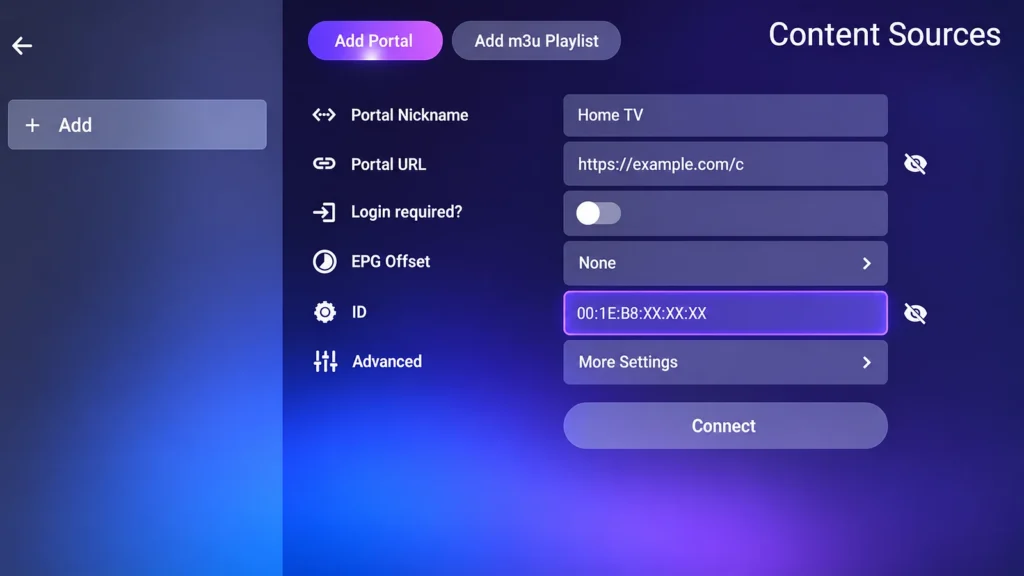
- Formuler: use the MAC-ID shown under ID on the MyTVOnline Add Portal screen, or the identifier printed on the box when the provider asks for it. Do not substitute a different network MAC.
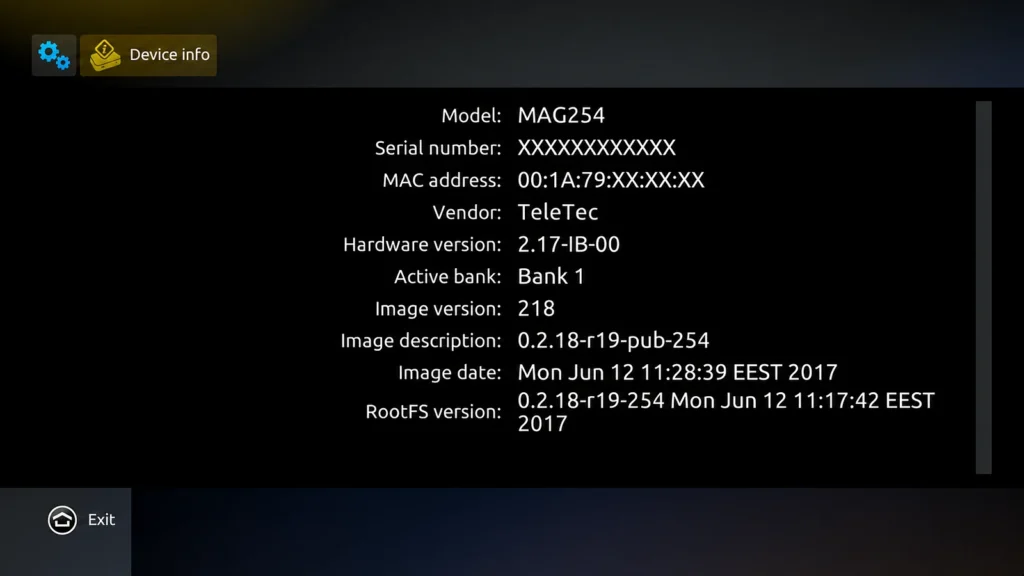
- MAG: check System settings, Device info, or the label on the underside of the box.
- Dreamlink: open Dreamlink Online (DOL2) and use the MAC address displayed there.
- AVOV: open TVOnline, choose Server Settings and read the MAC address shown on that screen.
Copy the address exactly, including colons, and keep it in a private note. Some providers request it when you order a subscription; if it has already been submitted and confirmed, continue to the portal step.
5. Send the MAC Address for Activation
The provider must register the MAC address before a portal can return channels. Send the address through the provider’s account area or support channel and ask for the exact portal URL if it was not supplied. Activation may be quick or may require a reply from support; do not assume an empty portal means the hardware is damaged.
6. Set Up MyTVOnline on a Formuler Box
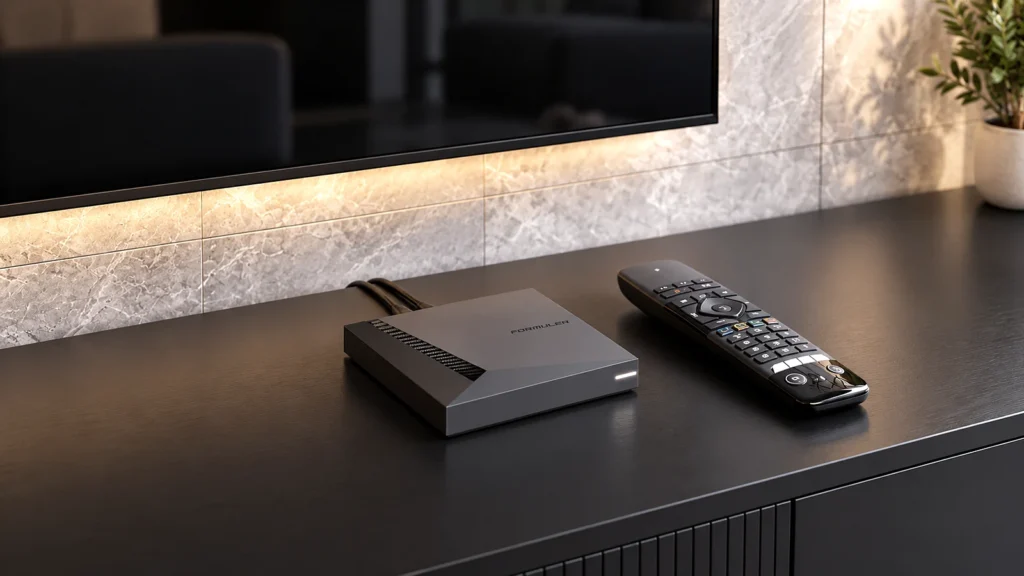
Formuler boxes normally include MyTVOnline 3 (MTO). The app may have a dedicated remote button, but you can also open it from the home screen. Portal labels can move slightly between MTO versions.
Step 1: Connect the Formuler box
Connect the box to the TV by HDMI, attach power and use Ethernet or the available Wi-Fi option. Complete the first-run wizard, including the network connection, before opening MyTVOnline.
Step 2: Open Add Portal
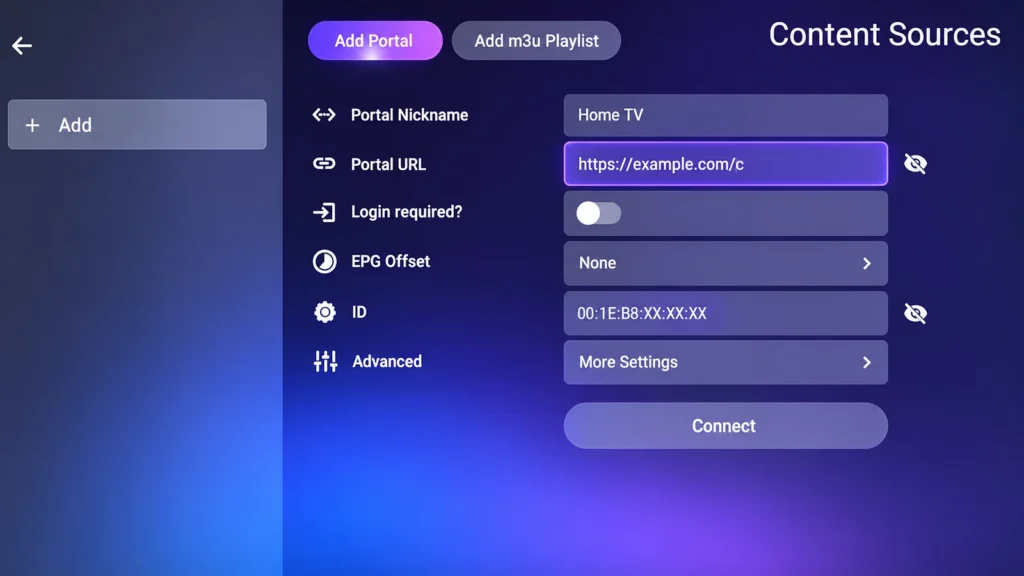
Open MyTVOnline 3, choose Menu, then Content Manager, Content Sources and Add Portal. If your model uses a slightly different label, look for the portal or content-source entry in MTO.

Step 3: Enter the portal details
Give the portal a short nickname and paste the URL exactly as supplied. For MAC activation, leave Login required off. If the provider supplied a username and password instead, enable the login fields and enter them carefully without sharing them publicly.
Step 4: Send the MAC-ID for activation
When the provider uses MAC activation, send the MAC-ID shown under ID on the Add Portal screen, not a different network identifier. On Z11 models the MTO MAC-ID format can differ from older Formuler boxes, so use the value shown on the screen.
Step 5: Connect and wait for the service
Choose Connect and wait for the provider service to answer. Once activation is complete, the available sections may include Live TV, Movies, Series and catch-up, but the exact list depends on the subscription and the MTO version.
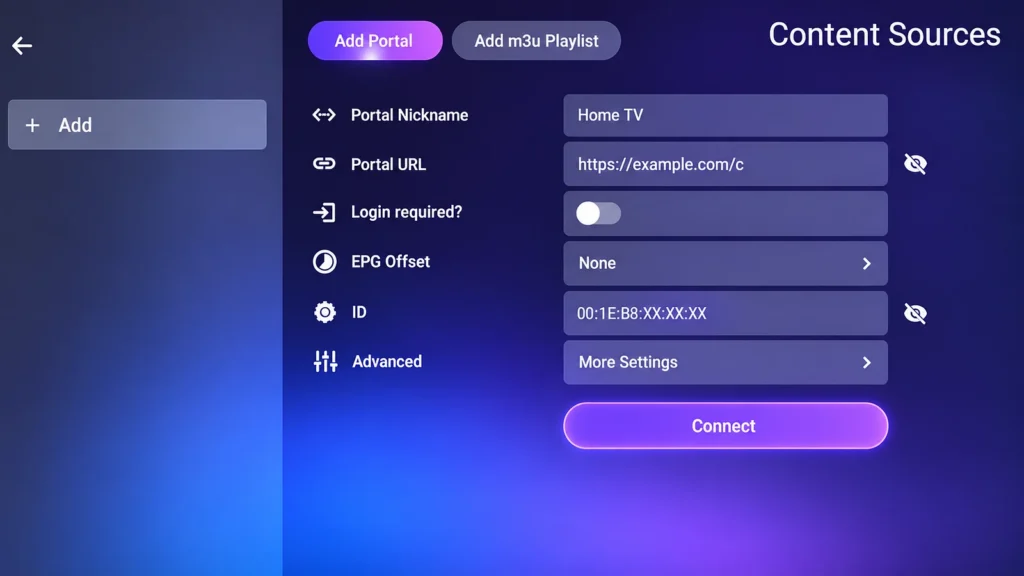
Formuler documents portal, Xtream Codes and M3U options in its official MyTVOnline portal setup guide, but your provider must tell you which one is enabled. If it sends Xtream Codes or an M3U playlist instead of a portal, enter those details through the supported MTO option; an Android TV player may be another route. See the setup guide for general app-based examples.
After channels appear, make small changes one at a time. Choose the preferred video and audio output, leave buffering at its default unless playback stalls, set a parental PIN if needed and schedule an EPG refresh only when the provider supplies guide data. Add favourites, then test catch-up, time-shift or recording only if the service and model explicitly support them.

7. Add a Portal on a MAG Box
On a MAG box, the portal is entered in the system menus and then restarted. MAG devices use their own embedded environment rather than an Android app store; Infomir’s official system-settings documentation covers the relevant menu path, while the exact labels can vary by model or firmware.
Step 1: Connect the MAG box
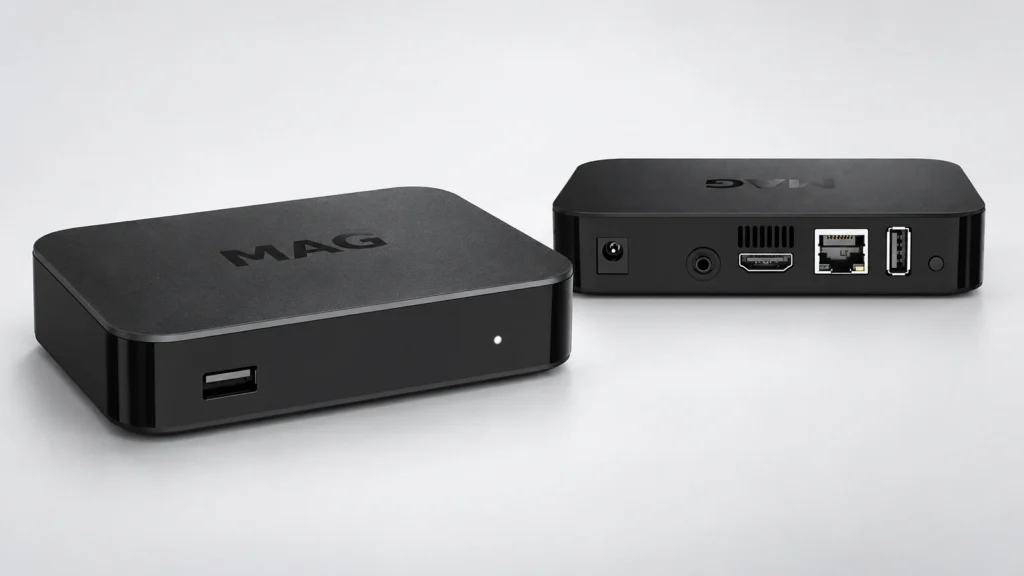
Connect the MAG box to the TV by HDMI, connect it to the router—Ethernet is the simplest option—and then attach the supplied power adapter.
Step 2: Send the MAC address
Find the MAC address in System settings, Device info, or on the label. If the screen and label disagree, ask the provider which identifier their activation system expects before continuing.
Step 3: Open the Portals screen
Open Settings, System settings, Servers and Portals. Some firmware versions place the same items under a slightly different system-settings heading.

Step 4: Enter Portal 1
Choose Portal 1, enter a short name and type the portal URL exactly as supplied, with no spaces. Save with OK, then leave the settings screen.

Step 5: Restart the portal
Return to System settings and select Restart portal, confirming if the box asks. Channels should appear only after the provider has activated the MAC and the service is available.

A second portal slot can be useful for a separate, authorised service, but keep a note of which URL belongs to which provider. To change service, update the portal and arrange a fresh MAC activation; do not publish either URL or MAC address.
8. Set Up Dreamlink and AVOV Apps
When you learn how to set up an IPTV box on Dreamlink or AVOV, the same principle as MAG applies, but the entry point is inside the built-in application. Availability, labels and supported authentication can differ by model and firmware, so use the screenshots as orientation and follow any on-screen prompts.
Dreamlink T1, T1+ and T6
Connect the Dreamlink box, complete its network prompts and install an update only when the box offers one through its own settings. Avoid downloading unverified firmware from third-party sites.
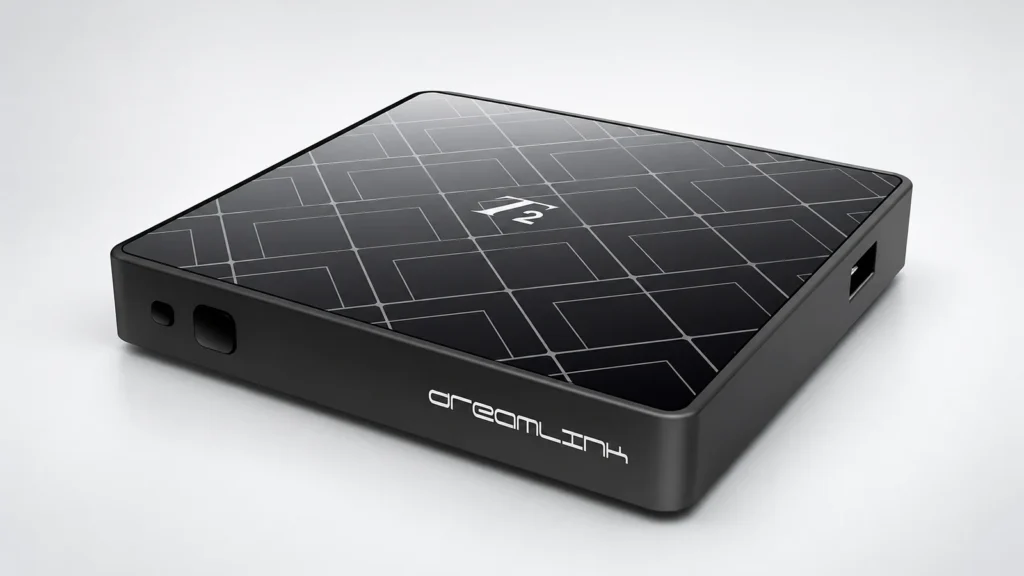
Open Dreamlink Online (often labelled DOL2) and note the MAC address shown. Send that value to the provider through a private support channel.
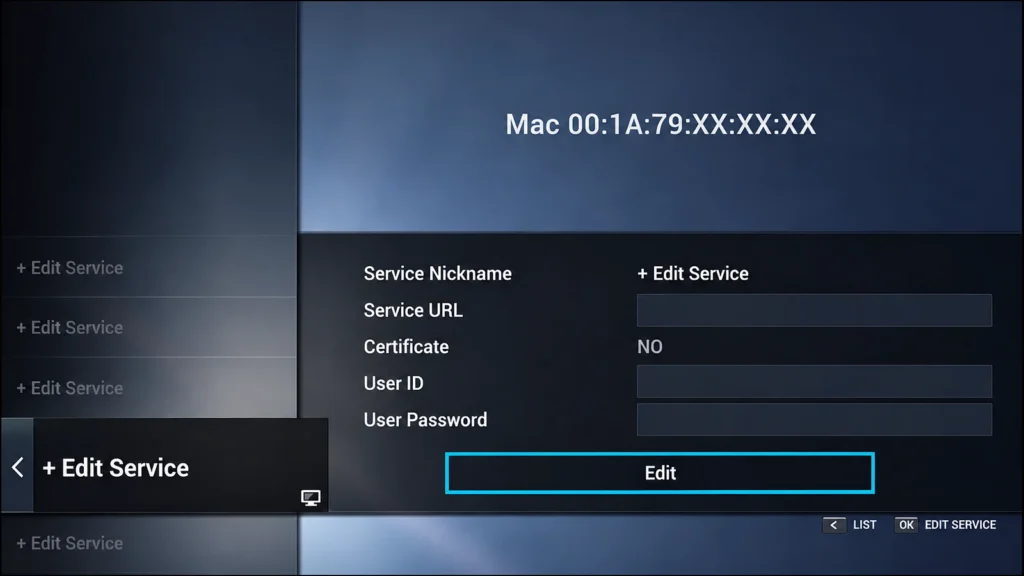
Choose + Edit Service, confirm with OK if prompted, and give the service a recognisable nickname. If your firmware uses a different button label, select the option that edits the service entry.

Enter the service URL character by character. With MAC activation, leave Certificate and user fields at their default unless your provider specifically instructs you otherwise.

Confirm with OK and let the service load. Channels, films and guide data appear only when the provider has activated the box and the service supports those sections.
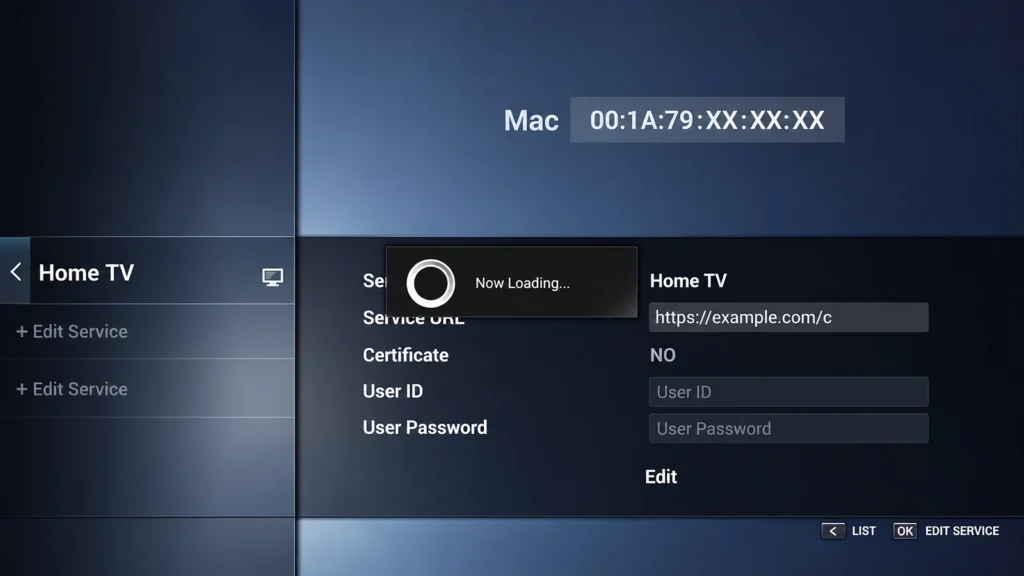
Dreamlink menus and app support vary, so do not assume every model accepts the same Xtream Codes or M3U workflow as Formuler. Use DOL2 when that is the documented route for your box and provider.
AVOV TVOnline, TVOnline+ and TVOnline N
Open the AVOV Market, choose TVOnline when it is available for your model, install it and launch it. Store availability can differ by region and firmware.

Open Server Settings and note the MAC address shown near the top of the screen. Send it privately to the provider and wait for confirmation before testing the server entry.

Choose a server slot and press OK to edit it. Enter a nickname and the server URL without spaces. Leave Use Credentials off for MAC activation; enable it only when the provider gave you login details for this app.

Choose Connect and allow the app time to contact the service. A blank list can mean that activation is pending rather than that the box is unusable.

If the connection fails, open Settings from the home screen, check the network first, then re-check the server URL and MAC activation with the provider. Keep private credentials out of screenshots and support posts.

9. Load Channels and Tune Your Settings
When you finish how to set up an IPTV box, test a few live channels, open the available film or series sections and check the programme guide. A service that only partly loads is easier to diagnose before you reorganise favourites or change settings.
- Guide. Allow the provider’s EPG time to load. If it stays empty, reload the portal, check the box time zone and confirm that guide data is included in the service.
- Favourites. Add frequently watched channels so you can reach them without scrolling the full list.
- Catch-up and recording. These features depend on the model, app, storage and provider permissions. Test them with non-sensitive content before relying on them.
- Parental controls. Set a PIN on the box or in MyTVOnline where the model supports it, and keep the PIN private.
- DNS. Change DNS only as a troubleshooting test when your network suggests a DNS problem. It cannot repair a provider outage or an invalid portal.
- Firmware. Check the manufacturer’s update screen occasionally and read the release notes when available; avoid unverified firmware files.
- Two TVs. One box normally serves one TV over HDMI. For multi-device viewing, check the provider plan and the IPTV FAQ rather than assuming a second stream is included.
10. Troubleshoot and Switch Services Responsibly
If the portal is empty or shows “STB Blocked”, start with activation: confirm that the provider has registered the MAC shown by your box. Then check the portal URL and finally the network connection, rather than resetting the hardware immediately.
| Symptom | Likely cause | What to check |
|---|---|---|
| Empty portal or “STB Blocked” | MAC not activated, expired or mistyped | Confirm the MAC and activation with the provider |
| Portal loads then errors | URL is incomplete or mistyped | Re-enter the exact address with no spaces |
| Nothing loads | Box is offline or DNS/network is failing | Check the IP address, router and service status |
| Channels buffer | Wi-Fi variation, congestion or provider capacity | Test Ethernet, lower quality and ask the provider |
| Worked yesterday, empty today | Subscription, server or activation changed | Check the account and request the current portal |
| Box freezes | Temporary data or firmware issue | Restart, use the official update path and contact support |
Changing provider normally means entering the new portal URL and arranging a new MAC activation. Keep the old entry until the replacement has been tested, and remember that a box can be compatible with the hardware while the service itself is unavailable or unlicensed.
Use only services that have the rights to supply the channels and programmes you watch. The box is general-purpose hardware; legality depends on the service, its permissions and how you use the content. Check the provider’s terms and current UK guidance if you are unsure, and treat unusually cheap pre-loaded offers as a reason to ask more questions rather than as proof of legitimacy.
Frequently Asked Questions
Why does a provider need my MAC address?
A portal provider uses the MAC address to associate a subscription with a particular box. It is an identifier, not a password, but it should still be treated as private and sent only through the provider’s secure support or account channel.
Where is the MAC address on a Formuler box?
On Formuler, open Menu, Content Manager, Content Sources and Add Portal in MyTVOnline 3. The MAC-ID appears under ID. Use that value rather than a separate network MAC shown elsewhere in the settings.
What does “STB Blocked” mean?
“STB Blocked” generally means the service has not recognised the box yet, the activation has expired or the MAC was entered incorrectly. Wait for the provider’s confirmation, then compare the value they hold with the value on the box.
Do I need an app on a MAG box?
Usually not. MAG boxes enter the portal from Settings, System settings, Servers and Portals. There is no Android app to install for that basic workflow, although firmware and menu labels vary.
Can I use Xtream Codes or an M3U link on these boxes?
If you are learning how to set up an IPTV box, Formuler officially supports portal, Xtream Codes and M3U options in MyTVOnline when the provider supplies them. Other boxes may expose different formats, so ask for the method documented for your exact model instead of assuming that every playlist format will work.
Which is better, Formuler or MAG?
Formuler is a flexible choice when you want both a portal and Android TV app options. MAG can suit someone who prefers a simpler embedded interface. Dreamlink and AVOV decisions depend on current model support, provider compatibility and the software available on the box.
Can I switch providers on the same box?
Yes, if the new provider supports the box. Add or replace the portal, send the new provider the correct MAC address and keep the old configuration until the new service has loaded. Do not run two services simultaneously unless the provider and device explicitly support it.
What internet speed do these boxes need?
A stable connection matters more than a single advertised number. As a practical starting point, allow around 25 Mbps for one HD stream and 50 Mbps for 4K, then test at the time you normally watch. Ethernet can reduce Wi-Fi variation but cannot fix a provider outage.
Is a pre-loaded portal box automatically authorised?
A pre-loaded box is not automatically proof that the service is authorised. Ask who supplies the service, what rights it has and how support handles your data. Do not enter a portal that you cannot identify or trust.
Can I record on a Formuler or Dreamlink box?
Recording, catch-up and time-shift depend on the box, the app, storage and the provider’s permissions. If recording is supported, use a suitable USB drive and check the service terms before saving programmes.
Can I use two IPTV subscriptions on one Formuler box?
MyTVOnline can store more than one portal on supported Formuler models, but only one service is active at a time. Keep each provider’s details labelled and private.
Why will TVOnline not load the portal on an AVOV box?
For an AVOV connection that will not load, check the network from the home-screen Settings first. Then verify the server URL, the selected slot and the MAC activation with the provider before changing other settings.
Conclusion
Once you have learned how to set up an IPTV box on one portal, the other models follow the same pattern: connect, identify the box, enter the authorised service address and wait for activation. The menus are different, so work from the model-specific steps and screenshots rather than guessing.
Formuler is often the most adaptable because MyTVOnline can handle more than one supported input format, while MAG is deliberately straightforward. Whichever model you own, apply updates through the manufacturer’s normal path, keep credentials private and review the provider’s terms before using the service.